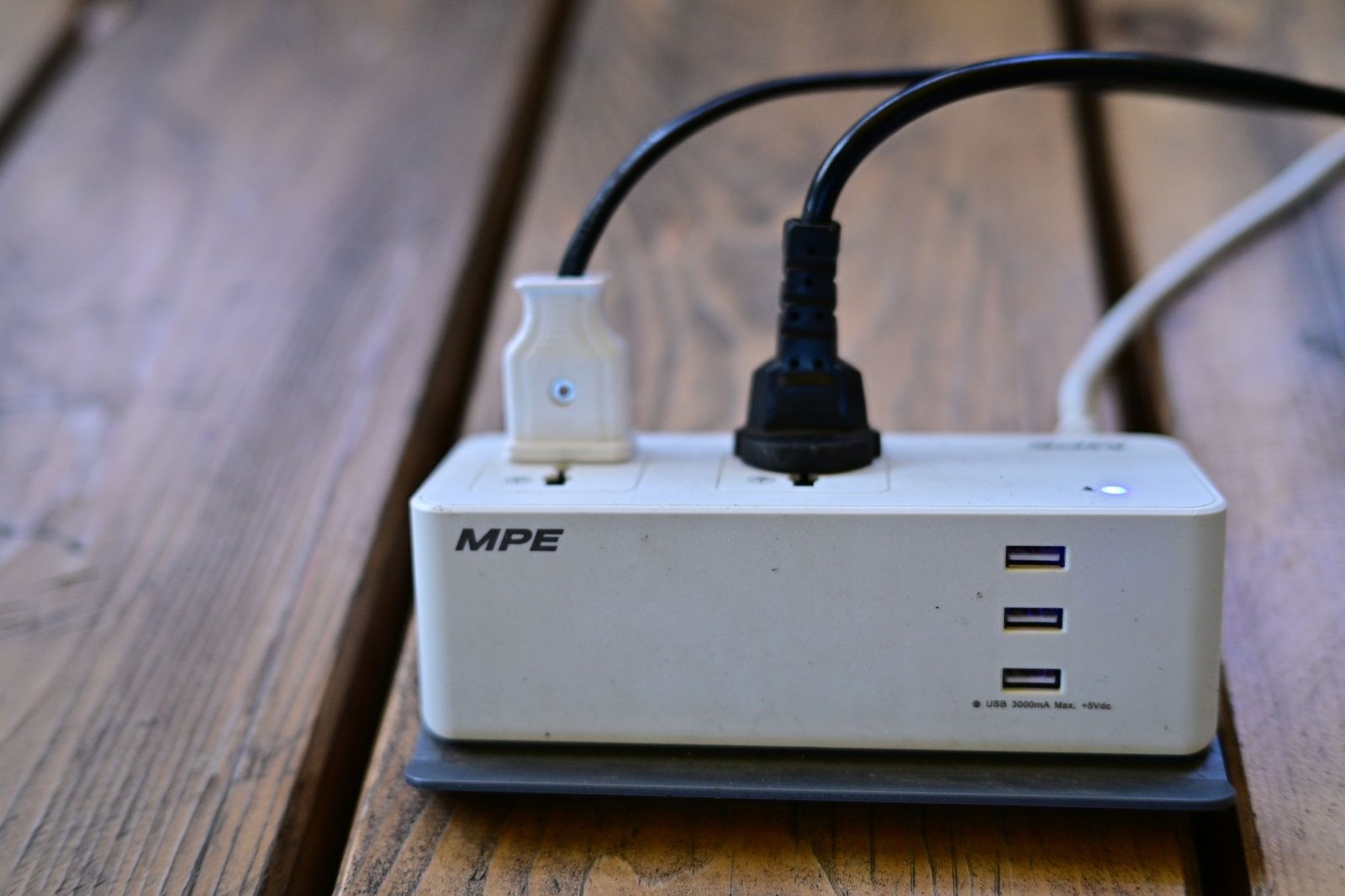

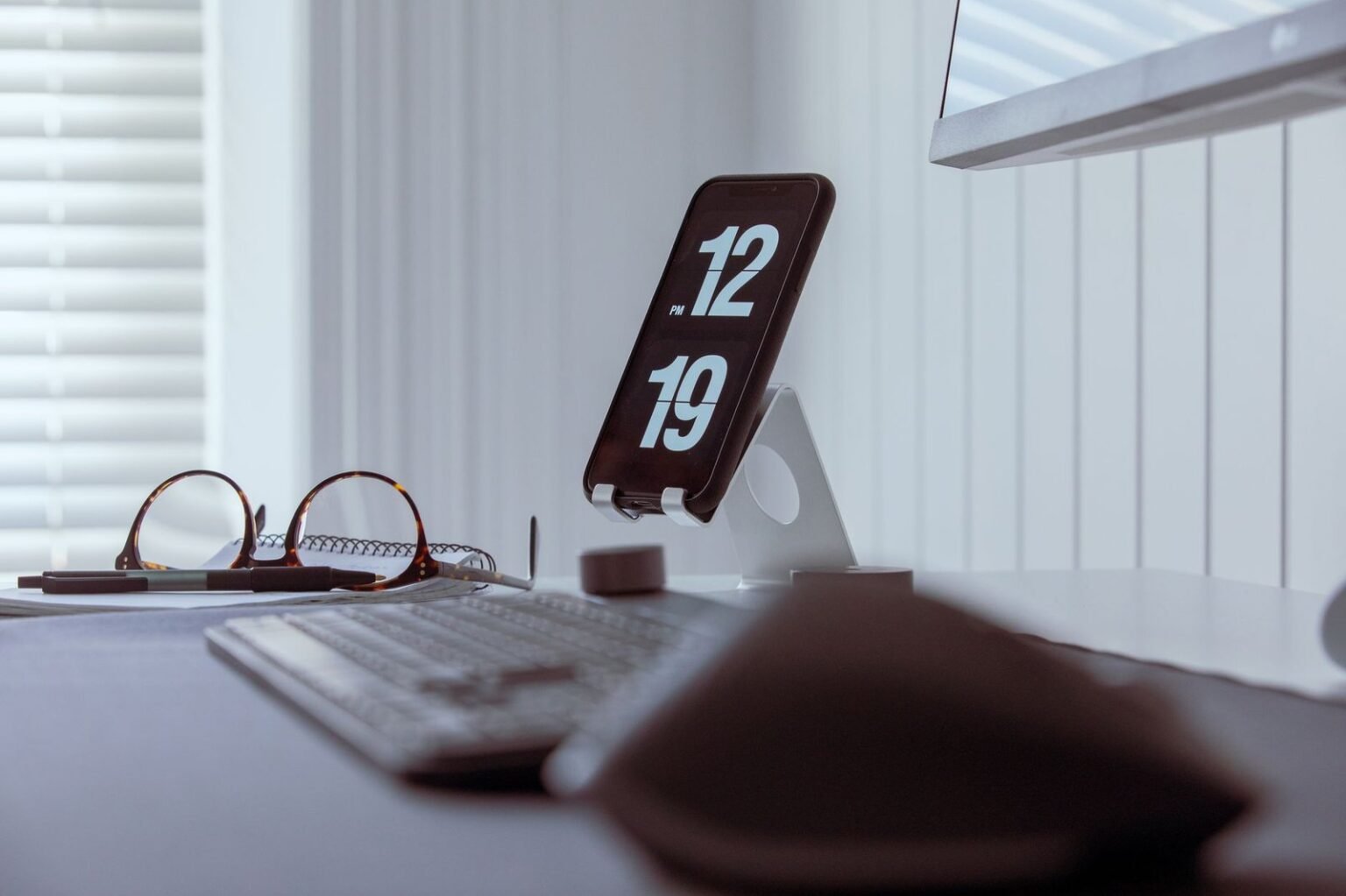

You check your phone 144 times a day, losing over three hours to endless scrolling and notification pinging. Reclaim your focus and reset your daily habits in 45 minutes with zero technical expertise required.
- Phase 1: Audit Your Digital Dependency and Select the Right Minimal Device
- Phase 2: Prepare Your SIM Card, Mobile Network, and Carrier Compatibility
- Phase 3: Migrate Essential Contacts and Data Without Cloud Bloat
- Phase 4: Re-engineer Two-Factor Authentication (2FA) for Basic Feature Phones
- Phase 5: Establish Offline Navigation and Map Routing Systems
- Phase 6: Set Up Standalone Tools for Music, Podcasts, and Daily Utilities
- Phase 7: Configure a Home Desktop Hub for High-Priority Messaging
- Phase 8: Execute the Two-Week Transition Strategy to Re-Wire Attention
- Phase 9: Optimize Your Physical Environment for Permanent Focus Gains
- Frequently Asked Questions
- Estimated Time: 45 to 60 minutes total.
- Difficulty Level: Beginner.
- Required Tools / Items: SIM card ejector tool, target feature phone (e.g., Light Phone II, Sunbeam F1 Horizon, or Nokia 2780 Flip), and a USB flash drive or laptop.
Phase 1: Audit Your Digital Dependency and Select the Right Minimal Device
Switching to a feature phone requires an honest assessment of your functional needs versus your digital distractions. Most people fail because they purchase a device that lacks essential daily operational features like VoLTE voice calls or group texting support.
Identify your absolute non-negotiables:
- List essential functions: Write down the 3 non-negotiable tools you need daily, such as banking access, vehicle navigation, or work communication tools.
- Choose your device category: Select a minimalist device based on your specific requirements. Pick an E-ink device like the Light Phone II for zero eye strain and zero web browsing, a hardware flip phone like the Sunbeam F1 Horizon for precise voice texting and offline mapping, or a classic brick phone like the Nokia 2780 Flip for maximum simplicity on modern 4G networks.
- Check carrier compatibility: Confirm that your chosen phone supports VoLTE band 12/13/71 for major US carriers like Verizon, T-Mobile, or AT&T, ensuring reliable voice signal clarity.
Understanding the core differences between digital minimalism vs dopamine fasting will help you select a device that supports deep concentration without leaving you stranded during emergency situations.
Phase 2: Prepare Your SIM Card, Mobile Network, and Carrier Compatibility
Modern networks have completely phased out legacy 2G and 3G networks. Your minimal device must connect seamlessly to active 4G LTE frequencies to send text messages and handle clear voice calls.
Set up network access correctly:
- Verify SIM format: Check if your existing phone uses a Nano-SIM or eSIM. Minimal devices require physical Nano-SIM cards, so request a physical replacement from your mobile provider if you currently use an eSIM.
- Adjust data plans: Lower your monthly data plan to 1GB or 2GB. This simple step drops your monthly bill while cutting unnecessary background data usage.
- Disable iMessage and RCS: Turn off iMessage in your iPhone settings menu under Settings > Messages > iMessage before taking out your SIM card. For Android, turn off Chat Features in Google Messages. This step prevents missed text messages from smartphone contacts.
Phase 3: Migrate Essential Contacts and Data Without Cloud Bloat
Cloud sync services on modern smartphones constantly push unnecessary notifications and sync bloated contact records. Transferring your phone book manually or via clean VCF files maintains control over your contact list.
Clean up your contact book:
- Export your contacts: Log into iCloud or Google Contacts on your computer, select your primary personal contacts, and export them as a standard `.vcf` file.
- Trim the excess: Open the file and remove old business numbers, delivery services, and outdated profiles to keep your list lean and targeted.
- Import via MicroSD or Bluetooth: Load the `.vcf` file onto a MicroSD card or send it over Bluetooth directly to your new feature phone to complete the offline import.
Integrating these physical habits alongside analog life hacks for Gen Z helps clear brain fog by keeping your phone book simple and free of digital clutter.
Phase 4: Re-engineer Two-Factor Authentication (2FA) for Basic Feature Phones
App-based authenticators like Authy or Google Authenticator do not run on basic feature phones. You must transition your accounts to hardware tokens or SMS-based verification steps before turning off your smartphone.
Secure your login access:
- Switch to SMS or Hardware Keys: Update your primary financial, work, and personal email accounts to send 2FA codes via standard SMS messages, or register a physical YubiKey hardware token on your laptop.
- Print backup codes: Save emergency backup login codes for critical services like Google, Apple, and your bank. Keep these physical printouts stored inside a secure home desk drawer.
- Set up a desktop authenticator: Install desktop apps such as 1Password or KeePassXC on your laptop to generate time-based one-time passwords (TOTP) without needing a smartphone screen.
[YOUTUBE_SEARCH: how to setup hardware 2fa keys yubikey step by step guide]
Phase 5: Establish Offline Navigation and Map Routing Systems
Losing turn-by-turn GPS navigation causes high anxiety for new feature phone users. Building reliable offline backup routines removes spatial confusion during daily commutes or travel.
Set up reliable navigation:
- Use built-in minimal maps: Devices like the Sunbeam F1 Horizon or Garmin Overlander provide offline vector maps. Download your entire state or regional map file over Wi-Fi before heading out.
- Keep a dedicated car GPS: Mount an offline unit such as a Garmin DriveSmart 66 in your vehicle. Dedicated GPS units offer crisp lane assistance without sending social media pings or distracting notifications.
- Print directional steps: Print out physical driving directions for long road trips. Keeping paper directions in your glove compartment reduces reliance on digital screens.
Phase 6: Set Up Standalone Tools for Music, Podcasts, and Daily Utilities
Smartphones aggregate media player tools, alarms, notebooks, and audio apps into one distracting device. Separating media consumption back into single-purpose devices builds intentional daily focus.
Build single-purpose media workflows:
- Load a dedicated MP3 player: Pick up a standalone audio player like the Mighty Vibe or a refurbished iPod Classic, then load your local music files and offline podcast tracks.
- Buy a physical alarm clock: Move phone charging hardware out of your bedroom entirely. Use a simple digital alarm clock like a Sony ICF-C1 to protect your morning routine from early screen exposure.
- Carry a physical notepad: Keep a pocket-sized Field Notes paper journal and a solid ballpoint pen in your pocket for immediate task tracking, shopping lists, and quick idea capture.
Phase 7: Configure a Home Desktop Hub for High-Priority Messaging
Transitioning away from continuous smartphone messaging does not mean dropping communication with friends or work teams. Moving primary chat tools to desktop apps turns messaging into an intentional batch task.
Create a focused computer workstation:
- Install desktop app hubs: Load WhatsApp Web, Signal Desktop, or Telegram Desktop directly on your primary computer workstation.
- Batch check messages: Schedule two dedicated 20-minute windows per day (such as 11:00 AM and 4:00 PM) to read and reply to incoming personal and team chat threads.
- Inform key contacts: Let immediate family and close friends know that urgent matters require a direct phone call, while standard updates can wait for your daily desktop batch sessions.
Applying principles from the micro-quitting method lets you pause reactive text threads, saving your limited attention for high-value tasks.
Phase 8: Execute the Two-Week Transition Strategy to Re-Wire Attention
Abruptly stopping all mobile app use can trigger phantom vibration habits and intense phone checking impulses. Running a structured 14-day transition period builds long-term habits without causing unnecessary stress.
Follow the two-week transition plan:
- Days 1 to 3 (Simulated Downgrade): Place your current smartphone into grayscale mode, lock it in a desk drawer during work hours, and run all incoming calls through your feature phone SIM card.
- Days 4 to 7 (Complete Physical Swap): Leave your smartphone at home entirely when running errands, commuting, or meeting friends. Rely solely on your feature phone and offline car GPS.
- Days 8 to 14 (Refinement Phase): Review your daily friction points. Adjust your offline music files, update paper addresses, and fix any remaining account authentication roadblocks.

Phase 9: Optimize Your Physical Environment for Permanent Focus Gains
Your physical environment should reinforce your target focus habits. Removing digital hardware temptations across your home makes non-digital choices effortless.
Organize your home space:
- Establish a central charging station: Set up a single phone charging dock in your hallway or entryway. Leave your feature phone docked there when returning home.
- Create screen-free zones: Keep all screens out of the dining room and bedroom to protect rest periods and conversation times.
- Stock active physical hobbies: Keep books, physical newspapers, musical instruments, or craft items nearby so you have engaging, screen-free choices during downtime.
[YOUTUBE_SEARCH: minimal phone switch focus routine productivity breakdown]
If your feature phone shows a “No Service” status after inserting your SIM card, turn off the device, remove the card, clean the copper contacts using isopropyl alcohol, reinsert the card firmly, and restart the device. For persistent text delivery issues, contact your provider to clear lingering iMessage routing locks on your phone number.
Keep your old smartphone powered down in a storage drawer as an emergency home desktop appliance. Use it over Wi-Fi only for rare tasks like mobile banking check deposits or booking ride-shares, keeping it completely disconnected from your day-to-day routine.
Frequently Asked Questions
What happens if I need to call a ride-share service like Uber or Lyft?
Most feature phones cannot run mobile ride-share apps. Plan ahead by keeping local taxi company phone numbers saved in your phone book, or book ride-shares on your desktop browser before leaving home or office locations.
How do I handle group text messages with iPhone users?
Select a modern 4G feature phone that explicitly supports MMS group messaging features, such as the Sunbeam F1 Horizon or Punkt MP02. Make sure you fully deregister your phone number from Apple iMessage servers to ensure incoming group texts convert automatically to MMS format.
Will my mobile carrier charge extra fees for switching to a feature phone?
No extra fees apply. In fact, switching to a basic phone lets you lower your monthly mobile data plan, reducing your recurring cell phone bill.
How do I scan QR codes at restaurants or public venues?
Ask venue staff directly for a standard physical paper menu. Most businesses keep printed menus on hand for customers who prefer non-digital options.