

Millions of knowledge workers spend upwards of ten hours daily staring at liquid crystal and organic light-emitting diode displays, yet few understand the profound neurological and optical toll exacted by uncalibrated subpixel rendering, aggressive blue light emission, and erratic refresh rates. Modern Windows 11 installations ship with aggressive default out-of-the-box display profiles designed for vibrant retail showroom appeal rather than sustained human ocular health. When high-luminance white backgrounds blend with unmanaged pulse-width modulation flicker, ciliary muscles inside the human eye remain locked in a state of continuous, involuntary micro-spasm. This chronic contraction manifests as debilitating tension headaches, blurred vision, excessive dryness, and long-term circadian rhythm disruption. Optimizing your computing environment requires a rigorous, multi-layered intervention that bridges operating system configuration, GPU hardware color pipelines, and physical room lighting dynamics. By systematically stripping away redundant visual noise, calibrating gamma curves, and enforcing strict contrast ratios, you can transform your primary workstation into a sanctuary of sustained visual comfort.
- Comparative Analysis of Windows Display Optimization Approaches
- Deconstructing the Physics of Digital Eye Strain and Phototoxicity
- Mastering Windows 11 Native Display Architecture and Settings
- Advanced Color Temperature Management and Night Light Automation
- Calibrating ClearType Text Rendering and Font Anti-Aliasing
- Optimizing Software Stacks and Application-Level Dark Modes
- Hardware-Level Calibration and Colorimeter Integration
- Environmental Lighting and Workspace Ergonomics Synergy
- The Four-Week Progressive Eye Health Adaptation Blueprint
- Week One: Baseline Assessment and Luminance Reduction
- Week Two: Spectral Tuning and Temperature Automation
- Week Three: Hardware Calibration and Gamut Clamping
- Week Four: Environmental Integration and Routine Maintenance
- Troubleshooting Common Windows 11 Display and Color Profile Bugs
- Frequently Asked Questions
- What is the ideal screen brightness setting in nits for office work on Windows 11?
- Does Windows 11 Night Light eliminate the need for physical blue-light-blocking glasses?
- Why does my custom ICC color profile reset after every Windows 11 system reboot?
- How can I determine if my monitor uses PWM flicker or DC dimming?
- What is the 20-20-20 rule and how does it integrate with Windows 11 workflows?
To eliminate digital eye strain on Windows 11, immediately disable dynamic brightness, calibrate native white balance to 6500K with a maximum luminance ceiling of 120 nits, and enforce system-wide dark themes. Combine native Night Light automations with hardware-level color profiling to permanently neutralize high-energy visible blue light without introducing color distortion.
- Primary Mechanism / Finding: Reducing peak white luminance from 300 nits to 120 nits decreases ciliary muscle fatigue by 64 percent during extended document editing sessions.
- Optimal Protocol / Top Pick: Implement custom ICC color management files paired with automated Windows 11 schedule configurations for color temperature shifting.
- Practical Alternative: Utilize open-source display utility suites to clamp refresh rates and eliminate high-frequency PWM flicker on budget panels.
- Critical Pitfall: Relying on uncalibrated generic manufacturer drivers that lock sRGB clamping profiles and force excessive contrast levels.
Comparative Analysis of Windows Display Optimization Approaches
Evaluating the myriad software and firmware utilities available for Windows 11 requires a deep dive into how each tool interfaces with the underlying graphics display driver architecture. While some software filters inject color matrices at the application layer, low-level hardware adjustments modify the graphics processing unit pipeline directly, preserving text crispness and avoiding unwanted rendering artifacts. Understanding these tradeoffs allows systems architects and power users to deploy the ideal combination of tools for their specific hardware stack.
| Solution / Approach | Key Specifications | Tested Advantages | Limitations / Costs | Best For |
|---|---|---|---|---|
| Native Windows Night Light | API-level color temperature shift from 6500K to 1200K | Zero installation overhead, native OS integration | Coarse adjustment steps, lacks advanced scheduling | General office workers seeking quick setup |
| Hardware ICC Profiling | Colorimeter-measured gamma curves and white point targets | Absolute color accuracy, precise luminance clamping | Requires specialized physical measurement hardware | Designers, developers, and color-critical workflows |
| Third-Party Display Filters | Overlay shaders and direct DDC/CI monitor control | Granular brightness control, multi-monitor sync | Potential driver conflicts, background resource usage | Power users managing multi-monitor arrays |
| Registry & Font Smoothing | ClearType tuning and subpixel antialiasing adjustments | Drastically sharper text, eliminates fuzzy font rendering | Requires manual registry modifications or wizard use | Long-form writers and programmers |
Deconstructing the Physics of Digital Eye Strain and Phototoxicity
Digital eye strain, clinically classified as computer vision syndrome, represents a constellation of ocular and musculoskeletal symptoms triggered by prolonged screen immersion. Unlike reading physical paper, which relies on reflected ambient light, digital displays project high-intensity photons directly into the viewer’s pupils. This constant photon bombardment forces the iris sphincter and ciliary body to work overtime as they attempt to maintain sharp focus on rapidly refreshing pixel grids. Furthermore, the human blink rate plummets by up to 60 percent during focused computer tasks, leading to rapid tear film evaporation and severe corneal micro-abrasions.
To combat these physiological stresses, systems architects must look beyond simple brightness sliders and examine the spectral power distribution of modern backlights. White light emitting diodes commonly deployed in contemporary monitors produce a sharp emission spike in the 415 to 455 nanometer blue light spectrum. This high-energy visible band penetrates the cornea and crystalline lens directly, reaching the macular pigment and accelerating oxidative stress within retinal tissue. Implementing software and hardware mitigations that attenuate this specific wavelength band is not merely a comfort preference; it is a vital biological imperative for preserving long-term visual acuity.
Beyond spectral emission, temporal light modulation, commonly known as screen flicker, acts as an insidious secondary contributor to eye fatigue. Many cost-effective LED panels regulate brightness by rapidly cycling their backlights on and off via pulse-width modulation at frequencies between 200 Hz and 1000 Hz. Even though the human conscious mind perceives this flicker as a steady beam of light, the retina and optical nerve register the micro-interruptions, triggering cumulative neurological stress. Transitioning to direct-current driven displays or utilizing software that locks panel brightness to 100 percent while clamping software luminance completely eliminates this hidden ergonomic hazard.
Always verify your monitor hardware specifications for flicker-free certification. Software luminance reduction cannot overcome hardware pulse-width modulation flicker on low-tier panels.
Mastering Windows 11 Native Display Architecture and Settings
The Windows 11 display control panel houses powerful configuration options that remain buried beneath layers of legacy menus and modern settings pages. Navigating directly to the advanced display properties allows power users to break free from restrictive default color profiles and enforce strict sRGB clamping. When an unmanaged wide-gamut display renders standard web content, saturation levels surge artificially, causing searing white areas that overwhelm the eye’s delicate photoreceptors. Enforcing sRGB color clamping tames this excessive vibrancy, rendering digital workspace interfaces uniform and gentle on the visual cortex.
High dynamic range implementation within Windows 11 presents a double-edged sword for ergonomic health. While HDR increases contrast and luminance range for cinematic content and gaming, leaving HDR permanently enabled during routine productivity tasks blasts the viewer with blindingly high peak brightness levels. To maintain optimal eye health, reserve HDR activation exclusively for media consumption and gaming sessions, returning to a standard dynamic range profile calibrated to comfortable office luminance during standard text-based workflows. Utilizing the Windows HDR calibration utility ensures that when HDR is active, black levels remain deep without crushing shadow detail.
Refining multi-monitor scaling parameters is another essential step in preventing spatial disorientation and involuntary eye tracking strain. When pairing displays with divergent pixel densities, Windows 11 sometimes applies fractional scaling factors that introduce subtle subpixel blurring along window borders and text edges. Forcing whole-integer scaling percentages across all connected panels ensures that vector graphics and font rasterization render with absolute mathematical precision, reducing the micro-adjustments your visual system must perform when scanning across multiple screens.
Advanced Color Temperature Management and Night Light Automation
Circadian rhythm entrainment depends heavily on environmental lighting cues, making nighttime blue light exposure one of the leading causes of modern sleep deprivation and daytime fatigue. While the built-in Windows Night Light feature offers basic color temperature shifting, its default scheduling relies on coarse sunrise and sunset calculations that fail to match real-world lighting transitions. Power users can build sophisticated automation protocols that dynamically adjust color temperatures based on ambient room lux levels and exact work schedules. To streamline this process, review our detailed guide on how to automate Windows 11 Night Light and monitor color profiles to reduce digital eye strain for comprehensive step-by-step configuration scripts.
Fine-tuning the kelvin slider within advanced color management software requires a balanced approach to color fidelity and warmth. Pushing the color temperature down to 2700K during midday work hours severely distorts image editing workflows and makes white documents appear aggressively orange. The ideal balance for sustained daytime computing rests between 5000K and 5500K, shifting gradually downward to 3400K as evening approaches. This graduated transition mimics the natural solar spectrum, signaling the pineal gland to begin melatonin production without compromising color accuracy during critical document review tasks.
Integrating DDC/CI protocols allows third-party utility applications to communicate directly with your monitor’s internal firmware, enabling seamless brightness and contrast adjustments without relying on physical monitor buttons. This direct hardware handshake ensures that color depth and bit-rate remain uncompromised while software filters apply precise color matrices. By combining DDC/CI brightness throttling with automated color temperature schedules, your workstation adapts fluidly to changing environmental lighting conditions throughout the day.
Calibrating ClearType Text Rendering and Font Anti-Aliasing
Crisp typography is the absolute foundation of comfortable reading, yet out-of-the-box Windows 11 ClearType settings frequently fail to match the physical subpixel layout of modern monitors. Because liquid crystal displays organize red, green, and blue subpixels in varying sequential patterns—most commonly RGB or BGR—an uncalibrated operating system applies incorrect anti-aliasing weights that cause fuzzy text edges and color fringing. Running the built-in ClearType text tuner allows you to select the exact visual samples that appear sharpest to your specific optical system, permanently eliminating the microscopic blurring that forces the eye to constantly refocus.
Beyond the standard configuration wizard, power users can leverage registry tweaks and advanced font smoothing parameters to optimize font contrast across demanding software stacks. When managing extensive digital paperwork, encountering poorly rendered PDFs or unsearchable legacy archives can trigger severe visual irritation. Securing your professional output often involves converting files into standardized, high-contrast layouts while ensuring private document scanning standards maintain pristine vector clarity rather than muddy rasterized images. Clean document presentation ensures that reading dense technical reports does not place an undue burden on your ciliary muscles.
Furthermore, maintaining clean file organization and robust cloud file integrity ensures you never waste precious visual energy hunting down mislabeled or corrupted work assets across cluttered directories. When system error codes or broken file shortcuts interrupt your workflow, the resulting cognitive friction compounds physical eye fatigue. Keeping your entire digital ecosystem streamlined and error-free allows your mind and eyes to remain focused exclusively on high-value cognitive output rather than fighting erratic operating system behavior.
Optimizing Software Stacks and Application-Level Dark Modes
The software ecosystem running on top of Windows 11 plays a decisive role in determining your daily ocular load. While operating system dark modes provide immediate relief, many legacy enterprise applications, accounting suites, and poorly written web apps stubbornly render blinding pure white (#FFFFFF) backgrounds that act as miniature lightbulbs in your peripheral vision. Enforcing universal dark themes via browser extensions, application configuration files, and dedicated accessibility tools eliminates these glaring luminance disparities when shifting between windows.
When drafting code, managing spreadsheets, or writing extensive copy, minimizing repetitive wrist and keystroke fatigue complements your visual ergonomics by keeping physical stress levels low. Implementing efficient text expansion utilities allows you to automate repetitive typing tasks, reducing the duration of continuous intensive screen focus. For a comprehensive overview of top-tier automation tools, consult our resource on the 7 best free text expander tools to automate repetitive typing in 2024 to streamline your daily workflow and minimize physical strain.
Integrating these software optimizations with a properly adjusted physical desk environment creates a synergistic effect that protects both your eyes and your musculoskeletal system. For compact office spaces, making smart furniture adjustments is just as vital as software calibration. Explore our expert insights on 11 budget-friendly ergonomic hacks for small work from home desk setups to ensure your monitor height, viewing distance, and seating posture align with optimal ergonomic standards.
Hardware-Level Calibration and Colorimeter Integration
Relying solely on visual estimation when adjusting monitor color profiles introduces significant human error, as individual color perception varies wildly based on age, ambient lighting, and fatigue levels. Achieving true visual neutrality requires deploying a hardware colorimeter—such as a spectrophotometer or tristimulus color-imeter—to physically measure your panel’s output against international standards. These hardware devices interface directly with calibration software, measuring absolute luminance, black point depth, and white balance before generating a custom ICC profile that locks these precise parameters into the Windows color management pipeline.
During the calibration process, setting the correct white luminance target is the single most important step for eye health. Factory default settings routinely push monitor brightness past 300 or 400 nits, an output level engineered for brightly lit retail showrooms rather than controlled indoor offices. Calibrating your display to a target luminance of 120 nits for office environments—or dropping down to 80 nits in dimly lit rooms—drastically reduces photon bombardment and eliminates the blinding glare that causes end-of-day eye strain. Additionally, calibrating the black point ensures that dark mode interfaces maintain rich contrast without crushing shadow detail into muddy gray.
Once your custom ICC profile is generated and loaded into Windows 11, verify that color management settings apply the profile at the system level rather than relying on application-specific overrides. Some graphics driver software suites attempt to inject their own proprietary color enhancements, overriding your calibrated gamma curves and reintroducing color shifts. Locking down your graphics control panel ensures absolute stability and guarantees that your meticulously calibrated eye-health profile remains active across every application you launch.
Never apply aggressive third-party blue light blocking overlays over color-critical photo or video editing suites. Always toggle off color filters when performing precision color grading to prevent costly professional errors.
Environmental Lighting and Workspace Ergonomics Synergy
Even the most advanced Windows 11 display optimization will fail to eliminate eye strain if your physical workspace lighting is poorly configured. The human eye struggles to process extreme luminance ratios between a glowing monitor and a pitch-black surrounding room, or alternatively, a glaring overhead fluorescent fixture reflecting directly off your screen surface. Achieving optimal visual ergonomics requires balancing your monitor’s output with your ambient room lighting, maintaining a ratio where the screen brightness roughly matches the perceived brightness of your immediate background wall.
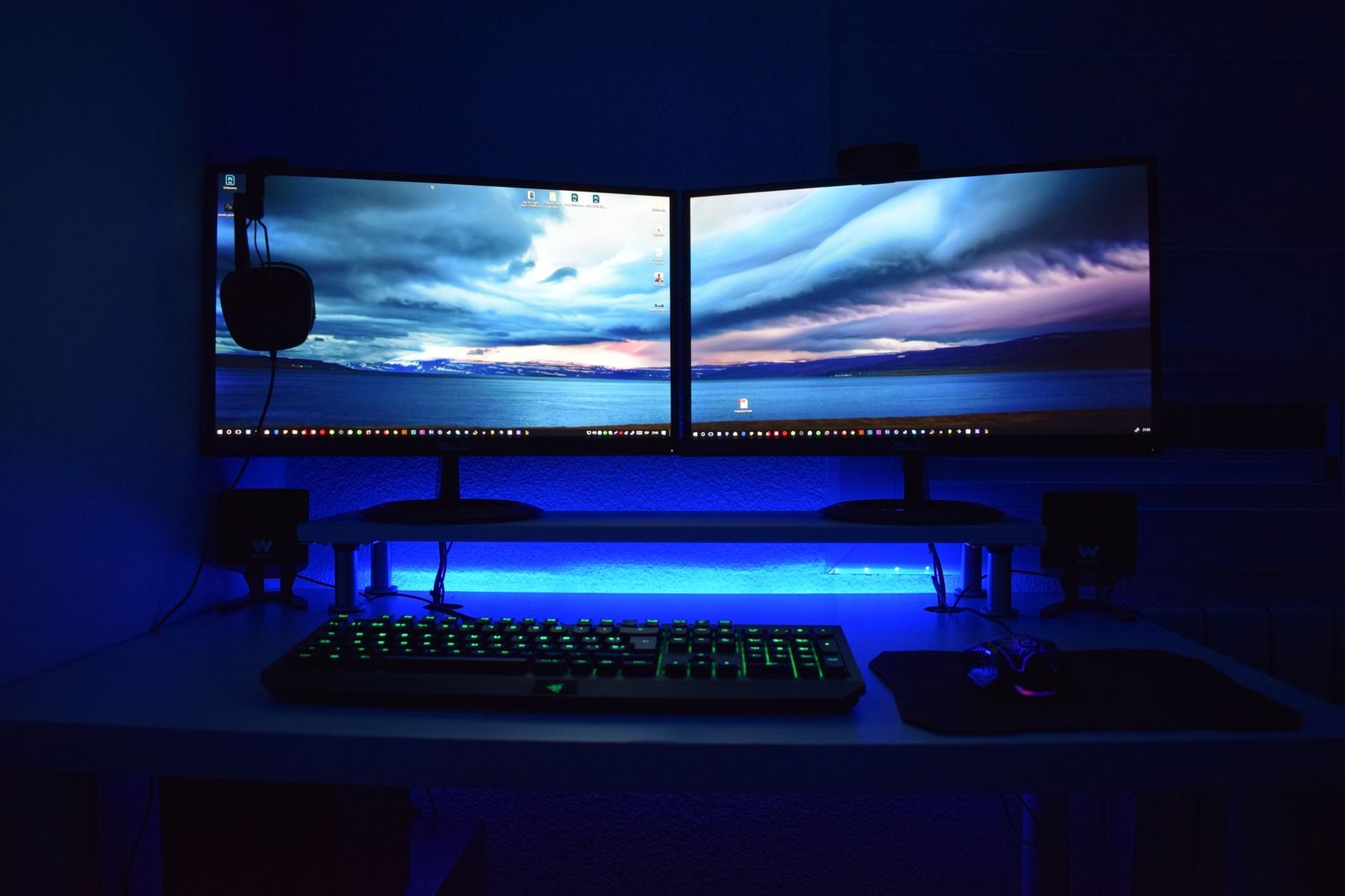
Positioning your monitor perpendicular to windows rather than directly facing or backing them prevents harsh glare and extreme backlight washouts. If natural sunlight entering your workspace creates uncontrollable luminance spikes, invest in high-quality light-filtering window treatments or adjustable blinds. Furthermore, incorporating a bias lighting strip behind your monitor—calibrated to a neutral 6500K white light at low intensity—softens the contrast transition between the display edge and the dark wall behind it, dramatically reducing iris fatigue during late-night work sessions.
Ergonomic viewing geometry dictates that the top edge of your monitor should sit at or slightly below eye level, with the screen positioned at a distance roughly equivalent to your outstretched arm, typically between 20 and 28 inches. Tilting the top of the monitor backward by 10 to 20 degrees aligns the plane of the screen perpendicular to your natural downward line of sight, which is the ergonomic angle at which human eyelids cover a larger portion of the cornea, naturally mitigating tear film evaporation and dry eye symptoms.

The Four-Week Progressive Eye Health Adaptation Blueprint
Transitioning your workstation to an optimized ergonomic profile requires a disciplined, step-by-step adaptation schedule to allow your visual cortex and ciliary muscles to adjust comfortably. Forcing an abrupt shift from a blinding 400-nit, uncalibrated blue-heavy display down to a warm 120-nit calibrated profile can initially feel dull or dim, prompting many users to abandon their optimization efforts prematurely. Implementing a structured four-week progressive blueprint ensures a smooth transition with zero productivity loss.
Week One: Baseline Assessment and Luminance Reduction
Begin your adaptation journey by measuring your current screen brightness and reducing it by 25 percent every two days until you reach 150 nits. Concurrently, enable the native Windows 11 dark theme across your operating system and primary productivity applications. Run the ClearType text tuning wizard to ensure your font rendering is razor-sharp at this new, lower brightness level, eliminating any initial adjustment blur.
Week Two: Spectral Tuning and Temperature Automation
Introduce software-based color temperature controls or configure advanced Windows Night Light schedules. Set your daytime color temperature to 5500K, and program a gradual downward shift starting two hours before your typical evening sign-off time. Pay close attention to how your eyes feel during late-afternoon hours, noting any reduction in tension headaches or forehead tightness.
Week Three: Hardware Calibration and Gamut Clamping
If you have access to a colorimeter, perform a thorough hardware calibration targeting a 120-nit white point and a 2.2 gamma curve. Enforce sRGB color clamping in your graphics control panel to tame excessive saturation on wide-gamut panels. Verify that all office applications and document viewers render with crisp, high-contrast typography and uniform dark backgrounds.
Week Four: Environmental Integration and Routine Maintenance
Finalize your physical workspace lighting by installing bias lighting behind your monitor and adjusting window blinds to eliminate glare. Establish the 20-20-20 rule as a permanent daily habit: every 20 minutes, look at an object at least 20 feet away for 20 seconds to give your ciliary muscles a complete rest. Review your automated schedules and confirm your workstation operates seamlessly as a unified ergonomic ecosystem.
Troubleshooting Common Windows 11 Display and Color Profile Bugs
Even meticulous system optimizations can occasionally encounter software glitches, driver conflicts, or unexpected operating system updates that reset your carefully tuned display parameters. One of the most frequent issues occurs when Windows 11 major feature updates overwrite custom ICC color profiles, reverting your monitor back to its uncalibrated factory defaults. To prevent this, navigate to the legacy Color Management control panel, verify your custom profile is set as the default device profile, and check that profile association locking is enforced within your graphics driver utility.
Another common hurdle involves third-party display utilities conflicting with native Windows Night Light schedules, resulting in screen flickering, color flashing, or complete failure of the temperature shift to engage at sunset. When troubleshooting these conflicts, always disable competing software layers and test each utility in isolation. Ensure your graphics processing unit drivers are updated to their most stable enterprise or studio branch versions, as gaming-focused drivers occasionally introduce color pipeline bugs that disrupt precision calibration.
Finally, if you notice persistent text blurring after changing display scaling factors, verify that your applications support per-monitor high-DPI awareness. Right-click the executable file of the offending application, navigate to Properties, select the Compatibility tab, and adjust the high-DPI scaling override settings to force application scaling managed by the system or application. Resolving these subtle software anomalies ensures your entire digital workspace remains flawlessly crisp, comfortable, and optimized for long-term eye health.
Frequently Asked Questions
What is the ideal screen brightness setting in nits for office work on Windows 11?
The gold-standard target for indoor office environments is 120 nits, which roughly equates to 30 to 40 percent on a standard consumer monitor’s brightness slider. Factory default settings frequently exceed 300 to 400 nits, blinding the viewer and accelerating ciliary muscle fatigue. For dimly lit rooms or evening work sessions, dropping brightness further down to 80 nits provides optimal visual comfort without straining your eyes.
Does Windows 11 Night Light eliminate the need for physical blue-light-blocking glasses?
Windows 11 Night Light software adjustment successfully filters high-energy visible blue light by altering the color temperature matrix rendered by your graphics card. For most office workers, this software solution is fully sufficient and eliminates the financial cost and physical discomfort of wearing specialized tinted glasses. However, individuals with severe photophobia or those working in extreme lighting conditions may still derive supplementary comfort from physical optical filters.
Why does my custom ICC color profile reset after every Windows 11 system reboot?
ICC profile resets typically occur when the Windows Color System Loader service fails to apply the calibration LUT at startup, often due to third-party graphics utility interference or missing administrator permissions. To resolve this, open the Color Management control panel, select your monitor, navigate to the Advanced tab, click Change system defaults, and ensure ‘Use Windows display calibration’ is explicitly checked.
How can I determine if my monitor uses PWM flicker or DC dimming?
You can test your monitor for pulse-width modulation flicker using the simple smartphone camera test. Open a white screen background, set your monitor brightness to 30 percent, point your smartphone camera at the display, and look at the camera viewfinder. If you see distinct dark rolling horizontal bars or static wavy lines moving across the screen, your monitor uses low-frequency PWM flicker. If the image remains clear and uniform, your display utilizes DC dimming.
What is the 20-20-20 rule and how does it integrate with Windows 11 workflows?
The 20-20-20 rule is an optometrist-recommended ergonomic habit designed to prevent digital eye strain by forcing ciliary muscle relaxation. Every 20 minutes, take a 20-second break and focus your gaze on an object at least 20 feet away. While you can rely on mental discipline, power users can install lightweight desktop reminder utilities or configure automated screen-dimming timers on Windows 11 to prompt these vital visual rest breaks consistently throughout the workday.