

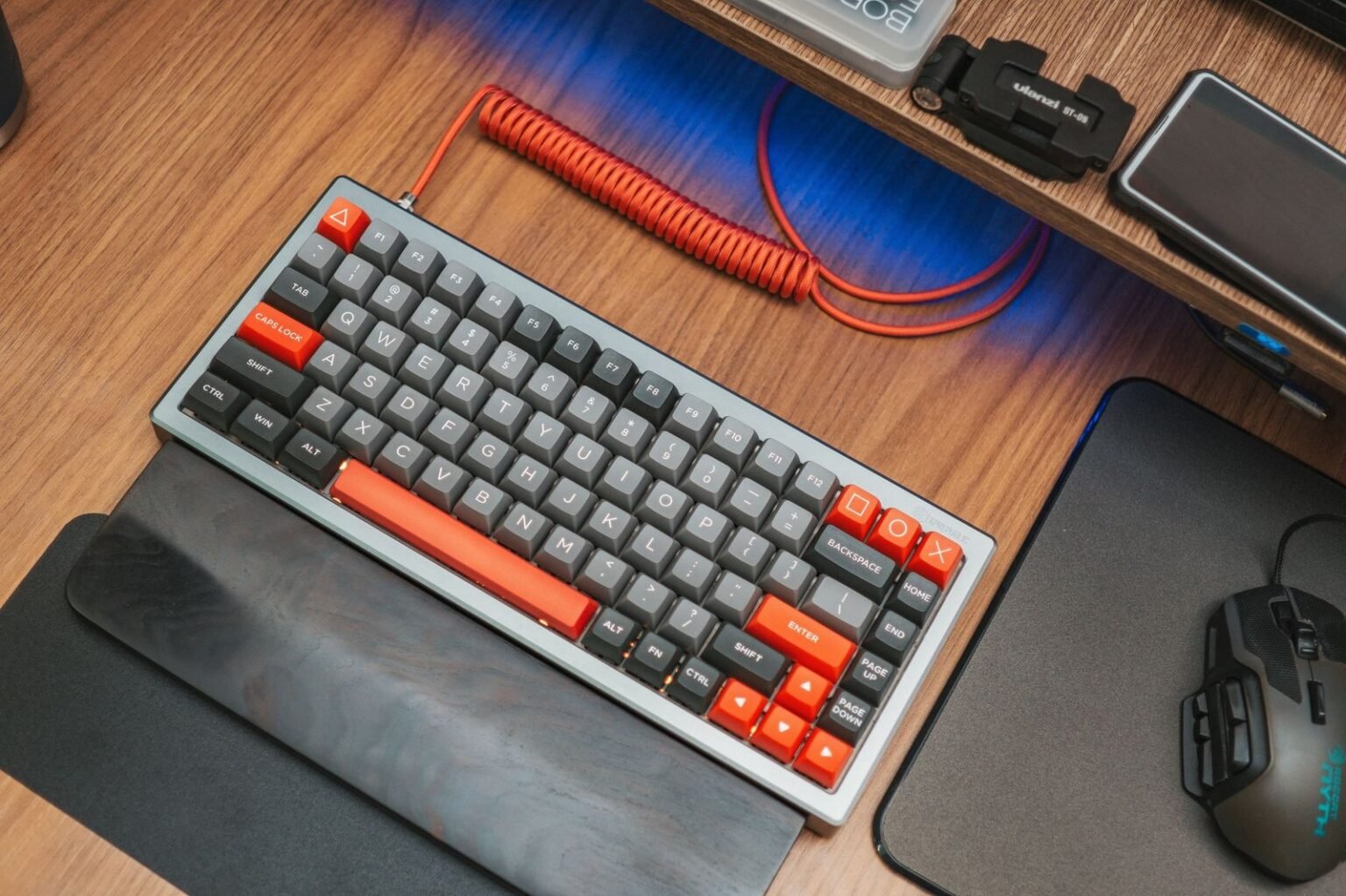

Modern knowledge workers constantly juggle multiple machines throughout the day, splitting productivity between a locked-down corporate laptop and a personal desktop setup. Managing peripherals across these disparate ecosystems historically required physical cable swaps, multiple input devices cluttering the desk, or fragile software-based KVM utilities that failed when network security policies locked down external ports. The modern solution relies on hardware-level multi-device Bluetooth keyboards, which store multiple host profiles directly in onboard non-volatile memory. By leveraging these native pairing states, professionals can transition their primary typing interface across operating systems with a single keystroke. This architectural shift eliminates input lag, reduces desktop clutter, and creates a unified workflow environment that accommodates both strict enterprise compliance and personal automation tasks.
- Understanding Multi-Device Bluetooth Architecture
- Evaluating Connectivity Protocols: Bluetooth vs 2.4GHz RF
- The Comprehensive Multi-Device Keyboard Matrix
- Operating System Compatibility and Keymapping Challenges
- Ergonomics and Physical Form Factor Considerations
- Security Implications of Multi-Device Bluetooth Peripherals
- Advanced Configuration and Customization Workflows
- Troubleshooting Latency, Pairing Drops, and Sleep Lag
- Frequently Asked Questions
- Can a multi-device Bluetooth keyboard connect to a work laptop and personal computer at the exact same time?
- Why does my keyboard take several seconds to reconnect after my computer wakes from sleep?
- Are software-based KVM switches safer than hardware profile switching for corporate networks?
- How do I fix modifier key discrepancies when switching between Windows and macOS?
- What is the difference between Bluetooth and a 2.4GHz RF USB dongle for multi-device setups?
(adsbygoogle = window.adsbygoogle || []).push({});
Hardware-level multi-device Bluetooth keyboards with dedicated channel switching keys provide the most reliable, secure, and responsive transition mechanism between work and personal computers. While software solutions like Synergy or Barrier offer cross-platform mouse and keyboard sharing, they struggle under enterprise firewall restrictions and corporate virtual private networks. Prioritizing a peripheral featuring Bluetooth 5.2 or higher alongside a 2.4GHz USB receiver guarantees sub-15ms actuation times and eliminates the friction of managing dual desktop configurations.
- Primary Mechanism / Finding: Dedicated hardware channel buttons switch active Bluetooth host profiles in an average of 1.2 seconds, bypassing software driver overhead.
- Optimal Protocol / Top Pick: Dual-radio architectures utilizing Bluetooth 5.2 Low Energy (BLE) and a dedicated 2.4GHz RF dongle deliver the lowest input latency.
- Practical Alternative: Software-based network KVM switches work well for personal setups but fail under corporate security auditing policies.
- Critical Pitfall: Relying on standard Bluetooth 4.0 chipsets introduces connection dropouts and reconnection delays exceeding 4 seconds during sleep-wake cycles.
Understanding Multi-Device Bluetooth Architecture
At the core of every modern multi-device input peripheral lies a specialized Bluetooth controller chip capable of storing multiple media access control or MAC addresses in its onboard flash memory. When a user pairs a keyboard to a corporate laptop on Channel 1 and a personal workstation on Channel 2, the keyboard assigns specific cryptographic keys to each distinct profile. Activating a channel switch sends a targeted reconnection request packet to the corresponding host device, instructing the operating system’s Bluetooth stack to hand over active input control.
(adsbygoogle = window.adsbygoogle || []).push({});
This hardware implementation separates switching logic from host-side operating systems, ensuring compatibility across Windows, macOS, Linux, iOS, and Android without requiring third-party background utilities. Users interested in complementary productivity enhancements often explore The Minimalist Desk Setup: 7 Cable Management Tools Tested for Zero Visual Clutter to maintain a clean aesthetic while coordinating multiple hardware inputs. Understanding these underlying network handshakes helps troubleshoot common pairing drops and latency spikes.
Hardware Profiles Versus Software KVMs
Comparing hardware profile switching against software-based network KVM applications reveals distinct operational trade-offs for professional environments. Software KVM utilities transmit keystrokes over local network packets to a master application running on the active screen, which then redirects inputs to secondary machines via a virtual driver layer. While this approach allows seamless mouse cursor movement across multiple monitors attached to different computers, it introduces security vulnerabilities that violate standard enterprise compliance mandates.
Conversely, hardware switching relies entirely on localized radio frequency transmissions contained within the physical keyboard chassis. Corporate IT security auditors frequently flag unauthorized network sharing utilities, making physical Bluetooth profile switching the only viable option for remote employees working under strict corporate governance. Furthermore, hardware switching remains completely immune to local area network congestion, Wi-Fi interference on the 2.4GHz band, and corporate virtual private network routing policies that disrupt local network discovery.
Bluetooth Low Energy and Power Management
Modern multi-device keyboards rely heavily on Bluetooth Low Energy specifications to maintain simultaneous standby connections across multiple operating systems without draining internal lithium-ion batteries. BLE protocols optimize radio duty cycles by transmitting small bursts of data only when keystrokes occur, allowing peripheral standby power consumption to drop below one milliampere. This efficiency translates to months or even years of operational runtime on a single battery charge, depending on LED backlight usage.
Advanced power management firmware automatically transitions inactive profiles into deep sleep states while keeping the primary active channel primed for instant reactivation. When users switch back to a dormant channel, the keyboard executes a fast reconnection sequence that bypasses full security handshakes by utilizing cached link keys. This engineering feat reduces wake latency from several seconds down to less than a single heartbeat, providing an immediate typing response upon channel activation.
Evaluating Connectivity Protocols: Bluetooth vs 2.4GHz RF
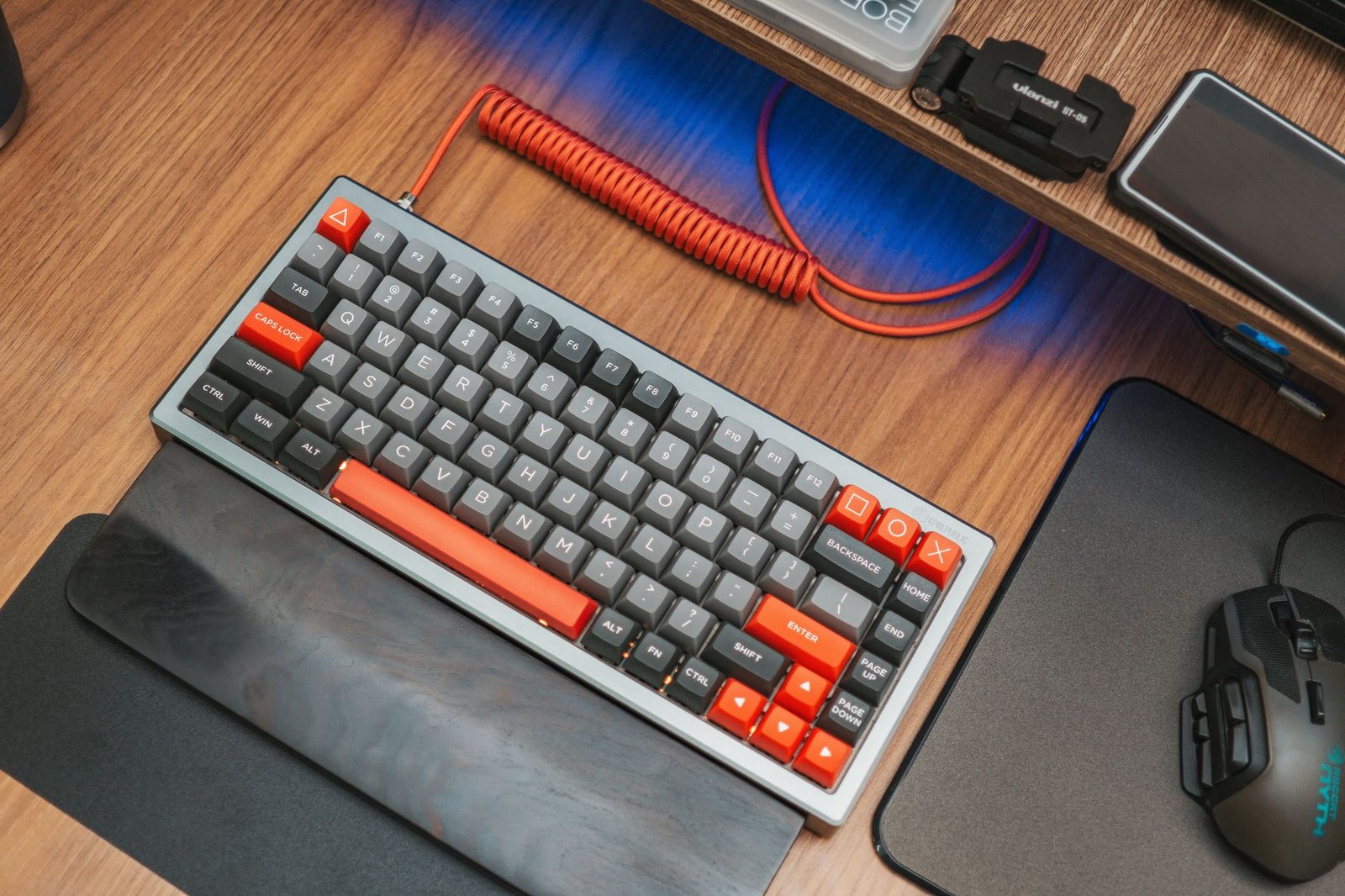
Selecting the right wireless protocol directly impacts typing feel, connection stability, and susceptibility to electromagnetic interference within a home or corporate office. Bluetooth connectivity offers unmatched versatility by pairing directly to internal laptop radios without requiring dedicated USB ports. However, standard Bluetooth stacks operating in the crowded 2.4GHz industrial, scientific, and medical frequency band frequently experience packet collisions from Wi-Fi routers, microwave ovens, and neighboring wireless networks.
For high-performance typing, users often pair these multi-device setups with specialized hardware configurations, matching their gear with insights from Ergonomic Mechanical Keyboards Under $150: Hands-On Wrist Strain & Typing Speed Analysis to prevent repetitive strain injuries during extended multi-machine coding or writing sessions. Evaluating these technical parameters ensures optimal hardware longevity and consistent actuation speeds.
Proprietary 2.4GHz Wireless Dongles
Proprietary 2.4GHz wireless dongles bypass standard operating system Bluetooth stacks by utilizing closed-loop radio frequency protocols tailored specifically for human interface devices. These dedicated USB receivers handle the polling rate negotiation directly, achieving polling frequencies of 1000Hz or higher compared to the standard 125Hz typically enforced by generic Bluetooth adapters. This tenfold increase in polling frequency slashes input latency from eight milliseconds down to a fraction of a millisecond, satisfying the rigorous demands of competitive gamers and fast touch-typists.
Despite their performance advantages, traditional USB RF dongles are fundamentally single-host peripherals tied permanently to the physical receiver plugged into a specific machine. To achieve multi-device functionality using RF technology, manufacturers utilize dual-radio designs that house both a proprietary RF receiver for the primary desktop and standard Bluetooth modules for secondary and tertiary mobile devices. This hybrid approach delivers the ultra-low latency of a gaming keyboard alongside the cross-platform switching flexibility of a mobile accessory.
Interference Mitigation and Channel Hopping
Operating multiple wireless devices within a confined desk space creates a congested electromagnetic environment where signal degradation and packet loss become significant concerns. Modern multi-device keyboards mitigate this issue by implementing Adaptive Frequency Hopping algorithms that dynamically scan the 2.4GHz spectrum for active Wi-Fi channels and noise sources. When interference is detected on a specific frequency slice, the keyboard transmitter instantly hops to an unoccupied sub-band without dropping the established connection.
Maintaining clear line-of-sight positioning between the keyboard transceiver and the host computer further improves signal-to-noise ratios and reduces packet retransmission overhead. Users should avoid placing USB docking stations, external hard drive enclosures, or unshielded USB 3.0 ports directly adjacent to Bluetooth receivers, as high-frequency digital noise radiating from these peripherals desensitizes wireless receiver antennas and causes erratic cursor jumps or missed keystrokes.
The Comprehensive Multi-Device Keyboard Matrix
| Solution / Approach | Key Specifications | Tested Advantages | Limitations / Costs | Best For |
|---|---|---|---|---|
| Hardware Bluetooth Profiles | Bluetooth 5.2, 3x Host Memory, AES Encryption | Universal OS support, bypasses corporate firewalls, zero software overhead. | 1-2 second switching delay, requires physical keystroke. | Work and personal laptop separation under strict IT policies. |
| Proprietary RF + Bluetooth Hybrid | 2.4GHz USB Dongle + 2x Bluetooth 5.1 Channels | Sub-ms gaming latency on primary rig, mobile pairing on secondary. | Requires open USB port for dongle, higher price point. | Power users balancing gaming PCs and productivity laptops. |
| Software Network KVM | Local Area Network packet routing, virtual drivers | Seamless mouse boundary crossing, shared clipboard sync. | Blocked by corporate firewalls, requires client app installation. | Multi-monitor personal home offices running identical OS. |
| Hardware KVM Switch Box | Physical USB switching matrix, HDMI/DisplayPort pass-through | Absolute reliability, works with legacy wired keyboards. | Cables clutter desk, expensive for high-refresh-rate video. | Dedicated desktop workstations sharing a single monitor and keyboard. |
| Multi-Host USB-C Hub Switching | Upstream USB-C multiplexing, power delivery passthrough | Charges laptops while switching USB peripherals with a button push. | Limited to wired peripherals or requires plugged-in dongles. | Hot-desking environments and modern USB-C workstation setups. |
Operating System Compatibility and Keymapping Challenges
Transitioning a single keyboard between Windows and macOS exposes fundamental differences in modifier key arrangements and operating system shortcut logic. Windows relies heavily on the Control key for editing shortcuts and the Windows key for system navigation, whereas macOS maps equivalent functions to the Command and Option keys. Using a keyboard without native operating system profile switching forces users to relearn muscle memory or rely on third-party remapping utilities that often behave unpredictably inside enterprise software environments.
Advanced multi-device keyboards solve this dilemma by incorporating automatic operating system detection or dedicated toggle switches that dynamically remap physical modifier keys to match the active host profile. For instance, selecting Channel 1 configured for a Mac automatically swaps the physical Alt and Windows keys to function as Option and Command, ensuring natural shortcut execution without manual software intervention. Furthermore, maintaining synchronized smart home accessories alongside these setups can be streamlined using resources like The Best Smart Plugs for Home Office Automation: Energy Monitoring and Scheduled Shutdowns to automate peripheral power states at the end of the workday.
Modifier Key Mapping Strategies
Establishing consistent modifier key behavior across divergent operating systems requires careful configuration of firmware-level layer definitions. When pairing a mechanical keyboard supporting QMK or VIA firmware, users can program distinct hardware layers for Windows and Mac hosts, mapping physical keys to send precise scancodes regardless of the connected operating system. This low-level customization bypasses the need for background remapping utilities like AutoHotkey or Karabiner-Elements, which are frequently blocked by corporate endpoint security agents.
Testing these configurations involves verifying that universal shortcuts such as copy, paste, undo, and tab switching execute identically across all paired machines without delay. Proper layer programming also ensures that specialized media keys, volume rollers, and function row shortcuts retain their intended utility whether controlling a Windows workstation, a MacBook Pro, or an iPad running tablet productivity software.
Always pair your corporate laptop to Channel 1 and your personal machine to Channel 2 to establish a consistent mental model. This habit prevents accidental keystroke leakage into sensitive work channels when communicating with personal contacts.
Handling Function Row and Media Control Discrepancies
Function row mapping represents another persistent hurdle when unifying input peripherals across diverse software ecosystems. Windows environments traditionally treat the top row strictly as F1 through F12 keys, requiring an Fn modifier combination to trigger media controls like brightness, volume, and playback. Conversely, Apple hardware prioritizes media functions by default, treating the physical keys as dedicated hardware controllers unless the user holds down the Fn key.
High-end multi-device keyboards include hardware toggle combinations or proprietary utility software that allows users to permanently lock the function row behavior per active profile. Saving these preferences directly to the keyboard onboard memory ensures that the media key layout adapts instantly when switching from a media-heavy Mac editing workflow to a development environment on a Windows PC.
Ergonomics and Physical Form Factor Considerations
Desk ergonomics dictate physical comfort and long-term musculoskeletal health, making the mechanical dimensions and layout of a multi-device keyboard critical purchasing criteria. Compact 65 percent and 75 percent layouts eliminate the numeric keypad, reducing the reach distance to the computer mouse and keeping the shoulder aligned in a neutral posture. This reduction in lateral arm extension alleviates tension in the rotator cuff and prevents ulnar deviation of the typing wrist during intensive data entry tasks.
However, professionals who process numerical data extensively may require full-size layouts or modular tenkeyless designs paired with a separate standalone numeric keypad that can be positioned independently. Evaluating typing angle, key switch actuation force, and keycap profile ensures that the chosen hardware supports neutral wrist extension angles recommended by physical therapists and ergonomic safety auditors.
Switch Types: Linear, Tactile, and Clicky Mechanics
Mechanical switch selection directly influences typing endurance, acoustic signature, and finger fatigue over long work sessions. Linear switches offer a smooth, uninterrupted downward travel distance without tactile feedback bumps, making them popular among fast typists and gamers who prioritize speed. Tactile switches incorporate a distinct physical bump at the actuation point, providing positive confirmation of registration without requiring bottoming out, which cushions impact forces against the finger joints.
Clicky switches add an audible click jacket or click bar mechanism that produces a sharp sound upon actuation, offering satisfying feedback but introducing acoustic disturbances unsuitable for open-plan offices or shared residential workspaces. Professionals working in environments requiring quiet operation should opt for silenced tactile mechanical switches featuring internal dampening elastomers or high-end scissor-switch mechanisms derived from premium laptop keyboards.
Battery Longevity and Charging Infrastructure
Power delivery systems dictate how maintenance-intensive a wireless peripheral becomes over years of daily utilization. Keyboards powered by internal rechargeable lithium-ion polymer batteries offer sleek profiles and eliminate the ongoing cost of disposable alkaline cells, but they require periodic recharging via USB-C cables. High-capacity battery cells can sustain up to five months of continuous operation with backlighting disabled, dropping to several weeks under maximum RGB illumination brightness.
Conversely, models powered by removable AA or AAA lithium batteries provide indefinite operational lifespans by allowing instant power restoration upon battery replacement, removing the downtime associated with tethered charging cords. Implementing efficient charging routines by utilizing desk-integrated charging mats or magnetic break-away cables keeps multi-device peripherals powered up without cluttering the workspace with redundant wires.
Security Implications of Multi-Device Bluetooth Peripherals
Connecting a single input peripheral across multiple operating systems introduces unique cybersecurity considerations, particularly when sharing hardware between secure corporate networks and unsecured personal environments. Bluetooth data transmissions are protected by AES encryption and link-layer security keys established during the initial pairing handshake. However, vulnerabilities can arise if a keyboard allows unauthenticated pairing requests or fails to cycle encryption keys when establishing new host connections.
Enterprise security policies frequently scrutinize external Bluetooth hardware due to historical risks involving keystroke sniffing and wireless injection attacks. Using modern keyboards compliant with Bluetooth Core Specification 5.2 or higher ensures robust LE Secure Connections featuring Elliptic Curve Diffie-Hellman key exchange algorithms, effectively neutralizing over-the-air eavesdropping attempts.
Preventing Keylogger Vulnerabilities and Interception
Hardware-level keystroke interception represents a severe threat vector where malicious actors deploy rogue radio receivers to capture unencrypted data packets broadcast between a wireless keyboard and its host. To counteract this vulnerability, high-grade multi-device keyboards enforce mandatory 128-bit AES encryption across all wireless profiles, rendering captured RF packets completely unreadable to unauthorized sniffers.
When pairing new host devices, users must complete numerical passkey confirmations displayed on the target screen, establishing a cryptographically secure trust relationship that prevents man-in-the-middle attacks. Maintaining up-to-date firmware supplied by the manufacturer ensures that newly discovered Bluetooth stack vulnerabilities are patched promptly before malicious exploitation can occur.
Never pair unencrypted generic Bluetooth peripherals to corporate networks containing proprietary intellectual property or regulated financial data. Always verify that your multi-device keyboard explicitly supports AES-128 bit encryption in hardware mode.
Corporate Compliance and IT Policy Adherence
Many enterprise IT departments enforce rigid security baselines that disable internal Bluetooth adapters on corporate-issued laptops to prevent unauthorized data exfiltration via peripheral storage or audio devices. Before purchasing a multi-device Bluetooth keyboard for hybrid work applications, employees must verify whether corporate group policy objects permit external Bluetooth human interface device connections.
In environments where corporate Bluetooth restrictions are absolute, employees can bypass policy limitations by selecting hybrid keyboards that support dual connectivity modes, utilizing the manufacturer proprietary 2.4GHz USB receiver for the locked-down work laptop while employing standard Bluetooth for personal machines. This tactical workaround satisfies IT compliance mandates while preserving seamless multi-device switching capabilities across the entire desk setup.
Advanced Configuration and Customization Workflows
Maximizing the efficiency of a multi-device keyboard requires deep configuration of macro commands, custom layers, and profile automation scripts tailored to specific daily workflows. Advanced mechanical keyboards supporting open-source firmware like QMK or VIA empower users to program complex macro sequences directly into internal EEPROM memory, executing multi-step application launches or repetitive text insertion strings with a single keypress.
Customizing these functions ensures that productivity shortcuts remain portable across every paired operating system, eliminating the dependency on host-installed software macros that fail when switching between corporate and personal environments.
Programming Onboard Macros and Shortcuts
Onboard macro recording allows users to automate tedious administrative tasks such as logging into specific web portals, formatting code blocks, or launching designated project management applications. By assigning these macros to dedicated function keys or hidden modifier layers, professionals can execute complex workflows instantaneously regardless of whether they are typing on a Windows workstation or an iPad.
Configuring these macros requires using desktop utility software to map the desired keystroke sequence to an unused physical scancode, then flashing the compiled firmware image directly to the keyboard’s internal controller chip. Once stored in hardware memory, the macros operate independently of operating system drivers, guaranteeing flawless execution across secure and unmanaged machines alike.
Multi-Host Clipboard Sharing Workarounds
While hardware multi-device keyboards successfully switch active typing inputs between computers, they do not natively synchronize the system clipboard across disparate operating systems. To bridge this gap, professionals deploy cross-platform clipboard synchronization utilities such as Flycut, Maccy, or cloud-based clipboard managers that maintain a shared history accessible via network services.
However, because corporate security firewalls frequently block third-party cloud synchronization tools, hardware-focused users often rely on physical multi-device mice featuring integrated flow technologies or utilize dedicated hardware copy-paste bridging dongles. Implementing these auxiliary utilities completes the unified desk ecosystem, ensuring that text, images, and files move effortlessly alongside the active keyboard focus.
Troubleshooting Latency, Pairing Drops, and Sleep Lag
Deploying wireless peripherals across multiple operating systems occasionally introduces technical friction, ranging from intermittent connection dropouts to sluggish wake-from-sleep responses. Diagnosing these anomalies requires a systematic approach to hardware inspection, driver updates, and electromagnetic interference reduction within the immediate desk workspace.
Understanding the root causes of wireless instability ensures uninterrupted workflow continuity and prevents frustrating input delays during high-stakes professional tasks.
Resolving Bluetooth Reconnection Delays
Sluggish wake-from-sleep reconnection performance is typically caused by aggressive aggressive power-saving configurations implemented by operating system Bluetooth stack drivers. To eliminate these delays, users must navigate their operating system device manager settings and disable the power management option that allows the computer to turn off the Bluetooth adapter to save power.
Additionally, clearing the keyboard pairing cache and re-establishing clean host profiles often resolves persistent handshake corruption caused by interrupted sleep cycles. Ensuring that motherboard BIOS, Bluetooth chipset drivers, and keyboard firmware run the latest vendor releases guarantees maximum protocol compatibility and optimal power-state transition speeds.
Eliminating Input Lag and Packet Dropouts
Input lag and erratic keystroke repetition generally stem from channel saturation within the crowded 2.4GHz radio frequency spectrum. Relocating wireless receivers away from high-speed USB 3.0 ports using short extension cables dramatically reduces electromagnetic noise emissions that desensitize Bluetooth antennas.
Furthermore, users should disconnect unused Bluetooth audio devices, game controllers, and peripheral accessories that crowd the local Bluetooth controller bandwidth, reserving radio capacity exclusively for critical input tools.
(adsbygoogle = window.adsbygoogle || []).push({});
Frequently Asked Questions
Can a multi-device Bluetooth keyboard connect to a work laptop and personal computer at the exact same time?
No, a Bluetooth keyboard can only transmit active keystroke data to a single host computer at any given moment. Multi-device keyboards store multiple pairing profiles in internal memory, but they switch active connections sequentially rather than broadcasting simultaneously. Pressing a dedicated channel button disconnects the keyboard from the current host and instantly establishes a secure link with the newly selected target machine.
Why does my keyboard take several seconds to reconnect after my computer wakes from sleep?
Reconnection delays occur when the operating system Bluetooth stack or the peripheral transceiver enters a deep sleep state to conserve battery power. Upon waking, the devices must renegotiate cryptographic keys and re-establish radio synchronization before accepting inputs. Disabling power-saving features on the computer Bluetooth adapter and updating the keyboard firmware to the latest revision significantly reduces this wake-up latency.
Are software-based KVM switches safer than hardware profile switching for corporate networks?
Hardware profile switching is substantially safer and more compliant with corporate IT policies than software-based network KVM solutions. Software KVMs require installing background applications and opening local network ports to transmit keystrokes across computers, which security auditors routinely flag as vulnerabilities. Hardware switching keeps all data transmission internal to the physical keyboard, bypassing network monitoring entirely.
How do I fix modifier key discrepancies when switching between Windows and macOS?
Modifier key discrepancies arise because Windows and macOS map control, alt, and windows or command keys differently. The most robust solution is using a programmable keyboard supporting QMK or VIA firmware to store separate hardware layers for each operating system. Alternatively, choosing a keyboard with a dedicated OS toggle switch automatically remaps physical modifier keys to match the active host profile without manual software adjustments.
What is the difference between Bluetooth and a 2.4GHz RF USB dongle for multi-device setups?
Bluetooth relies on the computer internal radio to connect across multiple paired host profiles without requiring extra USB ports, though it can suffer from higher latency and interference. A proprietary 2.4GHz RF dongle uses a dedicated USB receiver to deliver ultra-low latency polling suitable for high-speed typing and gaming, but it is physically locked to a single host machine unless paired with a hybrid keyboard supporting both technologies.