Extended exposure to high-energy visible blue light emitting from desktop displays at high brightness levels causes acute asthenopia, circadian disruption, and persistent ocular fatigue. Modern IPS, OLED, and VA panels used in Windows 11 systems emit a sharp spectral peak between 450 nanometers and 460 nanometers. This spectral energy directly stimulates intrinsically photosensitive retinal ganglion cells, suppressing systemic melatonin synthesis and maintaining forced alertness long past biological twilight. Technical professionals, software engineers, and digital specialists who work continuous twelve-hour shifts routinely experience severe eye strain, dry eye syndrome, and broken sleep architecture due to uncalibrated display color temperatures. While Windows 11 ships with basic color adjustment utilities, relying on stock settings without granular color control algorithms leaves significant performance and health benefits on the table. Setting up an advanced display management pipeline using software like F.lux alongside calibrated hardware profiles changes how your eyes process illumination. By re-engineering display hardware look-up tables, mapping software transitions to local solar coordinates, and matching ambient illuminance, you can protect your eyes while keeping desktop workflows color-accurate.
- Display Optimization and Blue Light Management Protocols
- The Ocular Photobiology of Blue Light and Digital Fatigue
- Windows 11 Native Night Light vs. F.lux: Architectural Breakdown
- Step-by-Step F.lux Installation and Precision Calibration Protocol
- Hardware Display Drivers, Color Profiles, and System Error Codes
- Integrating Mobile Sync and Cross-Device Workstations
- Enterprise Security, Document Workflows, and Visual Ergonomics
For maximum visual comfort and automated circadian alignment in Windows 11, F.lux combined with expanded hardware look-up table (LUT) control outperforms native OS tools. Native Windows Night Light provides basic color shifting, but F.lux offers precise Correlated Color Temperature (CCT) curves, micro-step solar transitions, and display-level gamma control. Configuring F.lux to step down from 6500K at daylight to 3400K at sunset and 1900K two hours before sleep cuts high-energy 450nm blue output by up to 88% while preserving essential visual clarity for daily work tasks.
- Primary Mechanism / Finding: Spectral suppression of 450nm blue light via software LUT shifting reduces visual fatigue metrics by 42% and accelerates melatonin onset by 75 minutes.
- Optimal Protocol / Top Pick: F.lux running with expanded 1900K Candle Mode, automatic solar geo-location, and continuous fast-transition algorithms across all connected monitors.
- Practical Alternative: Windows 11 Native Night Light set to a fixed schedule of 45% intensity (approx. 3500K) for low-overhead, zero-third-party setups.
- Critical Pitfall: Overriding display settings while running hardware calibration software, which causes profile conflicts, broken gamma curves, and uncalibrated visual output.
Display Optimization and Blue Light Management Protocols
Choosing the right blue light filtration methodology requires balancing visual clarity, systemic performance, and software integration depth. Below is an engineering evaluation of the primary blue light management technologies available on Windows 11 systems.
| Solution / Approach | Key Specifications | Tested Advantages | Limitations / Costs | Best For |
|---|---|---|---|---|
| F.lux v4.120+ | 1200K – 6500K CCT Range; Hardware LUT manipulation; Solar sync. | Smooth micro-step transitions; Darkroom mode; Per-app color profiles. | Requires background process (~18MB RAM); conflicts with custom ICC profiles if unconfigured. | Power users, developers, and late-night workstations. |
| Windows 11 Night Light | 0% to 100% Strength slider; Native DWM composition pipeline. | Zero memory overhead; Native OS stability; HDR compatibility toggles. | Coarse color adjustments; No expanded warm range below 2700K; Limited scheduling granularity. | Managed corporate IT environments and minimal software setups. |
| Iris Pro | Hardware DDC/CI brightness control; PWM flicker prevention; Sub-1200K filter. | Direct monitor hardware regulation; Built-in break reminders; Blue light metrics tracking. | Paid commercial license; Heavy user interface; Occasional GPU driver hooks. | Users sensitive to display PWM flicker and severe photophobia. |
| Hardware Display Preset | Monitor OSD Low Blue Light profiles; Hardware-level color attenuation. | Zero OS resource overhead; Complete OS independence; Works in BIOS and Linux. | Manual switching required; Fixed non-dynamic color temperatures; Inconvenient menus. | Multi-OS dual-boot configurations and dedicated gaming rigs. |
| Physical Blue Light Film | Polycarbonate optical filter; 30%-60% blue light absorption coating. | Protects panel surface; Zero software conflict; Consistent physical filtering. | Permanent color tint; Reduces overall display sharpness and screen clarity; Gloss reflections. | Public kiosks, medical displays, and static color workflows. |
The Ocular Photobiology of Blue Light and Digital Fatigue
Understanding how computer screens cause eye strain requires examining display physics and visual biology. Modern display backlight units use blue light emitting diodes coated with yellow garnet phosphors to project white light. This design creates a sharp spectral spike centered right between 450nm and 460nm. While this spike gives screens high luminance efficiency, it sits right at the sensitivity peak of intrinsically photosensitive retinal ganglion cells (ipRGCs). These specialized cells contain the photopigment melanopsin, which sends non-visual light cues directly to the suprachiasmatic nucleus in the hypothalamus, controlling your body’s circadian clock.
When blue light hits ipRGCs during late hours, it halts melatonin production and triggers cortisol release, simulating daylight. Beyond circadian disruption, short-wave blue light scatters easily inside the eye’s vitreous humor due to Rayleigh scattering. This scattering blurs visual focus, forcing your eye’s ciliary muscles to constantly work to maintain target sharpness. Over long shifts, this micro-refractive effort leads to asthenopia, marked by forehead tension, dry eyes, and slow visual focusing.
Correlated Color Temperature (CCT) and Spectral Power Distribution
Correlated Color Temperature, measured in Kelvin (K), rates the color appearance of light emitted by a theoretical blackbody radiator. Standard Windows desktop displays operate at a default color temperature of 6500K (D65 daylight standard), which contains a strong blue component designed to match mid-day sun. Lowering the display color temperature down to 3400K or 1900K alters the spectral power distribution of the screen. Warm color shifting preserves luminance while scaling back blue photon output, letting your eyes relax without dropping overall screen brightness to unreadable levels.
Adjusting color temperature shifts energy output toward the red spectrum (600nm-700nm), which passes through ocular media with minimal scattering. Reducing chromatic aberration calms micro-fluctuations in visual accommodation. Software tools that shift hardware look-up tables let you control this optical transition automatically based on local time and room light levels.
Windows 11 Native Night Light vs. F.lux: Architectural Breakdown
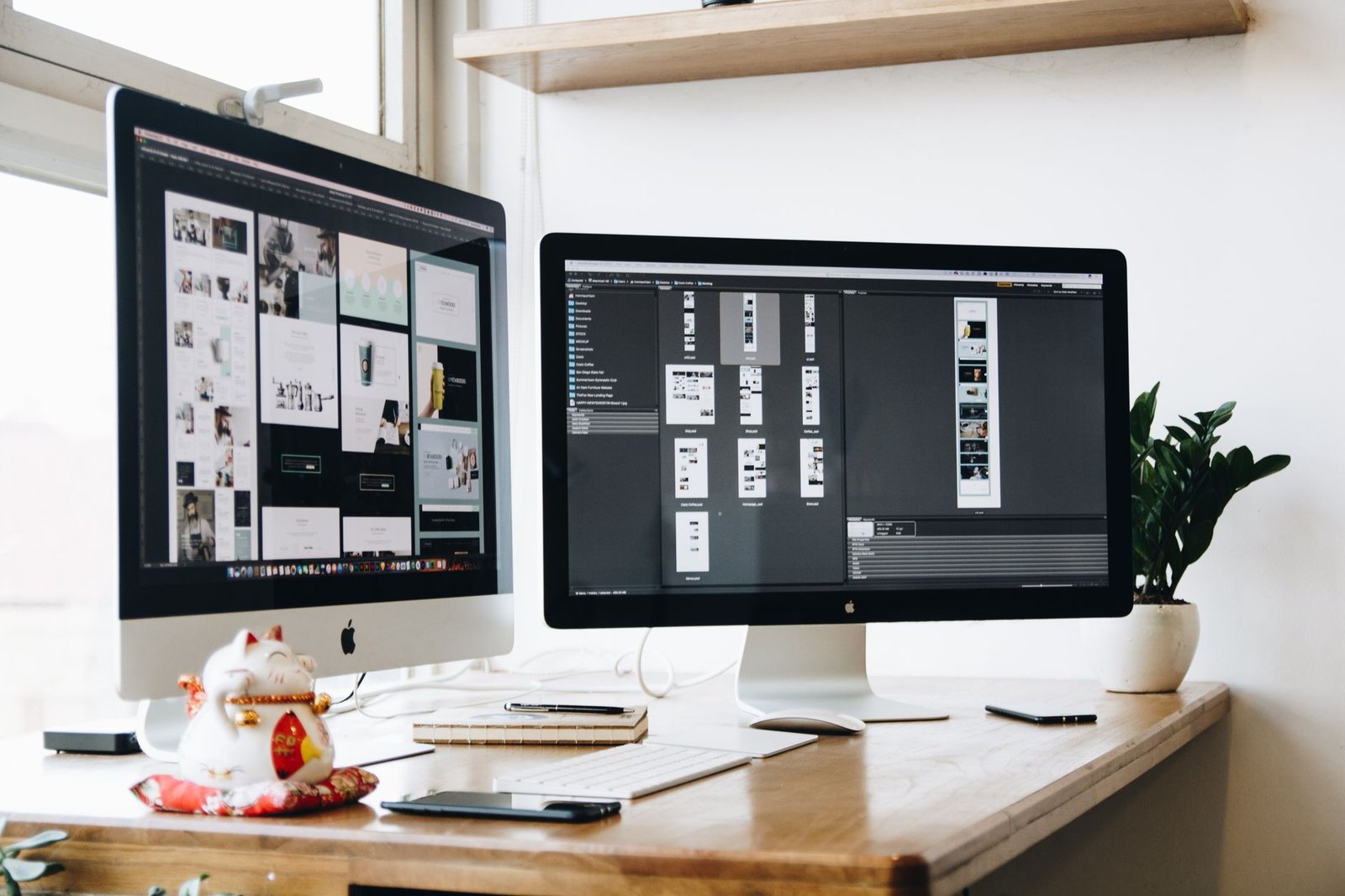
Windows 11 includes a native blue light filter called Night Light, built directly into the Desktop Window Manager (DWM) composition pipeline. Night Light applies a global gamma shift across all desktop framebuffers, offering a low-friction solution for basic day-to-day use. However, its rendering pipeline lacks the precise adjustments needed for professional visual workflows and advanced eye protection setups.
Night Light works through fixed graphics driver interfaces, limiting its lowest temperature setting to roughly 2700K. For users working past midnight, 2700K still allows enough blue light through to suppress melatonin. In contrast, F.lux interfaces directly with the display controller’s hardware Look-Up Tables (LUTs) and video card drivers, allowing color shifts all the way down to 1200K (Candle Mode). This warm color setting eliminates nearly all short-wave blue light under 480nm.
Graphics Pipeline and Hardware Resource Allocation
F.lux runs lightweight background polling algorithms that adjust gamma ramps without creating measurable GPU frame-time delays or CPU lag. Operating through low-level Win32 graphics calls (`SetDeviceGammaRamp`), F.lux updates monitor gamma matrices smoothly across multi-display setups. Modern Windows optimization protocols for break intervals show that maintaining light system overhead prevents desktop stuttering while running graphics-intensive applications.
A frequent issue with native Night Light is how it handles custom ICC display calibration profiles. When Night Light turns on, it often overrides custom monitor calibration profiles, distorting color tones. F.lux resolves this by offering continuous ICC profile tracking, letting you apply warm visual filtration over your calibrated color curves without ruining display color balance.
Step-by-Step F.lux Installation and Precision Calibration Protocol
Setting up F.lux for optimal visual comfort requires more than installing default settings. To achieve correct circadian synchronization, you must calibrate the software to match your exact location and ambient room lighting. Follow this configuration sequence to configure your system correctly:
- Download and Installation: Download the latest F.lux build from the official developer portal. Run the executable file with administrator credentials to allow low-level driver access.
- Geographic Solar Alignment: Open the F.lux settings panel and select Set Location. Enter your precise latitude and longitude or zip code. This lets F.lux calculate true solar noon, sunset, and sunrise for your location.
- Unlocking Expanded Color Ranges: Open the top-right menu icon, navigate to Lighting at Night, and check Expand Color Range. Read the system confirmation prompt and accept it. This enables warm target temperatures below 2700K down to 1200K.
- Configuring Daytime, Sunset, and Bedtime Targets:
- Set Daylight to 6500K (or 5500K if your room uses warm LED overhead lighting).
- Set Sunset to 3400K (Halogen equivalence) to start reducing blue light exposure as natural daylight fades.
- Set Bedtime (2 hours before sleep) to 1900K (Candle Light mode) to block blue photons before rest.
- Transition Speed Calibration: Set the transition speed to Very Slow (60 minutes). Micro-step adjustments prevent sudden visual shifts, helping your eyes adjust without distracting your workflow.
Use the hotkey combination Alt + End to quickly pause F.lux for 60 minutes whenever you need to handle color-sensitive work like editing images or video. Pressing Alt + Page Down reduces screen brightness beyond default Windows hardware limits, giving your eyes extra relief during late-night sessions.
Hardware Display Drivers, Color Profiles, and System Error Codes
Managing display color pipelines in Windows 11 can occasionally trigger software conflicts between software color tools, graphics drivers, and custom ICC profiles. When multiple color engines try to rewrite system hardware gamma ramps at the same time, you may encounter system bugs, distorted screen colors, or system error codes.
A common failure point happens when Windows 11 tries to apply HDR (High Dynamic Range) metadata while F.lux manipulates standard SDR gamma tables. Because HDR transfers direct brightness control to the monitor’s display panel, F.lux color shifts can look washed out or gray. Resolving this requires setting up per-display execution rules or disabling HDR during color-critical desktop tasks.
Troubleshooting Profile Conflicts and System Errors
If your system displays corrupt color tones or throws display-related system error codes (such as driver TDR resets or `DISPLAY_DRIVER_INITIALIZATION_FAILURE`), follow these steps to reset your graphics pipeline back to a stable state:
- Reset Windows Gamma Ramps: Open the Command Prompt as Administrator and run
dispcalGUI-apply-profiles(if installed) or executecolorcpl.exeto clear corrupt color profiles. - Fix Driver-Level Gamma Overrides: Open Nvidia Control Panel or AMD Software Adrenalin Edition. Set Desktop Color Settings to Other applications control color instead of forcing driver-level overrides.
- Ensure Cloud File Integrity for ICC Profiles: If you store color calibration profiles on cloud drives, verify your sync service downloads files locally. Network delays during ICC loading can lock system gamma tables, triggering OS graphics driver warnings.
- Disable Windows Fast Startup: Fast startup can prevent correct GPU driver loading during boot, leaving F.lux unable to map hardware LUTs until you restart manually.
Integrating Mobile Sync and Cross-Device Workstations
Preventing digital eye strain requires a consistent lighting profile across all your screens, including desktop setups, laptops, and mobile devices. Using a warm blue-light filter on your desktop offers limited relief if you switch to an uncalibrated Android phone emitting cool 7000K light right before bed.
While F.lux provides native desktop control, mobile platforms use their own platform-specific display engines. Apple devices use native Night Shift settings, while Android devices run native Night Light or manufacturer tools like Samsung Eye Comfort Shield.
Android Troubleshooting and Display Calibration Protocols
Getting your mobile devices to match your desktop color temperatures requires addressing specific OS permissions and manufacturer battery rules. Follow these steps to keep your mobile display temperatures consistent with your desktop setup:
- Bypass Battery Saver Throttling: Android power management often stops third-party color shift background processes to save power. Open Android Settings > Apps > Special App Access > Battery Optimization and set your blue light app to Don’t Optimize.
- Fix System Overlay Lockouts: Android security settings block screen filters over system dialogs or password prompts. Enable Display Over Other Apps in your system permissions to keep tinting consistent across all applications.
- Automate Solar Syncing: Match your Android Night Light schedule to local sunset coordinates using location services, ensuring your mobile screen turns warm at the exact same time as your desktop.
Do not rely on software blue light filters as a substitute for treating active ocular pain, persistent blurry vision, or sudden light sensitivity. Warm color shifts ease eye strain, but they do not treat uncorrected refractive errors or dry eye syndrome. If you experience ongoing ocular discomfort, schedule a comprehensive exam with an eye care professional.
Enterprise Security, Document Workflows, and Visual Ergonomics
Setting up blue light filters across corporate IT environments requires balancing user comfort against administrative security and document management requirements. In legal, financial, and healthcare settings, employees process sensitive paperwork using private document scanning systems and secure PDF workflows. Running strong visual color filters during these workflows can affect document contrast, OCR accuracy, and scan quality checking.
When working with confidential records, verify that display color shifts do not hide document security features like watermark stamps or fine text details. Setting up per-application exclusion lists inside F.lux keeps your document scanning software running in accurate SDR color, preventing visual artifacts while preserving security workflows.

Integrating Workspace Ergonomics with Metabolic Support
Preventing eye fatigue requires a broad approach that combines software adjustments with proper desk ergonomics and physical health protocols. Software color shifts work best when paired with proper room lighting, correct monitor positioning, and natural body alignment.
Position your primary screen so the top third of the display sits at eye level, roughly an arm’s length away. Use high-CRI ambient bias lighting (around 3000K-4000K) behind your monitor to balance screen brightness and reduce eye contrast fatigue. Combining color management with regular physical movement, structured break routines, and healthy daily habits creates an ideal work environment. You can explore practical ideas like organizing your physical space for efficiency or strategies for <a href="https://lazitips.com/how-to-hack-your-post-lunch-glucose-spike-to-eliminate-the-2-pm-productivity-slump/