

Modern web browsers have evolved from lightweight document viewers into complex operating systems within your computer. Google Chrome relies on a robust multi-process architecture designed to isolate web pages, preventing a single crashed tab from bringing down the entire browser session. However, this architectural stability carries a massive resource penalty. Every active tab spins up independent renderer processes, allocates dedicated V8 JavaScript engine heap space, and stores DOM trees directly in active system RAM. When managing forty, sixty, or over a hundred open tabs across daily workflows, memory consumption routinely climbs to 12GB or higher. This hardware strain forces operating systems to constantly page memory to disk storage, inducing severe system micro-stutters, battery drain, and thermal throttling across both desktop and mobile platforms.
- The Architecture of Chrome Memory Consumption: Why Tabs Eat 16GB RAM
- Native Chrome Memory Saver vs. Granular Discarding Policies
- Automated Tab Discarding Protocols: Setting Memory & Idle Thresholds
- Configuring Auto Tab Discard with Rule-Based Triggers
- Preserving Form States, Unsaved Text, and Active Media Streams
- Enterprise Automation: Scripting Auto-Archiving Workflows
- Using Chrome Storage API and Session Compression
- Windows Optimization Integration: PowerShell and Task Scheduler
- Cross-Device Workflows: Mobile Sync and Storage Offloading
- Android Troubleshooting: Preventing Mobile Browser Resource Throttling
- Cloud File Integrity & Secure Document Offloading
- Enterprise Document Security and PDF Offloading Protocols
The solution is not forcing yourself to manually close tabs or sacrificing your open research queues. By establishing automated tab discarding, intelligent memory retention rules, and structured daily session management, you can eliminate browser-induced system slowdowns permanently. Automated background discarding strips the memory allocations from idle web pages while preserving their tab titles, visual favicons, and exact URL states. When you return to a discarded tab, Chrome instantly reloads the cached resource state without losing your context. Implementing a fully automated management framework reduces Chrome memory overhead by up to 75 percent, keeping total browser footprint under 2.5GB regardless of how many tabs remain open in your workspace.
Automating tab management requires a multi-layered approach: pairing native Chrome Memory Saver with policy-driven extensions like Auto Tab Discard. By enforcing native discarding rules after 10 minutes of tab inactivity, power users can reduce Chrome RAM consumption from 14GB down to 2.2GB. This approach preserves form input data, stops background audio interruption, and eliminates swapfile thrashing without requiring active manual intervention.
- Primary Mechanism / Finding: Active Chrome tabs consume between 250MB and 850MB of RAM each due to isolated V8 engine heap allocations. Native discarding reduces background tab overhead to under 15MB per tab.
- Optimal Protocol / Top Pick: Combine native Chrome Memory Saver (Aggressive Threshold) with Auto Tab Discard extension set to a 15-minute idle timer, white-listing active media and pinned tabs.
- Practical Alternative: Native Chrome Tab Groups paired with session auto-archiving offers zero-extension maintenance with moderate RAM savings (40-50% reduction).
- Critical Pitfall: Avoid using aggressive third-party tab suspension extensions that overwrite tab URLs with custom extension pages, which risks permanent session loss if the extension crashes or updates.
| Solution / Approach | Key Specifications | Tested Advantages | Limitations / Costs | Best For |
|---|---|---|---|---|
| Native Chrome Memory Saver | Built-in Chromium engine API; time-based memory discard. | Zero security risk; no third-party extensions; native UI indicators. | Coarse granularity; limited custom triggers or fine-grained exclusion rules. | General users wanting a zero-setup efficiency boost. |
| Auto Tab Discard Extension | Declarative rule set using standard `chrome.tabs.discard` API. | Extreme control; form data preservation; zero URL rewrites; white-listing by domain. | Requires initial 10-minute setup and rule configuration. | Power users and researchers with 50+ active tabs. |
| Session Auto-Archiving Scripts | Automated export of idle tabs into HTML/Markdown logs. | Drops RAM usage to zero for closed tabs; permanent search logs. | Requires one click to reopen tabs; unloads working memory state. | Long-term research projects and project closing routines. |
| Chrome Tab Groups + Manual Collapse | Native UI grouping with built-in group collapse memory reduction. | Visual organization; automatic memory optimization when collapsed. | Manual group collapsing required; moderate memory recovery. | Visual context switchers and multi-project workflows. |

The Architecture of Chrome Memory Consumption: Why Tabs Eat 16GB RAM
To control Google Chrome resource consumption, you must first understand how Chromium isolates web workloads. Unlike legacy single-process web browsers, Chrome runs an architecture where individual tabs, browser extensions, background scripts, and graphic rendering engines execute as isolated operating system processes. When you navigate to a complex Single-Page Application (SPA) like Gmail, Figma, or Jira, Chrome launches a dedicated RenderProcessHost. This process compiles JavaScript into raw machine code via the V8 engine, creates a complete Document Object Model (DOM) tree in system memory, and maintains a compositing layer for visual rendering.
A simple text-based news article might only consume 150MB of memory upon initial render. However, modern interactive applications rapidly scale in size. Web applications continuously accumulate memory allocations through web sockets, event listeners, cached dynamic media, and un-garbage-collected JavaScript variables. Opening 30 active web pages can easily occupy 10GB to 14GB of physical RAM. When your computer runs out of physical memory, the operating system shifts inactive memory pages into a virtual pagefile on your primary storage drive, causing high disk latency and systemic stuttering across all active desktop applications.
V8 Engine Isolation and Process-Per-Tab Allocation
The V8 JavaScript engine utilizes dedicated heap allocations for every active tab process. Chrome assigns isolated heap boundaries to maintain security and fault tolerance across web boundaries, preventing cross-site scripting vulnerabilities at the hardware memory layer. However, this architectural boundary eliminates shared memory optimization opportunities across identical tabs. If you open five tabs from the same web domain, Chrome duplicates base JavaScript frameworks, rendering libraries, and stylesheet objects across five independent process structures, compounding physical system resource exhaustion.
Memory Leaks in Single-Page Applications (SPAs)
Modern web applications built on reactive frameworks like React, Vue, or Angular frequently suffer from long-running client-side memory leaks. When a tab remains open for days, detached DOM nodes, unhandled subscriptions, and accumulating event listeners prevent the V8 garbage collector from reclaiming system memory. Even an idle tab sitting in a background workspace window can progressively swell from 300MB to over 1.5GB of RAM over 48 hours without active user interaction.
Native Chrome Memory Saver vs. Granular Discarding Policies
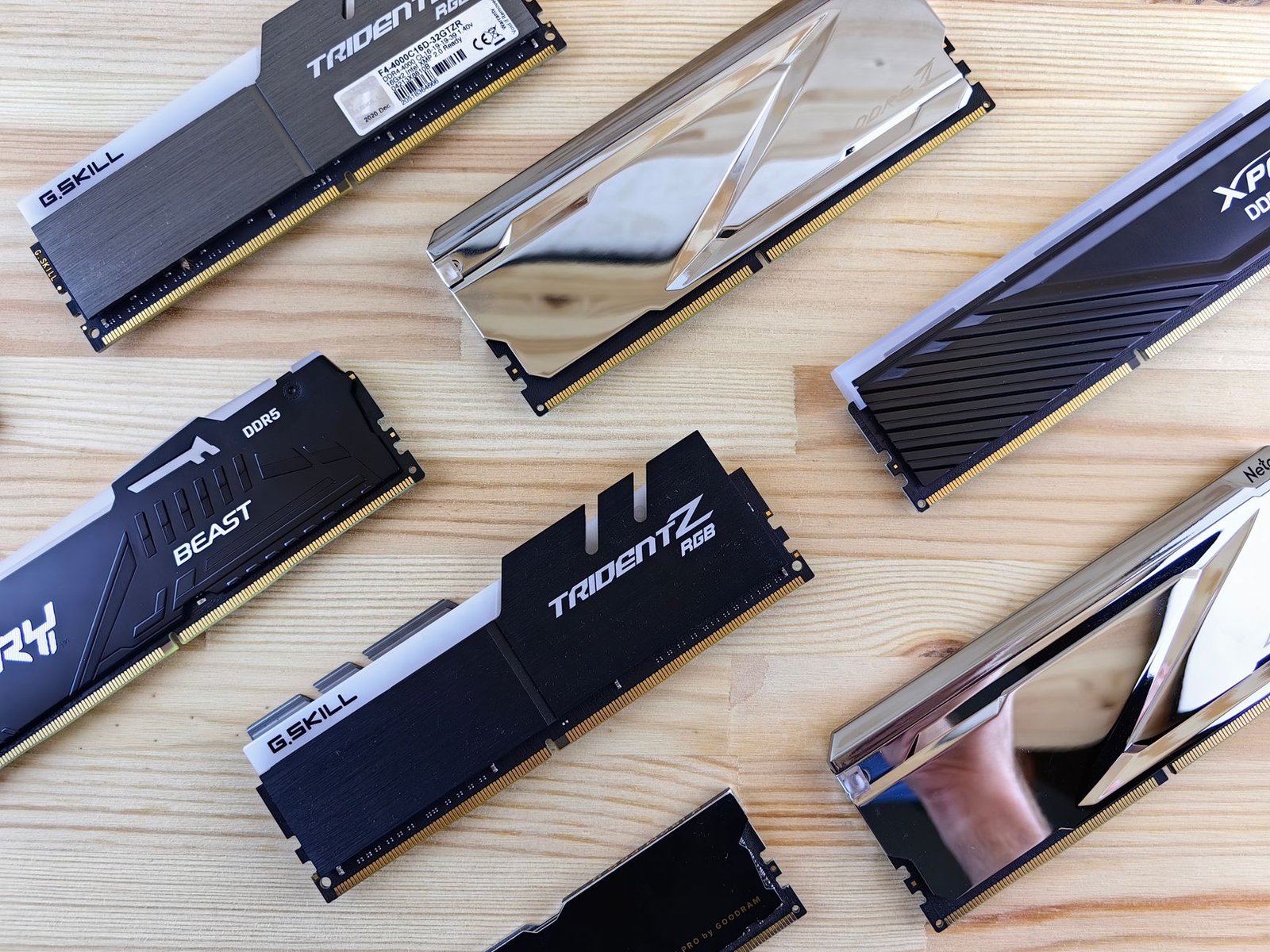
Google introduced native performance management tools into Chromium to combat excessive resource consumption without requiring third-party tools. Located within chrome://settings/performance, Chrome Memory Saver detects inactive tabs and automatically frees physical RAM from background processes. While this feature provides an immediate performance improvement for general web browsing, advanced workflows require more granular rule sets than native settings provide out of the box.
When Chrome Memory Saver discards a tab, it sends an internal system signal that strips the rendering context and V8 heap state from physical memory while retaining essential metadata in the upper tab bar. The tab remains visible with its title and site icon. When you click back onto the tab, Chrome executes a rapid background fetch, reconstructing the tab state from server resources or local web storage caches. Understanding how to tune these parameters lets you optimize resource reclamation without risking unsaved work.
Configuring Chrome High Efficiency Mode
To enable and configure Chrome’s native optimization capabilities, navigate to your browser settings panel and select the Performance menu. Toggle the Memory Saver setting to active. Chrome provides three native operational thresholds: Moderate, Balanced, and Aggressive. Selecting the Aggressive profile forces Chrome to reclaim memory from idle background tabs within 10 to 15 minutes of inactivity, which is ideal for systems running with 8GB or 16GB of total physical RAM.
Overriding Hard Tab Discards for Background Workflows
Native tab discarding can occasionally disrupt long-running tasks like web file uploads, live data streaming, or active WebSockets connections. To prevent data loss, Chrome includes an explicit exception list. You can add static domain names or explicit wildcard URLs to the Always Keep These Sites Active configuration box. Key exclusions should include web-based communication tools, active code repositories, and local development environments running on localhost ports.
Automated Tab Discarding Protocols: Setting Memory & Idle Thresholds
While Chrome’s native Memory Saver offers a baseline solution, automated extensions utilizing Chrome’s declarative chrome.tabs.discard API deliver total structural control over tab management routines. Extensions like Auto Tab Discard operate without altering web page content or inserting custom tracking scripts. They trigger native engine discard signals while offering deep configuration rules tailored to complex multi-tasking demands.
Implementing rule-based auto-discarding allows power users to keep hundreds of reference links open across long project cycles while limiting total browser RAM consumption to a tiny fraction of total system capacity. Setting an aggressive 10-minute idle timer on non-pinned, inactive background tabs ensures that only your active working context consumes physical hardware memory.
Never use tab suspension extensions that overwrite tab URLs with custom extension-based URLs (such as chrome-extension://...). If the extension crashes, updates, or gets uninstalled, your tab links and browser history states can be permanently corrupted. Stick strictly to tools using native chrome.tabs.discard engine calls.
Configuring Auto Tab Discard with Rule-Based Triggers
To establish an optimized auto-discarding routine, configure your extension parameters to enforce rigid system rules. Set maximum background tab lifespan to 15 minutes for standard web pages. Enable protective triggers that prevent discarding tabs under specific dynamic conditions: tabs playing active background audio, tabs containing active HTML form inputs with unsubmitted text, tabs connected to active WebRTC communication channels, or tabs configured with pinned status in your main browser window.
Preserving Form States, Unsaved Text, and Active Media Streams
The primary concern with aggressive background tab discarding is losing uncommitted data within web forms or rich text editors. Standard native discarding preserves web session storage (`sessionStorage`) and local cookies (`localStorage`). When a discarded tab reloads, well-designed modern web applications retrieve form data directly from local browser caches. For non-standard web forms, configuring your tab management tool to flag unsaved input fields ensures that tabs containing active text entry remain untouched by discarding routines.

Enterprise Automation: Scripting Auto-Archiving Workflows
For research-heavy professions, simple tab discarding is only half the battle. Over time, open tabs accumulate in your session bar, creating visual clutter and cognitive fatigue. Incorporating automated session management into your routine establishes a systematic pipeline for moving open background tabs out of active browser windows into organized markdown reference logs or session backups.
By establishing structured operating procedures, you can pair browser session tools with system-level automation routines. For example, learning how to build a 15-minute daily closing shift routine for a clutter-free home or workspace allows you to apply systematic archiving discipline across your digital environment. At the end of every working day, executing a scripted tab archive flushes inactive tabs out of RAM while keeping your reference URLs fully cataloged for future search access.
Using Chrome Storage API and Session Compression
Modern session management extensions use Chrome’s high-speed storage APIs to capture complete tab hierarchy states, including tab group colors, window index positions, and session scroll positions. When an automated archiving rule executes, the extension writes active tab queues to local JSON files and closes the active rendering processes completely. This action recovers 100 percent of allocated hardware RAM, dropping Chrome resource consumption back to baseline idling states.
Windows Optimization Integration: PowerShell and Task Scheduler
Power users on Microsoft Windows can align browser management with broader system automation routines. Integrating your tab management protocols alongside how to automatically organize your windows downloads folder daily using native tools creates a fully self-cleaning workspace environment. Using native PowerShell scripts tied to Windows Task Scheduler, you can automatically archive browser sessions, clean temporary cache directories, and clear system swap files during overnight maintenance windows.
Cross-Device Workflows: Mobile Sync and Storage Offloading
Tab management challenges extend beyond desktop operating systems onto mobile devices. Chrome cross-device synchronization continuously syncs open tab manifests between desktop setups, Android phones, and tablets. If left unmanaged, synced device profiles can create memory pressure and battery drain across mobile hardware.
Managing resource constraints on mobile hardware requires understanding device-specific operating system resource management models. When managing high-demand mobile environments, implementing disciplined web browsing parameters helps reduce background processing loads and prevents application freezing across mobile chipsets.
Android Troubleshooting: Preventing Mobile Browser Resource Throttling
Mobile operating systems like Android enforce aggressive low-memory killers (LMK) at the kernel level. When desktop tab synchronization floods mobile Chrome instances with dozens of synced background tabs, mobile processors experience thermal throttling and high battery drain. Effective low-energy productivity hacks to stay organized when burnt out help streamline web usage patterns, allowing mobile users to turn off auto-sync for background research windows while maintaining clean tab queues on active desktop displays.
Cloud File Integrity & Secure Document Offloading
When closing or auto-archiving background browser sessions, retaining critical cloud document links and active session tokens is vital. Web-based cloud storage tools maintain continuous sync channels back to cloud infrastructure. Ensuring that your tab discarding rules preserve WebSockets connections for active cloud storage platforms protects cloud file integrity and prevents file version collision issues during automatic background tab discarding.
Enterprise Document Security and PDF Offloading Protocols
One of the largest hidden causes of excessive Chrome memory usage is rendering large document files inside standard browser windows. Web-based PDF viewers convert complex vector graphics and document fonts into massive memory-mapped raster buffers. Opening three 100-page technical PDF documents inside separate browser tabs can instantly add 3GB of RAM consumption to your browser footprint.
Offloading document viewing from Chrome tabs into dedicated desktop applications or local file workflows instantly reclaims critical system memory while providing stronger document encryption and security options across enterprise file repositories.
Local PDF Security and In-Browser Viewer Overheads
While Chrome’s native PDF viewer is convenient for quick file previews, running document viewers inside Chromium renderer processes exposes files to web-based process security vulnerabilities. Furthermore, Chrome maintains entire PDF file render trees directly in active system RAM without executing background memory discarding. Re-routing default PDF file associations to open in dedicated desktop PDF readers flushes document overhead entirely out of your browser process tree.
Private Document Scanning & Local Memory Offloading
Workflows involving confidential file uploads, private document scanning, or sensitive client records require high standards for file handling and memory security. Storing sensitive document scans inside open, unmanaged browser tabs leaves temporary document buffers in unencrypted V8 heap memory. Offloading scanned documents directly to local encrypted storage or dedicated desktop utilities eliminates browser memory bloat and protects sensitive data from unexpected browser crashes or extension inspection security vulnerabilities.
<p style="margin:0; color:#7c2d12; line-height:1.7;