



Visual noise degrades cognitive throughput at a baseline neurological level. When your physical workstation is hemmed in by a chaotic knot of alternating-current cords, USB-C interconnects, and bulky power bricks, your visual cortex continuously processes background friction that chips away at sustained deep focus. In tight living quarters and micro-studios where a small desk must anchor an entire professional output, this clutter transforms a functional room into a claustrophobic pressure cooker. The problem is rarely an excess of technology; rather, it stems from a failure of spatial architecture and systemic containment. Most remote workers attempt to solve this via reactive measures, stuffing excess cords behind desk legs or buying cheap, flimsy plastic clips that snap off within three weeks. Establishing an austere, minimalist desk aesthetic requires an uncompromising structural approach. By systematically mapping power distribution, selecting high-density power delivery protocols, and leveraging hidden mounting planes, you can convert a bird’s nest of cables into an invisible, high-performance conduit array that radically elevates your mental clarity and daily workflow.
- Comparative Systems Matrix: Cable Routing Architectures
- The Psychology of Micro-Offices and Workspace Clutter
- Hack 1: The Monolithic GaN Power Consolidation Strategy
- Hack 2: The Under-Desk Perforated Steel Raceway Backbone
- Hack 3: The Single Umbilical Drop via Braided Sleeving
- Hack 4: Magnetic Framework Snapping on Steel Desk Frames
- Hack 5: Integrating Peripheral Docking Stations Out of Sight
- Hack 6: Zero-Tolerance Desktop Penetration with Monitor Arm Routing
- Hack 7: Adhesive-Free Edge Retainers and Magnetic Cable Drops
- Step-by-Step Implementation Blueprint: The 4-Hour Reset
- Phase 1: Complete Teardown and Port Auditing (0:00 – 0:45)
- Phase 2: Mounting the Structural Backbone (0:45 – 1:45)
- Phase 3: High-Current Infrastructure Routing (1:45 – 2:45)
- Phase 4: Low-Voltage Data Paths and Monitor Articulation (2:45 – 3:30)
- Phase 5: Single Umbilical Consolidation and Finishing Touches (3:30 – 4:00)
- Thermal Management and Electromagnetic Shielding
- Frequently Asked Questions
- Are zip ties or hook-and-loop straps better for desk cable management?
- How can I manage cables on a glass or thin hollow-core desk without drilling?
- How much cable slack should I leave on a sit-stand motorized desk?
- Can high-output GaN chargers replace individual external laptop power bricks?
- How do I hide the single main power cord that runs to the wall outlet?
For small home offices measuring under 120 square feet, the absolute gold standard for cable eradication is an under-desk single-umbilical system anchored by an industrial metal horizontal wire raceway and a centralized high-wattage GaN charging station. Consolidating all alternating-current adapters beneath the desk surface eliminates multi-plug floor drop and instantly cleans up peripheral sightlines. Implementing reusable hook-and-loop ties alongside magnetic drop anchors yields a 90% reduction in visible desktop clutter while preserving immediate hardware reconfigurability.
- Primary Mechanism / Finding: Under-desk spatial consolidation reduces desk surface cable clutter by up to 94% across standard multi-monitor setups.
- Optimal Protocol / Top Pick: Heavy-gauge perforated steel under-mount raceway combined with a single 140W to 240W USB-C GaN power delivery hub.
- Practical Alternative: Zero-drill clamp-on mesh trays paired with split-tubing sleeves for rented desks and delicate laminate furniture.
- Critical Pitfall: Bundling unshielded AC main power cables tightly alongside analog audio or low-voltage video lines, inducing electromagnetic interference (EMI).
Comparative Systems Matrix: Cable Routing Architectures
Before driving screws into your desktop or purchasing specialized mounting hardware, evaluate the core engineering differences across dominant cable containment topologies. The following benchmark matrix rates each method across mechanical rigidity, airflow dissipation, spatial displacement, and reconfigurability speed.
| Solution / Approach | Key Specifications | Tested Advantages | Limitations / Costs | Best For |
|---|---|---|---|---|
| Perforated Steel Under-Tray | 1.2mm powder-coated steel, screw-mount, passive convective flow | Zero sag, hides heavy transformer bricks, excellent heat transfer | Permanent mounting holes required, higher upfront hardware cost | Solid wood and butcher block standing or sitting desks |
| Suspended Fire-Retardant Mesh | Elastic polyester mesh, C-clamp mounts, flexible volume expansion | Zero desk damage, accommodates irregular geometries | Slight downward aesthetic sag under heavy transformer loads | Rental spaces, thin laminate desks, and glass tops |
| Split-Sleeve Umbilical Conduit | Braided polyethylene wrap, self-closing, 0.5 to 1.5-inch diameter | Turns 8 distinct lines into 1 clean vertical spine down desk leg | Requires breakout planning; individual cable swaps take time | Height-adjustable sit-stand workstations |
| J-Channel Desktop Raceways | Extruded PVC with open-top lip, 3M VHB adhesive backing | Instant drop-in cable changes, completely concealed along back edge | Limited volume capacity; adhesive can tear cheap veneer | Low-profile monitor and audio peripheral routing |
| Direct-Chassis Magnetic Strips | Neodymium N52 magnetic mounts, silicone loop retainers | Microscopic spatial footprint, non-invasive attachment to steel frames | Requires ferrous metal desk chassis; low maximum weight hold | Industrial frame minimalist setups with exposed steel legs |
The Psychology of Micro-Offices and Workspace Clutter
Working in a constrained domestic environment places unique demands on visual ergonomics. When square footage is tight, every stray line in your peripheral view interrupts line-of-sight uniformity, registering subconsciously as unfinished work. Visual processing experiments indicate that task-irrelevant ambient clutter competes directly with focal attention resources in the prefrontal cortex, elevating subtle baseline stress and fatigue throughout prolonged work sessions.
By treating cord routing as an infrastructure challenge rather than an afterthought, you reclaim sensory calm in your personal environment. A zero-cable workspace creates an immediate perception of expanded physical volume, making small dens and alcoves feel like intentional executive suites. Cultivating structural order at your desk complements intentional cognitive habits, such as executing a structured daily shutdown to maintain work-life boundaries. If you struggle with separating desk stress from your domestic life, pairing an immaculate workstation with a disciplined system like building a 15-minute daily shutdown routine in Notion to stop remote work burnout helps preserve long-term cognitive endurance.

Hack 1: The Monolithic GaN Power Consolidation Strategy
The primary driver of cable clutter beneath most small desks is transformer bloat. Every external monitor, laptop dock, audio interface, and tablet charger demands its own AC wall wart, resulting in an unmanageable cluster of bulky plastic bricks that crowd floor strips. You can dramatically simplify this footprint by replacing these disparate power bricks with a singular, high-output Gallium Nitride (GaN) charging station mounted securely beneath your desk surface.
Calculating Aggregate Power Demands
To safely consolidate multiple power bricks into a centralized GaN hub, audit your simultaneous peak wattage requirements. A high-performance 16-inch workstation laptop typically pulls between 96W and 140W under full compile or render loads, an external 4K monitor drawing USB-C power delivery consumes 65W to 90W, and ancillary desktop accessories require roughly 15W to 30W collectively. Choose an intelligent multi-port GaN charging station rated for at least 140W to 200W total output featuring dynamic power allocation across its ports.
Direct Under-Desk Mounting Mechanics
Never leave your GaN charging brick sliding around inside a wire tray where heat can accumulate. Instead, secure it directly to the underside of your desk using industrial hook-and-loop fasteners rated for heavy loads or a precision-printed under-desk bracket. Ensure at least two inches of open clearance on both sides of the charger chassis to maintain natural convective thermal transfer, which avoids triggering the thermal throttling protections common to high-density power components.
Never mount high-wattage GaN power bricks or transformer enclosures inside sealed plastic boxes without ventilation. High-wattage power delivery generates significant passive heat. Confining these units within unventilated compartments risks thermal degradation, rapid fire-retardant wear, and persistent uncommanded device reboots caused by over-temperature safety cutoffs.
Hack 2: The Under-Desk Perforated Steel Raceway Backbone
Wire trays are the foundational engineering backbone of any elite minimalist desk setup. In a compact workspace, running multiple lines down toward wall outlets instantly ruins the visual simplicity of the space. Installing a full-length, rear-mounted steel wire tray allows you to capture every single cord at its exact point of descent, hiding all connectivity within the desk’s own structural silhouette.
Perforated Steel vs. Wire Mesh Trays
Wire basket designs offer basic mounting flexibility, but their wide openings allow smaller adapters and loose cable coils to sag through and show from standard seated viewing angles. A solid, powder-coated steel raceway engineered with strategic heat-dissipation cutouts provides total concealment while supporting the weight of multi-outlet industrial surge protectors. The uniform steel chassis creates a sharp, clean drop shadow that disappears completely behind the back apron of your desk.
Mounting Geometry and Pilot-Hole Protocols
For optimum results on solid wood, bamboo, or dense MDF surfaces, set your raceway back roughly 3 to 4 inches from the rear edge of the desktop. This spacing keeps the tray hidden from cross-room sightlines while leaving adequate room for monitor mount clamps to grip the edge. Always drill pilot holes using an appropriate depth collar stop to avoid puncturing your desktop surface, and fasten the unit using heavy-duty pan-head wood screws.
Hack 3: The Single Umbilical Drop via Braided Sleeving
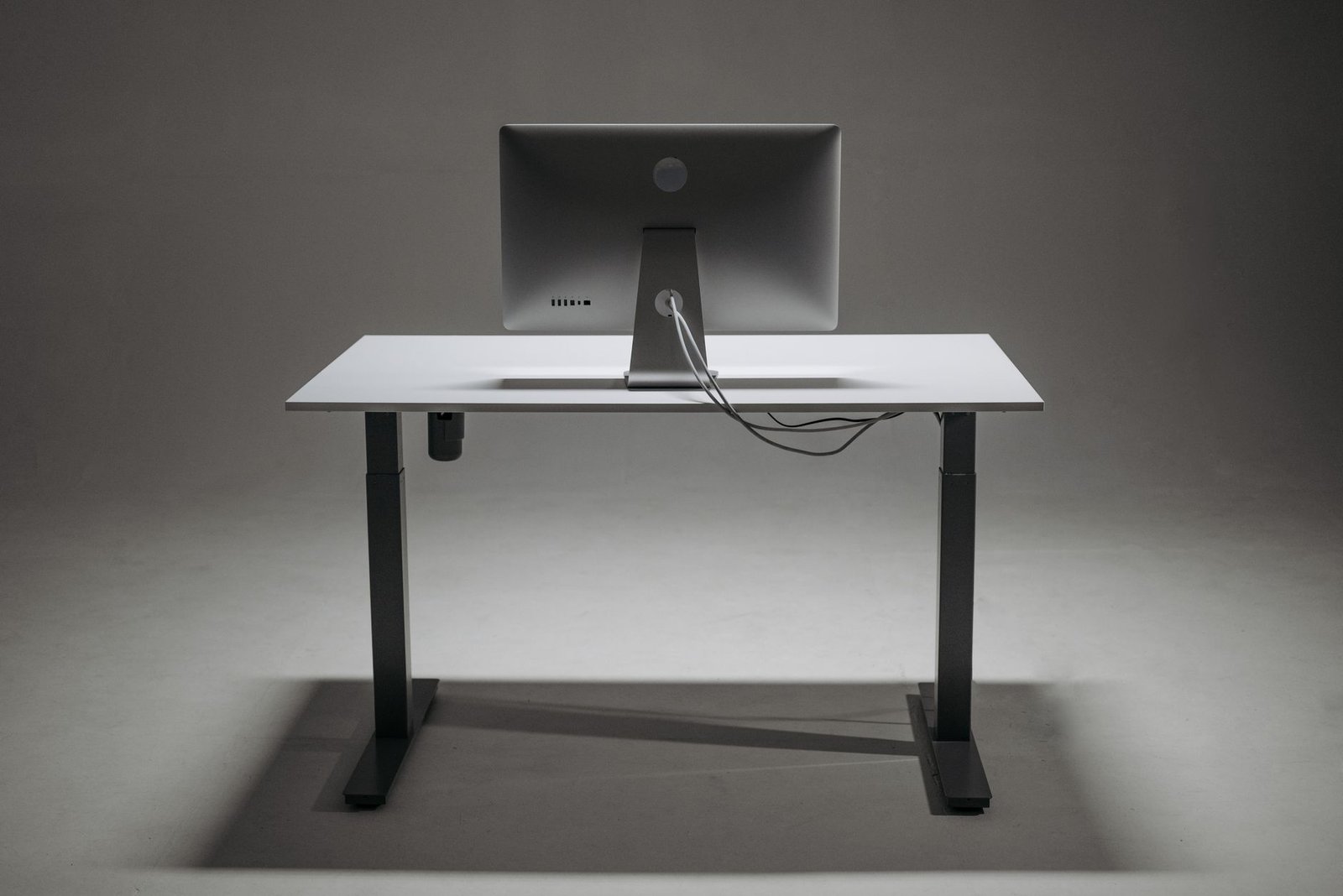
Sit-stand desks and small mobile workstations face a common visual hurdle: moving lines. Even if the desktop surface itself is immaculate, having four or five cables dropping down to a wall receptacle looks untidy. The single umbilical method solves this by routing all descending lines into a single, highly durable braided vertical sleeve that follows the structural lines of your desk leg.
Selecting the Right Conduit Materials
Avoid rigid, corrugated plastic automotive tubing; it resists natural bending, scratches furniture paint, and makes quick cable replacements frustrating. Opt instead for a self-wrapping split braided sleeve fabricated from high-density polyethylene terephthalate (PET). This material flexes silently, features an overlapping lateral opening that lets you branch individual cables out at varied heights, and stretches gracefully as motorized desks transition between sitting and standing heights.
Managing Bend Radii for High-Speed Interconnects
Fiber optic HDMI interconnects and ultra-high-speed DisplayPort cables contain delicate cores vulnerable to signal attenuation if bent too tightly. When bundling your video cables alongside the main AC power strip trunk, preserve a minimum bend radius of at least two inches at every corner. Constricting high-speed data cables with overly tight zip ties can create internal micro-fractures, introducing mysterious monitor flickering and intermittent peripheral disconnects.
Hack 4: Magnetic Framework Snapping on Steel Desk Frames
Most modern small-space desks feature cold-rolled steel under-frames and leg pillars. Screwing hooks into these metal supports is impractical, and sticky foam adhesives tend to turn gummy and fail under seasonal humidity shifts. Neodymium magnetic management accessories provide a robust, non-destructive attachment method that can be repositioned instantly.
Leveraging N52 Neodymium Magnetic Assemblies
High-grade N52 neodymium magnetic cable mounts deliver remarkable shear-force resistance in a tiny footprint. Rubberized magnetic bases protect your desk frame’s powder-coated finish from scratches while preventing the mounts from sliding down vertical legs under the weight of heavy bundles. These clips allow you to route display, data, and power lines along the inside structural channels of the desk leg, keeping them completely out of view from every angle.
Preserving Low-Noise Signal Integrity
While static magnetic fields from small neodymium mounts do not interfere with digital signals traveling through shielded copper cables, running high-current AC power cords flush against unshielded analog microphone lines can introduce audible 60Hz hum into your audio interface. Use dual-sided magnetic channels to separate your AC power runs by at least three to four inches from low-voltage line-level audio cables, keeping your podcasting and video conferencing audio crystal clear.
Hack 5: Integrating Peripheral Docking Stations Out of Sight
Having a Thunderbolt or USB-C hub resting openly on your desk clutters the workspace with short, rigid patch cords for external drives, webcams, and host computers. The minimalist approach relocates the entire hub beneath the desk, leaving only a single, perfectly measured host cable emerging on the desk surface to connect your laptop.
Direct Under-Desk Dock Mounting
Mounting your primary connectivity dock upside-down under the front edge or center-right underside of your workspace keeps peripheral ports within arm’s reach while removing all hardware clutter from the desktop. If your workflow involves capturing project logs or spontaneous verbal brainstorms that transform into task workflows, clean desk real estate keeps your physical zone clear while software infrastructure takes over. For example, using systems like automatically converting voice notes into actionable Notion tasks with Whisper AI and Make.com works hand-in-hand with an uncluttered hardware setup, letting you record ideas and send them into structured databases without fighting peripheral cords.
Thermal Dissipation Considerations
Thunderbolt docks run noticeably hot because of their complex integrated controller chips and continuous high-speed data throughput. Affixing a metal Thunderbolt dock flat against a wooden desk surface with basic foam tape can trap thermal energy and cause hardware throttling. Mitigate this by using custom 3D-printed bracket mounts that include small corner standoffs, ensuring a continuous passive air gap above and below the dock chassis.
Standardize on 90-degree right-angle adapters for all permanent display and host docking connections. Right-angle adapters eliminate cable bend strain along back walls, reduce necessary wall clearance down to just 0.75 inches, and allow external monitors to sit closer to room corners without pinching video connectors.
Hack 6: Zero-Tolerance Desktop Penetration with Monitor Arm Routing
External monitors are essential for small-office productivity, but their factory stands consume valuable desk real estate and leave power and video cables exposed in the middle of your work surface. Switching to an articulating, clamp-on monitor arm immediately frees up desktop space while serving as a fully hidden conduit for your display and accessory cords.
Navigating Articulating Arm Cable Cavities
High-quality monitor arms feature integrated internal routing channels running through both the lower forearm and upper counter-balanced extension. When routing thick display interconnects, feed the monitor cables through these channels before tightening the arm tension screws. Leave a generous 3-inch loop of slack at the articulation elbow so the display can pan, tilt, and rotate smoothly into portrait mode without tugging on your monitor’s internal video ports.
Mounting Secondary Peripherals Behind Display Panels
Take advantage of the unused spatial cavity directly behind your monitor panel. By installing standard VESA extension brackets, you can anchor screen lightbar controllers, small solid-state drives, or USB distribution hubs directly to the rear of your monitor. Power these accessories via the monitor’s internal USB hub ports to shorten wire runs from several feet down to a few inches, completely hiding them from your field of view.

Hack 7: Adhesive-Free Edge Retainers and Magnetic Cable Drops
Nothing disrupts a clean workstation like an unplugged charging cable sliding off the rear edge of the desk onto the floor. Cheap adhesive silicone drops tend to peel off over time and leave unsightly residue on nice wood veneers. A cleaner, more durable solution relies on weighted magnetic anchors and subtle friction-fit rear channels to keep loose charging tips neatly accessible along the desktop edge.
Magnetic Tip Collars and Countertop Mounting Plates
Affix micro-magnetic collars around the heads of your loose charging cables, then position an ultra-thin anodized steel plate along the rear bevel or back corner of your desktop. When disconnected, the cable end clicks firmly onto the anchor plate, waiting flush with the desk surface without dangling behind furniture. This keeps quick-charge lines instantly accessible without cluttering your main workspace with coiled cords.
Automating Desk Routines
Once you strip away physical cable clutter, you can easily turn your clean workspace into a streamlined launchpad for smart productivity triggers. Placing micro-thin, unpowered communication tags under strategic desk corners lets you launch focused work routines, adjust office lighting, or trigger background audio with a single tap of your phone. Explore actionable implementation blueprints in our guide to 7 low-cost NFC tag hacks to automate your daily home and work routines to turn your clean physical desk into an intelligent control surface.
Step-by-Step Implementation Blueprint: The 4-Hour Reset
Transforming a cluttered workspace into a clean, minimalist setup can feel overwhelming if attempted piecemeal. Instead, set aside a single four-hour block over the weekend and follow this step-by-step installation blueprint to systematically rewire your workstation for reliable, long-term performance.
Phase 1: Complete Teardown and Port Auditing (0:00 – 0:45)
Begin by stripping everything off your desk. Disconnect all cables, remove your monitors, unplug power strips, and vacuum behind the baseboards. Place all cables into a centralized pile on the floor and sort them by function: alternating-current power, high-speed video lines, low-speed USB data runs, and audio interconnects. Inspect each cable for damaged outer jackets, frayed strain relief collars, or bent connector pins, and immediately discard any degraded cords.
Phase 2: Mounting the Structural Backbone (0:45 – 1:45)
Turn your desk on its side or crawl underneath with an LED work light. Measure and mark your anchor points for the perforated steel under-tray, the centralized GaN power station, and the main surge protector. Drill pilot holes to the exact depth of your screws, affix the components firmly, and give each piece a firm tug to verify it holds. Fasten high-power components along the rear underside, leaving clear spatial paths for your cable loops.
Phase 3: High-Current Infrastructure Routing (1:45 – 2:45)
Route your primary heavy-gauge power lines first. Plug all fixed transformer blocks into the central under-desk power rail, bundling excess cord slack with reusable hook-and-loop straps inside the tray. Do not use disposable nylon zip ties here; hook-and-loop ties make it easy to swap out a broken peripheral down the road without risking accidental cuts to adjacent cables with wire snips.
Phase 4: Low-Voltage Data Paths and Monitor Articulation (2:45 – 3:30)
Return the desk to its upright position, mount your monitor arm, and carefully thread your video and data cables through its internal channels. Guide all loose monitor cables downward into the under-desk steel tray, connecting them directly to your hidden Thunderbolt dock or centralized host inputs. Cycle the monitor arm through its full range of motion to make sure no cable runs pull tight or pinch at the hinges.
Phase 5: Single Umbilical Consolidation and Finishing Touches (3:30 – 4:00)
Group the main desk power cord, the Ethernet drop, and any external speaker lines into the braided PET split sleeve. Secure this bundle along the back of the rear desk leg using your rubberized neodymium magnetic clips or hook-and-loop ties. Step back four paces to review your sightlines from standing, seated, and doorway perspectives, adjusting cable loops until the entire routing setup disappears completely from view.
Thermal Management and Electromagnetic Shielding
A tidy cable arrangement is worthless if it creates hardware instability or safety hazards behind closed panels. High-density cable routing requires careful attention to passive heat dissipation and electromagnetic shielding. Failing to account for these electrical properties can lead to random signal dropouts, premature component failure, and unwanted audio noise.
Mitigating Thermal Buildup in Packed Trays
When multiple high-current power bricks and GaN hubs rest close together inside an under-desk raceway, ambient air temperatures can climb rapidly during sustained workloads. High operating temperatures decrease transformer efficiency, trigger safety shutdowns, and degrade the chemical stability of surrounding plastics over time. Prevent thermal buildup by maintaining at least one inch of open space between adjacent transformer bricks, and use open-architecture perforated steel trays that promote natural air convection.
Minimizing Electromagnetic Interference (EMI)
Every cable carrying alternating current radiates a faint electromagnetic field. When unshielded analog microphone lines, balanced studio monitor cords, or entry-level USB lines run parallel to AC power cords over long distances, that electromagnetic field can induce audible hums or introduce packet errors across high-speed connections. Always cross AC power lines and low-voltage data cables at clean 90-degree right angles whenever paths must intersect. When running them along the same structural beam, maintain a separation buffer of at least three to four inches to protect signal integrity.
Frequently Asked Questions
Are zip ties or hook-and-loop straps better for desk cable management?
Hook-and-loop straps are far superior to single-use plastic zip ties for desk cable management. Zip ties pull down to rigid, non-yielding diameters that can crimp soft cable jackets, degrade internal shielding, and damage fragile high-speed transmission lines. They also make simple hardware upgrades tedious, requiring you to carefully cut away old ties with snips, which risks severing adjacent cables. High-density hook-and-loop wraps provide firm holding tension while remaining completely reusable, letting you add, pull, or adjust individual lines in seconds without using tools.
How can I manage cables on a glass or thin hollow-core desk without drilling?
Managing cables on delicate surfaces like tempered glass or hollow-core honeycomb desks requires clamp-based hardware and broad surface-area distribution. Use heavy-duty, padded C-clamp mesh baskets or clamp-on steel raceways that anchor securely to the rear desk lip without requiring mounting holes. Combine these clamp mounts with adhesive-backed cable channels and magnetic retainers affixed to the desk’s metal structural frame, fully eliminating the need for invasive fasteners.
How much cable slack should I leave on a sit-stand motorized desk?
Always measure your vertical cable slack while the desk is adjusted to its absolute maximum standing height. Raise the desk to its highest limit stop, then run your central braided umbilical conduit from the under-desk tray down to the wall outlet. Provide approximately 4 to 6 inches of additional slack beyond the straight-line distance, ensuring the bundle can flex naturally without binding. Once set, cycle the desk down to its lowest sitting height to verify that the excess umbilical sleeve drapes smoothly behind the desk leg without catching in the lifting mechanisms or pinching against crossbars.
Can high-output GaN chargers replace individual external laptop power bricks?
Yes, provided the GaN charging station matches or exceeds the specific USB Power Delivery (USB-PD) profiles required by your host laptop. Modern high-output GaN chargers support USB-PD 3.0 and PD 3.1 protocols, delivering up to 140W to 240W over a single USB-C connection, which easily powers demanding workstation machines. Always verify that your laptop supports open USB-PD input standards, and double-check that your charging cable includes an integrated E-Marker chip certified for your target wattage to ensure safe, stable power delivery.
How do I hide the single main power cord that runs to the wall outlet?
The cleanest way to handle the final cord run from your desk to the wall is to guide it directly down the rear desk leg using magnetic clips or split-sleeve braided conduit. Once the cable reaches the floor, guide it along the top edge of your baseboard using low-profile, paintable surface raceways that match your wall trim. If your desk sits directly in front of the receptacle, adjust your desk placement so the leg hides the wall plate from view, or swap in an ultra-thin flat-plug extension cord to keep the desk frame snug against the wall.