


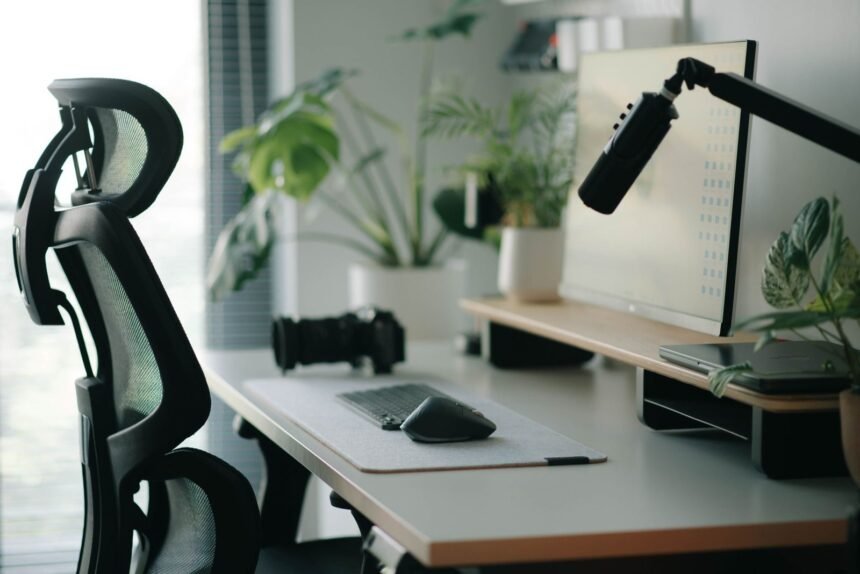
Remote professionals frequently experience the silent accumulation of musculoskeletal strain, chronic neck tension, and insidious lower back fatigue due to poorly optimized home workspaces. When corporate infrastructure vanishes, individuals are left scrambling to adapt kitchen chairs, dining tables, and uncalibrated laptop screens to eight-hour workdays. Traditional solutions dictate purchasing thousand-dollar ergonomic chairs and motorized standing desks, effectively pricing out freelancers, remote employees, and students on tight operational budgets. Yet, advanced bio-mechanics and physics teach us that optimal posture relies on precise angles, elevation, and support rather than exorbitant brand-name price tags. By leveraging household items, tactical office supply purchases, and clever DIY engineering, you can overhaul your sitting and standing posture for under one hundred dollars. This comprehensive guide details the exact protocols, equipment modifications, and behavioral adjustments necessary to transform your workspace into a biomechanically sound environment.
- Evaluating Your Current Ergonomic Deficit
- The Budget Allocation Matrix
- Conquering Screen Height and Neck Strain
- Mastering Seating Support on a Shoestring Budget
- Keyboard and Mouse Placement for Wrist Health
- Lighting, Glare, and Eye Strain Optimization
- The Low-Cost Standing Desk Conversion
- DIY Acoustic and Tactical Workspace Optimization
- The 4-Week Progressive Adaptation Blueprint
- Troubleshooting Common Ergonomic Pains
- Frequently Asked Questions
- Can I achieve true ergonomic alignment without spending any money at all?
- How do I know if my chair is the correct height for my body?
- Is standing all day better for me than sitting all day?
- What is the absolute most important item to buy first if I have a strict $50 budget?
- How can I prevent wrist pain if I cannot afford an ergonomic vertical mouse?
You do not need an expensive corporate office setup to protect your spine and wrists from repetitive strain injuries. By spending your hundred-dollar budget on a standalone external keyboard, a cheap laptop stand or reams of printer paper for elevation, and a memory foam lumbar pillow, you can achieve perfect 90-degree typing angles and correct eye-level alignment immediately.
- Primary Mechanism / Finding: Separating your input devices from your display is the single most effective intervention to eliminate forward head carriage and shoulder hunching.
- Optimal Protocol / Top Pick: Pair a budget scissor-switch Bluetooth keyboard with a foldable aluminum laptop stand and a high-density foam lumbar roll.
- Practical Alternative: Use sturdy textbook stacks or unused reams of printer paper to elevate your display while modifying a dining chair with rolled towels.
- Critical Pitfall: Never tilt your head downward to view a low laptop screen for extended periods, as this increases the effective gravitational load on your cervical spine up to sixty pounds.
Evaluating Your Current Ergonomic Deficit
Before spending a single dollar of your hundred-dollar allocation, you must audit your existing workspace to identify structural failures. Most remote professionals suffer from cumulative micro-traumas caused by poor viewing angles, unsupported lumbar regions, and improper elbow positioning. When your monitor sits too low, your cervical vertebrae bend forward, placing immense pressure on the spinal discs and surrounding musculature. Conversely, typing on a high surface forces your shoulders upward, creating chronic tension in the trapezius muscles that radiates into tension headaches by late afternoon. Identifying these specific physical stressors allows you to direct your limited capital toward the interventions that deliver the highest return on investment.
To conduct a rigorous self-audit, sit in your usual working posture while a partner takes a profile photograph or video of you working. Analyze the resulting image against established biomechanical standards: are your ears aligned directly over your shoulders, and are your shoulders relaxed and resting away from your ears? Check if your elbows form a comfortable ninety-to-one-hundred-degree angle while your wrists remain completely neutral, neither bending upward nor dropping downward. Finally, examine your lower back to see if there is a noticeable gap between your lumbar spine and the backrest of your chair. Documenting these specific gaps and misalignments provides a baseline metric against which you can measure the success of your upcoming budgetary interventions.
Many remote workers mistakenly believe that comfort equals correct ergonomics, which is a dangerous and costly misconception. Your nervous system readily adapts to slouching and poor spinal alignment, tricking you into feeling comfortable while silently degrading your joint integrity. Temporary relief provided by a soft, unsupportive couch often masks the slow onset of lumbar disc degeneration and chronic hip flexor shortening. Therefore, your ergonomic evaluation must rely on objective geometric measurements rather than subjective feelings of comfort during the first ten minutes of work. Embracing this analytical mindset ensures that every modification you implement addresses the root mechanical cause of your discomfort.
The Budget Allocation Matrix
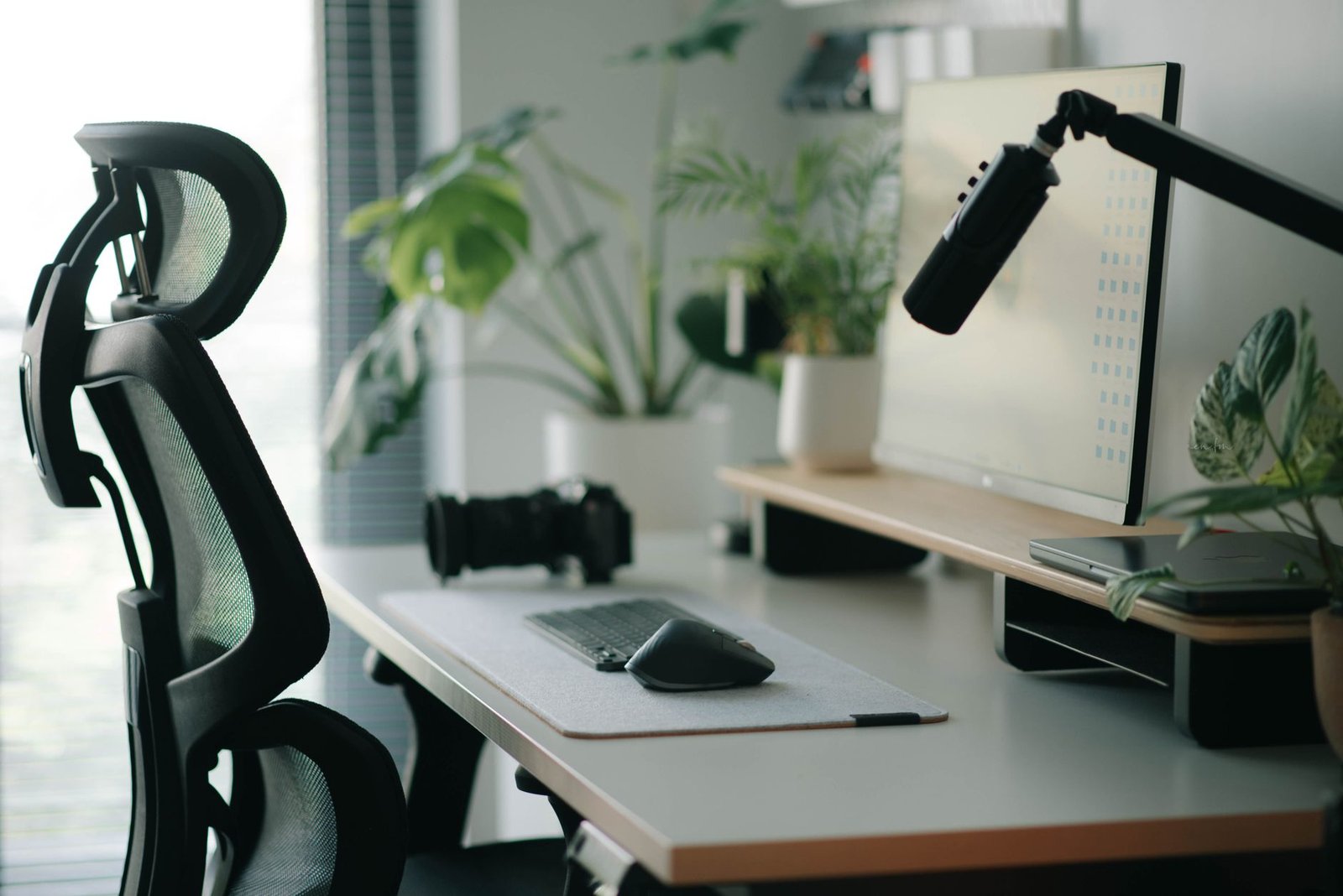
Operating under a strict one-hundred-dollar ceiling requires ruthless prioritization and a clear understanding of equipment value. You cannot afford to purchase luxury brands or heavily marketed gimmick products that offer minimal functional improvement over basic utility items. Instead, your capital must be deployed toward the foundational hardware components that directly impact your skeletal alignment and joint angles. The most critical items on your shopping list are an external keyboard, an adjustable laptop riser or monitor stand, and a targeted lumbar support mechanism. Allocating your funds strategically across these three categories yields a complete structural overhaul of your workspace without exceeding your financial limit.
| Solution / Approach | Key Specifications | Tested Advantages | Limitations / Costs | Best For |
|---|---|---|---|---|
| External Bluetooth Keyboard & Mouse | Scissor-switch, full-size layout, low profile | Allows independent screen elevation; prevents wrist extension | Requires batteries or occasional charging; costs $25-$35 | All laptop-based remote workers |
| Foldable Aluminum Laptop Riser | Adjustable height settings, 6-level tilt | Lifts screen to eye level; highly portable; excellent airflow | Lacks stability under heavy typing force; costs $15-$25 | Users without external monitors |
| High-Density Foam Lumbar Cushion | Memory foam, adjustable elastic strap, breathable mesh | Forces natural lumbar curve; prevents slouching | May push user too far forward on shallow seats; costs $20-$30 | Anyone using a non-ergonomic dining chair |
| DIY Paper Ream Monitor Stand | Standard 500-sheet printer paper reams | Free or virtually zero cost; fully customizable height | Aesthetically industrial; vulnerable to moisture; $0-$5 | Ultra-tight budget setups |
When selecting your gear, prioritize durability, adjustability, and universality over flashy aesthetics or RGB lighting. A plain matte black aluminum laptop stand performs the exact same biomechanical function as an artisanal wooden desktop organizer while costing a fraction of the price. Similarly, a basic wired or wireless membrane keyboard provides the exact same travel distance and ergonomic angle as a high-end mechanical gaming keyboard for typing tasks. By separating your purchasing decisions from consumer marketing hype, you stretch every single dollar to maximize structural health and productivity output. Keep receipts and purchase from retailers with robust return policies in case a specific piece of equipment fails to match your physical dimensions.
After acquiring your hardware components, establish an accounting log to track your spending and ensure you remain under budget. Many remote professionals find that intelligent shopping on secondhand marketplaces or discount warehouse platforms yields professional-grade ergonomic accessories for pennies on the dollar. For instance, office liquidation sales frequently offer commercial-grade monitor arms and footrests at steep discounts compared to retail pricing. If you are building automated workflows for your business alongside your physical upgrades, you might appreciate learning how to build an automated client on-boarding system in Airtable without code to streamline your administrative overhead. Combining digital efficiency with physical wellness creates a holistic foundation for sustainable remote work success.
Conquering Screen Height and Neck Strain
The single most destructive physical habit among laptop-bound remote professionals is staring downward at a screen positioned flat on a desk surface. Human heads weigh approximately ten to twelve pounds in a neutral, upright position, but tilting that head forward at a forty-five-degree angle increases the gravitational torque on the cervical spine to nearly fifty pounds. This immense pressure forces the surrounding neck muscles into a state of perpetual isometric contraction, leading to chronic fatigue, disc compression, and nerve impingement. Solving this problem requires elevating your display until the top third of the screen aligns directly with your horizontal eye level. Achieving this elevation without breaking your budget demands creative engineering and precise vertical measurements.
If you cannot afford a dedicated commercial laptop stand, you can easily construct a custom riser using household items you already own. Unopened reams of printer paper, sturdy hardcover textbooks, or even sturdy wooden storage boxes serve as exceptional, highly stable platforms for your display. Measure the vertical distance from your desk surface to your eye level while sitting tall in your chair, and stack your paper reams until they match that exact vertical delta. Place your laptop securely on top of this improvised pedestal, ensuring that the device’s ventilation ports remain completely unobstructed to prevent overheating. This simple modification instantly eliminates forward head posture and resets your cervical vertebrae into a natural, stress-free alignment.
Once your screen is elevated to the correct height, you will immediately notice that your built-in laptop keyboard is now positioned far too high for comfortable typing. Attempting to type on an elevated laptop forces your shoulders into an unnatural, shrugged position and bends your wrists into an acute extension angle. This mechanical contradiction is precisely why an external keyboard and mouse are non-negotiable components of your budget allocation. By placing your display at eye level on your paper stack while keeping your input devices flat on the main desk surface, you decouple viewing height from typing posture. This separation represents the core architectural breakthrough of modern home office ergonomics.
Mastering Seating Support on a Shoestring Budget
Commercial ergonomic office chairs featuring synchronized tilt mechanisms, adjustable 4D armrests, and dynamic lumbar support routinely cost upwards of eight hundred dollars. If your budget is capped at one hundred dollars, purchasing a brand-new high-end ergonomic chair is entirely out of the question. However, you can dramatically upgrade an existing dining chair, kitchen stool, or basic task chair using targeted aftermarket additions. The primary objective of your seating hack is to maintain a supportive lumbar curve while ensuring your feet rest completely flat on the floor with your knees at a ninety-degree angle. Achieving this balance requires combining specialized cushions with clever footrest improvisations.
Start by addressing the lumbar region of your spine, which naturally curves inward toward your abdomen when your posture is properly aligned. Most budget or non-ergonomic chairs feature flat or convex backs that force your lower spine to flex outward, stretching the ligaments and fatiguing the erector spinae muscles. Purchasing a dedicated memory foam lumbar cushion with an adjustable elastic strap costs roughly twenty-five dollars and securely locks onto any chair back. Position this cushion so that its apex presses firmly into the curve of your lower back, roughly at the level of your beltline. If you have zero budget remaining for a cushion, a tightly rolled bath towel secured with heavy rubber bands provides surprisingly effective temporary lumbar support.
Foot support is the frequently overlooked variable that dictates whether your seating posture remains stable throughout an extended work session. If your chair is too high for your legs, your feet will dangle or rest only on your toes, cutting off circulation in your thighs and tilting your pelvis backward. Conversely, if your chair is too low, your knees will point upward toward your chest, compressing your hip flexors and loading your lower back incorrectly. If your feet do not rest flat on the floor while your knees form a ninety-degree angle, you need a footrest immediately. A sturdy cardboard box stuffed with heavy books, an old yoga block, or a small slanted wooden step stool serves as an exceptional, zero-cost footrest that anchors your entire kinetic chain.
If your budget is entirely depleted and you need immediate lumbar support, take a standard bath towel, roll it tightly into a cylinder three to four inches in diameter, and secure it with duct tape. Place this roll against the base of your chair back to instantly mimic the support profile of an expensive commercial lumbar cushion.
Keyboard and Mouse Placement for Wrist Health
Repetitive strain injuries such as carpal tunnel syndrome, tendonitis, and cubital tunnel syndrome stem directly from awkward wrist angles and prolonged pressure on the median nerve. When you type on a thick keyboard or angle your wrists upward, the tendons passing through the narrow carpal tunnel rub against surrounding ligaments and bones. Over thousands of keystrokes each day, this friction causes inflammation, swelling, and eventual nerve compression that manifests as numbness, tingling, and debilitating hand pain. To prevent these chronic injuries, your keyboard and mouse placement must enforce neutral wrist alignment and relaxed forearm pronation.
Your external keyboard must be positioned close enough to the edge of your desk that your upper arms hang naturally straight down from your shoulders. Your elbows should bend at a ninety-to-one-hundred-degree angle, with your forearms running parallel to the floor or sloping slightly downward toward the keys. Ensure that the front edge of your keyboard does not dig into your wrists or palms, which compresses the sensitive carpal tunnel and restricts blood flow. Many remote workers make the mistake of using wrist rests incorrectly by anchoring their wrists to the rest while typing. In reality, wrist rests are designed only to support your palms during brief pauses in typing, never as a stationary anchor while your fingers strike the keys.
Your external mouse requires the exact same meticulous attention to geometric placement and neutral joint angles. Position your mouse directly adjacent to your keyboard on the same horizontal plane, ensuring you do not have to reach outward across your desk to grasp it. Reaching away from your body for mouse input forces your right shoulder into an abducted, externally rotated position that strains the rotator cuff over time. Furthermore, select a mouse that fits your hand span comfortably, allowing your fingers to rest naturally on the buttons without requiring awkward claw grips. If budget permits, a vertical ergonomic mouse shifts your hand into a natural handshake position, completely eliminating forearm pronation and drastically reducing chronic wrist strain.
Lighting, Glare, and Eye Strain Optimization
Ergonomics extends far beyond physical posture to encompass the sensory systems that govern your nervous system and muscle tone throughout the day. Eye strain caused by harsh screen glare, flickering illumination, or improper ambient lighting triggers unconscious squinting and forward head projection. When your eyes struggle to resolve text on a poorly lit display, your body automatically leans forward to bring your face closer to the glass. This subconscious postural shift instantly destroys the neutral spinal alignment you worked so hard to establish with your laptop stand and lumbar cushion. Mitigating visual fatigue requires balancing your screen brightness with surrounding room lighting to protect both your vision and your posture.
Position your primary desk setup perpendicular to windows rather than facing directly toward them or having your back turned to them. Facing a window creates an intense backlight contrast where your screen appears dim against the bright outdoor illumination, forcing your pupils to constrict violently. Conversely, having a window directly behind you causes harsh glare to reflect off your glass display, prompting you to crane your neck into awkward angles to avoid the reflection. Perpendicular placement allows natural daylight to illuminate your workspace evenly while minimizing direct glare and contrast spikes. If ambient light is insufficient during evening hours, invest in a simple bias lighting strip attached to the back of your monitor to reduce eye fatigue.
Adjust your monitor color temperature and brightness settings to match the changing circadian rhythms of your natural environment throughout the day. High blue light output during evening hours suppresses melatonin production and disrupts sleep architecture, leaving you fatigued and prone to poor posture the following morning. Utilize operating system night-shift utilities or install lightweight third-party applications to warm your display color temperature as daylight fades. Additionally, adhere to the standard twenty-twenty-twenty rule to prevent ciliary muscle spasm inside your eyes: every twenty minutes, look at an object at least twenty feet away for a minimum of twenty seconds. This brief visual break relaxes your focusing muscles and prevents the postural creep associated with visual exhaustion.
The Low-Cost Standing Desk Conversion
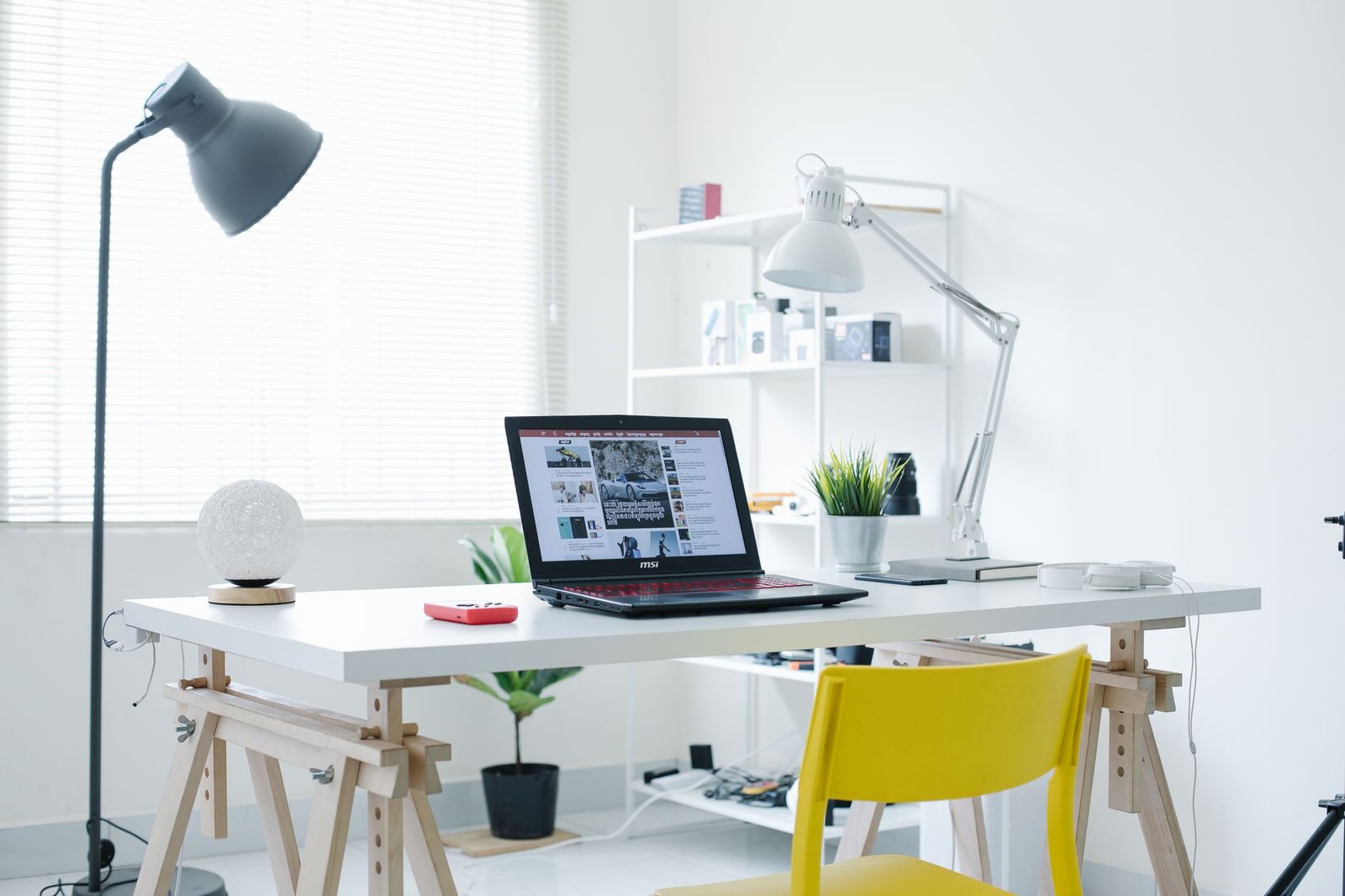
Standing desks have become ubiquitous symbols of modern productivity and health consciousness, but commercial motorized standing desks often cost hundreds or thousands of dollars. Spending your entire equipment budget on a luxury standing desk leaves you with zero funds for seating, lighting, or input devices. However, you can easily convert your existing stationary desk into a functional sit-stand workstation using creative, low-cost engineering principles. The goal is to create a stable elevated surface for your laptop or monitor when you choose to stand, while easily dismantling or lowering the platform when it is time to sit. Achieving this versatility for under twenty dollars requires utilizing household storage bins, shelving brackets, or specialized cardboard converters.
One of the most effective and affordable standing desk conversions involves placing a sturdy storage crate or plastic bin upside down on top of your existing desk. Place your laptop riser and external keyboard on top of this inverted crate, instantly elevating your working surface to standing height. Ensure that the crate is wide and sturdy enough to support your hardware without wobbling when you type vigorously. When you wish to transition back to a seated position, simply lift the crate off your desk and place it on the floor or a nearby shelf. This simple physical transition takes less than ten seconds and gives you the exact same health benefits as an expensive motorized standing frame.
When standing at your improvised desk, your biomechanical requirements change slightly compared to your seated posture protocols. Your shoes should be comfortable and supportive, or you should stand on a repurposed kitchen anti-fatigue mat to cushion your heels and lower back. Maintain a soft bend in your knees rather than locking your joints straight, which restricts venous return and causes pooling of blood in your lower extremities. Alternate between sitting and standing in thirty-minute intervals to prevent static muscle fatigue and maintain optimal metabolic activity throughout your remote workday. Never remain in a standing position for hours on end, as static standing places immense pressure on your lower back and increases the risk of varicose veins.
DIY Acoustic and Tactical Workspace Optimization
Ergonomics is not merely a matter of hardware placement; it also encompasses the acoustic and environmental variables that influence cognitive load and muscle tension. High ambient noise levels, echo-prone rooms, and disorganized desk surfaces trigger subtle stress responses in your sympathetic nervous system. When you are stressed, your shoulders naturally elevate toward your ears, your jaw clenches, and your breathing becomes shallow and thoracic. These physical stress responses counteract your ergonomic efforts by inducing chronic muscle tension regardless of how well your chair and monitor are adjusted. Creating a tranquil, organized workspace is a vital component of a comprehensive physical wellness strategy.
To reduce acoustic reflections and minimize cognitive distraction on a budget, look around your home for soft textiles and sound-absorbing materials. Hanging spare blankets, thick curtains, or even arranging bookshelves filled with books along bare walls breaks up sound waves and dampens room reverberation. On your desk, place a large felt desk mat beneath your keyboard and mouse to deaden typing sounds and provide a comfortable tactile surface for your forearms. These simple environmental modifications cost virtually nothing while creating a serene, focused acoustic environment that lowers your resting heart rate and relaxes your shoulder musculature. A calm environment directly supports relaxed, neutral posture throughout long periods of focused professional work.
Cable management is another crucial tactical intervention that prevents physical frustration and keeps your workspace clean and efficient. Tangled cables running across your desk create visual clutter and can snag your keyboard or mouse, forcing you into awkward reaching postures to untangle them. Use inexpensive binder clips attached to the back edge of your desk to create custom cable channels that route your charging cords neatly out of the way. Alternatively, wrap your excess cord lengths with Velcro ties and secure them to the underside of your work surface. Maintaining an immaculate, tangle-free desk ensures that every physical movement you make is smooth, unimpeded, and entirely free of unnecessary friction.
Never use unstable towers of lightweight cardboard boxes or sliding plastic containers to elevate your laptop or monitor. If an improvised stand collapses under weight, it can destroy expensive hardware, sever cords, or cause sudden sharp movements that injure your wrists and neck.
The 4-Week Progressive Adaptation Blueprint
Implementing drastic ergonomic changes all at once can shock your musculoskeletal system, leading to temporary muscle soreness as your body adjusts to new movement patterns. When you force your spine into a correct alignment after years of habitual slouching, the muscles responsible for supporting that alignment must work overtime initially. To prevent injury and ensure long-term compliance, you should follow a structured, four-week progressive adaptation blueprint that gradually phases in your new ergonomic habits. This methodical timeline allows your neuromuscular pathways to adapt naturally without triggering acute soreness or resistance to change.
During Week One, focus exclusively on posture awareness and your seating foundation. Introduce your lumbar cushion or rolled towel, adjust your chair height so your feet rest flat, and commit to taking hourly posture reset breaks. Do not worry about standing desks or complex hardware configurations yet; let your lower back adapt to receiving proper support while sitting. During Week Two, introduce your external keyboard and mouse while elevating your laptop screen to eye level using your paper reams or budget riser. Spend this week focusing entirely on keeping your wrists neutral and your elbows at a ninety-degree angle while typing your daily work tasks.
During Week Three, incorporate your DIY standing desk conversion for short, ten-minute intervals twice a day, gradually increasing your standing duration as your leg muscles adapt. Pay close attention to how your lower back and feet respond to the change in posture, and adjust your anti-fatigue mat or footwear accordingly. During Week Four, optimize your environmental variables by organizing your desk cables, adjusting your ambient lighting, and implementing the twenty-twenty-twenty visual rule. By the end of this four-week progressive adaptation blueprint, your new ergonomic habits will feel completely natural, and your musculoskeletal system will operate with maximum efficiency and minimal pain.

Troubleshooting Common Ergonomic Pains
Even with a meticulously optimized budget setup, you may occasionally experience localized muscle fatigue or discomfort as you navigate demanding project deadlines. Understanding how to diagnose and troubleshoot these specific physical symptoms ensures you can correct minor issues before they escalate into chronic injuries. For instance, if you experience sharp pain between your shoulder blades by late afternoon, it usually indicates that your keyboard is positioned too far forward on your desk. When your arms reach outward to type, your rhomboid muscles are forced into a prolonged stretch, leading to fatigue and sharp aching sensations in your upper back.
If you experience numbness or tingling in your ring and pinky fingers, the culprit is often leaning your elbows hard on a hard desk surface or chair armrest. This repetitive pressure compresses the ulnar nerve as it passes through the cubital tunnel at your elbow joint, causing nerve irritation down into your hand. Resolve this issue immediately by purchasing cheap foam elbow pads or placing a soft folded washcloth under your elbows whenever you rest your arms. Similarly, if you experience lower back aching despite using a lumbar cushion, your pelvis may be slipping into a posterior tilt. Ensure your hips are pushed all the way to the back of your chair seat so your lumbar curve remains fully supported against the cushion.
Finally, if you experience chronic tension headaches, check your screen brightness, viewing distance, and font sizing settings within your operating system. Squinting at tiny text on a screen positioned too far away forces you to push your chin forward, triggering tension in the suboccipital muscles at the base of your skull. Increase your display scaling so that you can read comfortably from a distance of twenty to thirty inches without leaning your head forward. Maintaining a proactive troubleshooting mindset allows you to eliminate physical pain points swiftly and maintain peak remote professional productivity.
Frequently Asked Questions
Can I achieve true ergonomic alignment without spending any money at all?
Yes, you can achieve remarkable ergonomic improvements using zero-cost household items, provided you understand the fundamental biomechanical principles of joint angles. Stacks of books or printer paper serve as effective monitor risers, rolled bath towels make excellent lumbar cushions, and cardboard storage boxes can be converted into temporary standing desks. The primary financial investment in a budget setup is typically reserved for an external keyboard and mouse, which are essential because you cannot separate screen height from typing height using a laptop alone. By combining free household engineering with a twenty-dollar keyboard purchase, you can build a fully compliant ergonomic workstation well under your one-hundred-dollar limit.
How do I know if my chair is the correct height for my body?
Your chair is at the correct height when you sit all the way back against the backrest with your feet resting completely flat on the floor. In this position, your knees should form a comfortable ninety-to-one-hundred-degree angle, and your thighs should remain parallel to the floor without pressing hard into the front edge of the seat cushion. If your feet dangle or your heels lift off the ground, your chair is too high and requires a footrest to support your lower kinetic chain. If your knees point upward toward your chest, your chair is too low, which forces your pelvis into a posteriorly tilted slouch that flattens your natural lumbar curve.
Is standing all day better for me than sitting all day?
Contrary to popular fitness myths, standing all day is not a healthy substitute for sitting all day and can introduce an entirely new set of musculoskeletal problems. Prolonged static standing places immense gravitational load on your lower back, compresses spinal discs, and causes blood to pool in your lower extremities, increasing your risk of varicose veins and chronic leg fatigue. The gold standard for remote professionals is dynamic movement that alternates between sitting and standing in thirty-minute intervals throughout the workday. This cyclical approach keeps your metabolism active, prevents static muscle fatigue, and protects your joints from the repetitive strain of remaining in any single posture for too long.
What is the absolute most important item to buy first if I have a strict $50 budget?
If your budget is severely restricted to fifty dollars, your absolute first purchase must be a reliable external Bluetooth or USB keyboard and mouse combination. Trying to achieve proper ergonomics while using a laptop on a desk surface is physically impossible because fixing your screen height ruins your typing angle, and fixing your typing angle ruins your viewing height. Once you own an external keyboard, you can elevate your laptop screen to eye level using free household items like books or printer paper reams. This single equipment pairing solves the most destructive postural hazard in remote work: forward head carriage and cervical spine compression.
How can I prevent wrist pain if I cannot afford an ergonomic vertical mouse?
If you cannot afford a specialized vertical ergonomic mouse, you can protect your wrists by modifying your hand position and mouse habits throughout the workday. Ensure that your mouse is positioned directly beside your keyboard so your arm never reaches outward, and maintain a completely neutral wrist angle without bending upward or resting your wrist heavily on the desk surface. Additionally, learn to execute mouse clicks using gentle finger pressure rather than slamming your fingers down onto the plastic buttons, which transmits shock up into your forearm tendons. Taking frequent micro-breaks to perform wrist stretches and forearm massage further prevents the buildup of tension and reduces your risk of repetitive strain injuries.