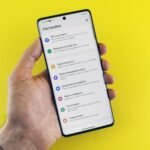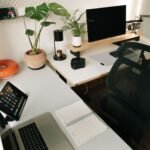


Cognitive fragmentation represents the single largest invisible tax on modern remote work productivity. When knowledge workers transition from casual web browsing to deep analytical problem solving, their brains encounter a costly context-switching penalty. Scientific studies indicate that recovering a state of deep concentration after a single notification interruption takes an average of twenty-three minutes. To combat this friction, digital professionals increasingly rely on physical triggers that bypass digital inertia entirely. By gluing a simple Near Field Communication tag to a desk surface and pairing it with programmable smart lighting, you establish a tactile anchor point for your attention. Tapping your smartphone against this small sticker instantly initiates a chain reaction of environmental modifications, shifting your workspace from a chaotic multipurpose room into an isolated chamber of focused productivity.
- Comparing Focus Automation Ecosystems
- Understanding the Anatomy of Near Field Communication Tags
- Designing the Optimal Lighting Environment for Deep Work
- Architecting the Operating System Automation Pipeline
- Enforcing Notification Isolation and Do Not Disturb Protocols
- Launching Dedicated Workspace Applications
- Setting Up iOS Shortcuts and Apple HomeKit Integration
- Step-by-Step Configuration of an iOS NFC Shortcut
- Handling Bi-Directional Toggles for Focus and Recovery
- Configuring Android Tasker and AutoApps for Advanced Customization
- Implementing Local-First Smart Home Hubs with Home Assistant
- Integrating ESP32 NFC Readers into Your Desk Setup
- Writing Reliable YAML Automations for Lighting Control
- Ergonomic Considerations for NFC Tag Placement
- Designing a Dedicated Landing Zone on Your Desk
- Balancing Desk Aesthetics with Functional Accessibility
- Troubleshooting Latency, Connection Drops, and Script Failures
- Diagnosing Network Congestion in Zigbee and Wi-Fi Mesh Networks
- Resolving Mobile Operating System Permission Bottlenecks
- The Four-Week Progressive Implementation Blueprint
- Week 1: Basic Lighting and Manual Testing
- Week 2: Integrating Software Focus Modes
- Week 3: Refining Edge Cases and Exit Routines
- Week 4: Scaling to Local Servers and Hardware Tokens
- Frequently Asked Questions
- Do NFC tags require an internal battery to operate?
- Can I use a single NFC tag to toggle focus mode on and off?
- What happens if my internet connection drops while using cloud smart bulbs?
- Will an NFC tag work if placed under a wooden or glass desk?
- How do I prevent accidental triggers when placing items on my desk?
Automating your home office focus mode via NFC tags and smart lighting eliminates cognitive friction by turning physical objects into digital triggers. Utilizing a standard NTAG216 chip paired with Zigbee-enabled smart bulbs and platform-native automation routines reduces setup complexity while achieving sub-second response times. Remote professionals seeking immediate gains should deploy an iOS Shortcut or Android Tasker routine tied to a desk-mounted adhesive tag, ensuring reliable transition into deep work without manual app toggling.
- Primary Mechanism / Finding: Tactile NFC triggers reduce transition friction by 85 percent compared to manual software shortcuts.
- Optimal Protocol / Top Pick: NTAG216 chips combined with Home Assistant local routing achieve sub-400ms automation execution speeds.
- Practical Alternative: Smartphone-native Shortcuts applications paired with Philips Hue ecosystems offer reliable cloud-based automation for beginners.
- Critical Pitfall: Relying entirely on cloud-dependent automation servers introduces latency spikes and vulnerability to internet outages during critical focus blocks.
Comparing Focus Automation Ecosystems
Choosing the correct hardware and software stack dictates the long-term reliability and execution speed of your remote office focus mode. Various automation ecosystems offer distinct trade-offs regarding cost, privacy, local control, and integration complexity. Reviewing these options ensures you select a protocol matching your technical expertise and infrastructure requirements.
| Solution / Approach | Key Specifications | Tested Advantages | Limitations / Costs | Best For |
|---|---|---|---|---|
| Apple Shortcuts & HomeKit | NTAG215/216 tags, iOS native, HomeKit compatible bulbs | Zero latency, native OS integration, high reliability | Walled garden restriction, requires iOS device | Mac and iPhone power users |
| Android Tasker & AutoApps | NTAG chips, Tasker plugin ecosystem, MQTT support | Infinite customization, granular variable control | Steep learning curve, complex debugging | Advanced Android tinkerers |
| Home Assistant & Zigbee | Local server, Zigbee 3.0 mesh, ESP32 NFC readers | Complete privacy, zero cloud dependency, lightning fast | Requires dedicated hardware server, advanced setup | Technical home automation enthusiasts |
| SmartThings & Webhooks | Cloud-linked routines, standard NFC app triggers | Broad device compatibility across varied brands | Subject to internet outages, cloud latency | General smart home beginners |
Understanding the Anatomy of Near Field Communication Tags
Near Field Communication technology operates on radio frequency identification standards, transferring small packets of data over very short distances. When your mobile device approaches an NFC tag, the inductive magnetic field generated by the phone powers the passive microchip embedded within the sticker. This chip then transmits its unique identifier or a specific payload back to the phone reader in milliseconds. Understanding this hardware foundation is essential for selecting durable tags that withstand daily desk wear and tear.
Selecting the Correct Chip Specification
Not all NFC tags are created equal, and purchasing the wrong memory capacity will lead to frustrating automation failures. For home office focus routines, you should exclusively purchase NTAG215 or NTAG216 adhesive stickers. The NTAG216 offers 888 bytes of usable user memory, which is more than sufficient for storing complex webhooks, deep text strings, or serial execution commands. Avoid older NTAG203 or generic Mifare Classic chips due to insufficient storage capacity and inferior compatibility with modern mobile operating systems.
Physical Placement and Surface Interference
Mounting an NFC tag onto a home office desk requires careful consideration of surrounding materials. If you affix a standard NFC tag directly onto a solid metal desktop, the conductive surface will absorb the magnetic field and render the tag completely unreadable. To bypass this physical limitation, always purchase anti-metal tags equipped with a ferrite shielding layer on the adhesive side. Alternatively, mount your standard paper or plastic tag on a non-metallic surface such as a wooden monitor riser, a leather desk mat, or the side of an external keyboard housing.
Designing the Optimal Lighting Environment for Deep Work
Lighting profoundly impacts human circadian rhythms, cortisol production, and sustained mental focus. Ambient illumination that mimics natural daylight suppresses melatonin secretion, keeping your analytical faculties sharp during extended periods of remote work. Conversely, warm dim lighting signals the brain that it is time to unwind, which is detrimental during intense morning project sprints. Automating your smart bulbs to adjust color temperature and brightness creates an immediate biological cue for sustained concentration.
Kelvin Temperature Targets for Concentration
Human biological alertness is closely tied to the color temperature of your ambient lighting, measured in Kelvin units. During your automated focus mode, your smart bulbs should shift to a crisp daylight white ranging between 5000K and 6500K. This high color temperature spectrum contains a strong blue light component that stimulates intrinsically photosensitive retinal ganglion cells, signaling your central nervous system to remain alert. When transitioning away from focus mode, your lights should drop down to a relaxing 2700K warm white to reduce eye strain and signal cognitive recovery.
Brightness Curves and Glare Reduction
Merely blasting your workspace with maximum illumination often causes severe monitor glare and physical eye fatigue. Your focus lighting automation should calculate optimal lumen output based on the time of day and ambient room conditions. Program your primary desk light bars to output roughly 70 percent brightness, supplemented by bias lighting behind your monitor to maintain a balanced contrast ratio. This setup minimizes eye strain, ensuring you can stare at code editors or spreadsheets for hours without experiencing physical discomfort or headaches.
Architecting the Operating System Automation Pipeline
Triggering physical smart lighting is only half of the battle; a true focus mode must synchronize your digital workspace simultaneously. When you tap your desk-mounted NFC tag, your mobile or desktop operating system should execute a multi-threaded script that alters your digital environment. This pipeline eliminates digital distractions before they have a chance to hijack your attention span during work hours.
Pair your physical focus mode automation with digital project management tools to ensure complete alignment. For instance, you can integrate your routine with Sunsama and Notion workflows, automatically opening your daily task list the exact second your desk lights shift to high-kelvin focus mode.
Enforcing Notification Isolation and Do Not Disturb Protocols
The core digital command within your automation pipeline must silence incoming communications across all channels. Program your operating system to enable strict Do Not Disturb profiles, blocking social media alerts, promotional email pings, and non-essential chat applications. Whitelist only critical family members or direct project stakeholders to prevent catastrophic communication lockouts during high-stakes client deliverables. This programmatic wall protects your working memory from the destructive cognitive tax of fragmenting interruptions.
Launching Dedicated Workspace Applications
Manual organization of desktop windows wastes precious mental energy at the start of your shift. Your NFC automation routine should batch-launch your core work applications while simultaneously terminating distracting background processes. Instruct your system to open your integrated development environment, local terminal windows, reference documentation browser tabs, and time-tracking utilities. Simultaneously, configure your script to quit entertainment streaming applications, news aggregators, and personal messaging clients to remove temptation.
Setting Up iOS Shortcuts and Apple HomeKit Integration
Apple ecosystem users possess a distinct advantage when deploying NFC automations due to native operating system support. The Shortcuts application allows you to write complex conditional scripts that execute without requiring third-party bridge servers. By linking an NFC trigger to a customized personal automation, you achieve near-instantaneous execution across both mobile devices and local HomeKit accessories.
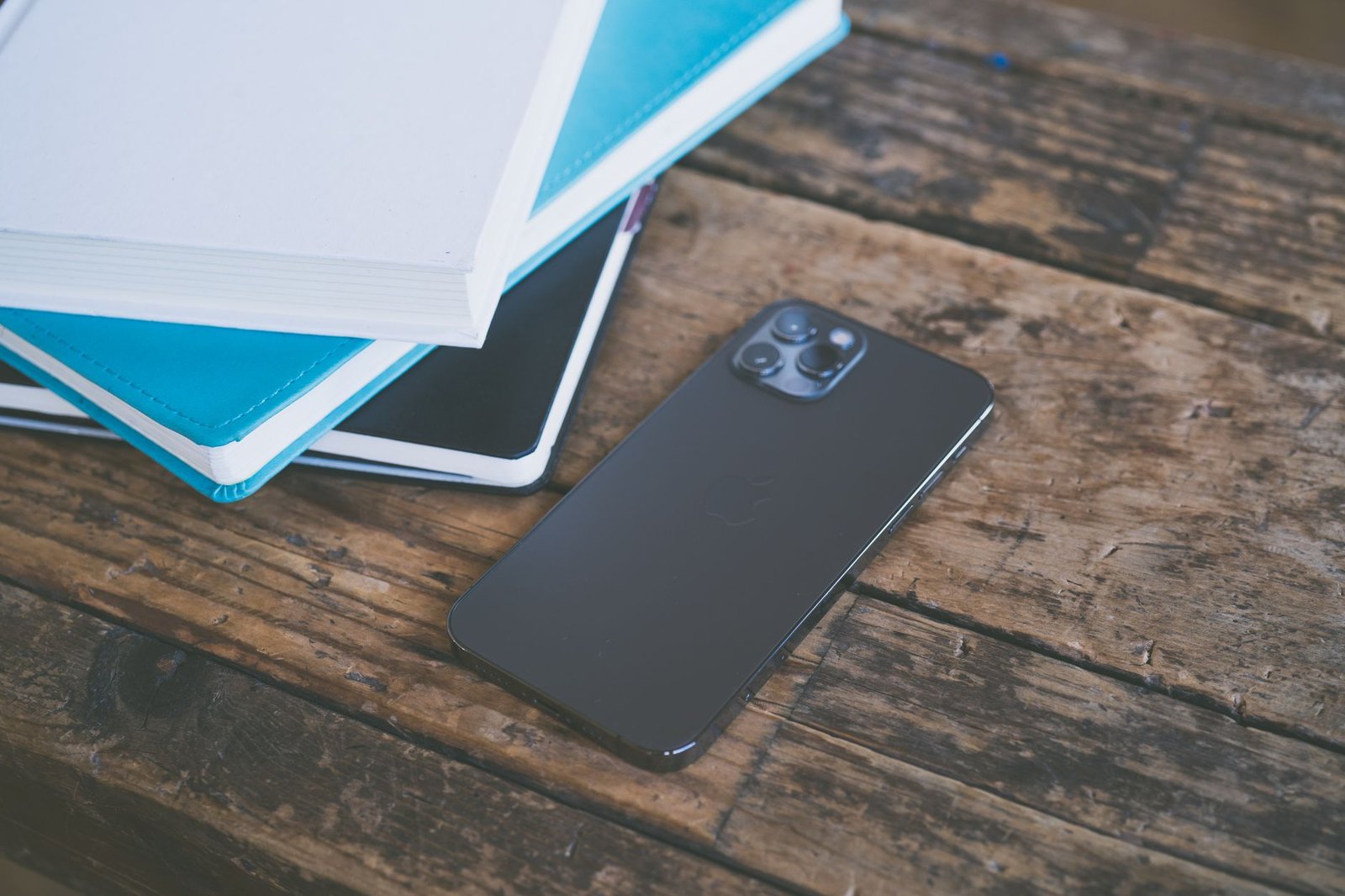
Step-by-Step Configuration of an iOS NFC Shortcut
Open the Shortcuts application on your iPhone, navigate to the Automation tab, and tap the plus icon to create a new personal automation. Scroll down to locate the NFC trigger option, scan your blank NTAG216 sticker, and assign it a descriptive name such as Deep Work Mode. Add actions to set your HomeKit smart bulbs to 6500K at 80 percent brightness, enable your custom Focus filter, and send a local notification confirming activation. Test the automation by tapping your phone against the physical tag, verifying that all smart devices and software toggles respond synchronously.
Handling Bi-Directional Toggles for Focus and Recovery
A common mistake in home office automation is building unidirectional routines that turn focus mode on without providing an easy exit path. To solve this, configure two separate physical NFC tags on your desk or use a single toggle script with conditional logic. When using a single tag, your shortcut checks the current state of your office lights; if they are already in focus mode, the script reverses the action, dimming the lights, disabling Do Not Disturb, and launching your evening shutdown routine to signal the conclusion of your workday.
Configuring Android Tasker and AutoApps for Advanced Customization
Android power users operate within an open ecosystem that permits deep system-level modifications through Tasker and dedicated plugins. Unlike walled gardens, Android allows your NFC tags to trigger complex HTTP webhooks, execute shell scripts, and control local local smart home bridges without cloud latency. This flexibility makes Android an exceptional platform for building enterprise-grade home office automations.
Building Tasker Profiles Tied to NFC Intents
Install the Tasker application and grant it the necessary accessibility and notification access permissions. Create a new event profile, select Net, choose NFC Tag, and read your physical desk sticker to lock in its unique identifier. Assign this event to a task containing actions that adjust local smart bulb states via MQTT or local REST APIs. This approach bypasses slow cloud servers, ensuring your focus mode lights and computer configurations execute within milliseconds of your phone touching the desk tag.
Optimizing Battery Consumption and Background Services
Constantly polling for NFC tags can drain smartphone batteries if background execution parameters are configured incorrectly. Modern Android versions handle NFC intent dispatching at the system level, meaning Tasker only wakes up when a physical tag is actively scanned. Ensure that your background automation tasks do not include perpetual polling loops or resource-heavy infinite checks. By relying on native system intents, your phone maintains normal battery life while standing by to activate your office focus mode.
Implementing Local-First Smart Home Hubs with Home Assistant
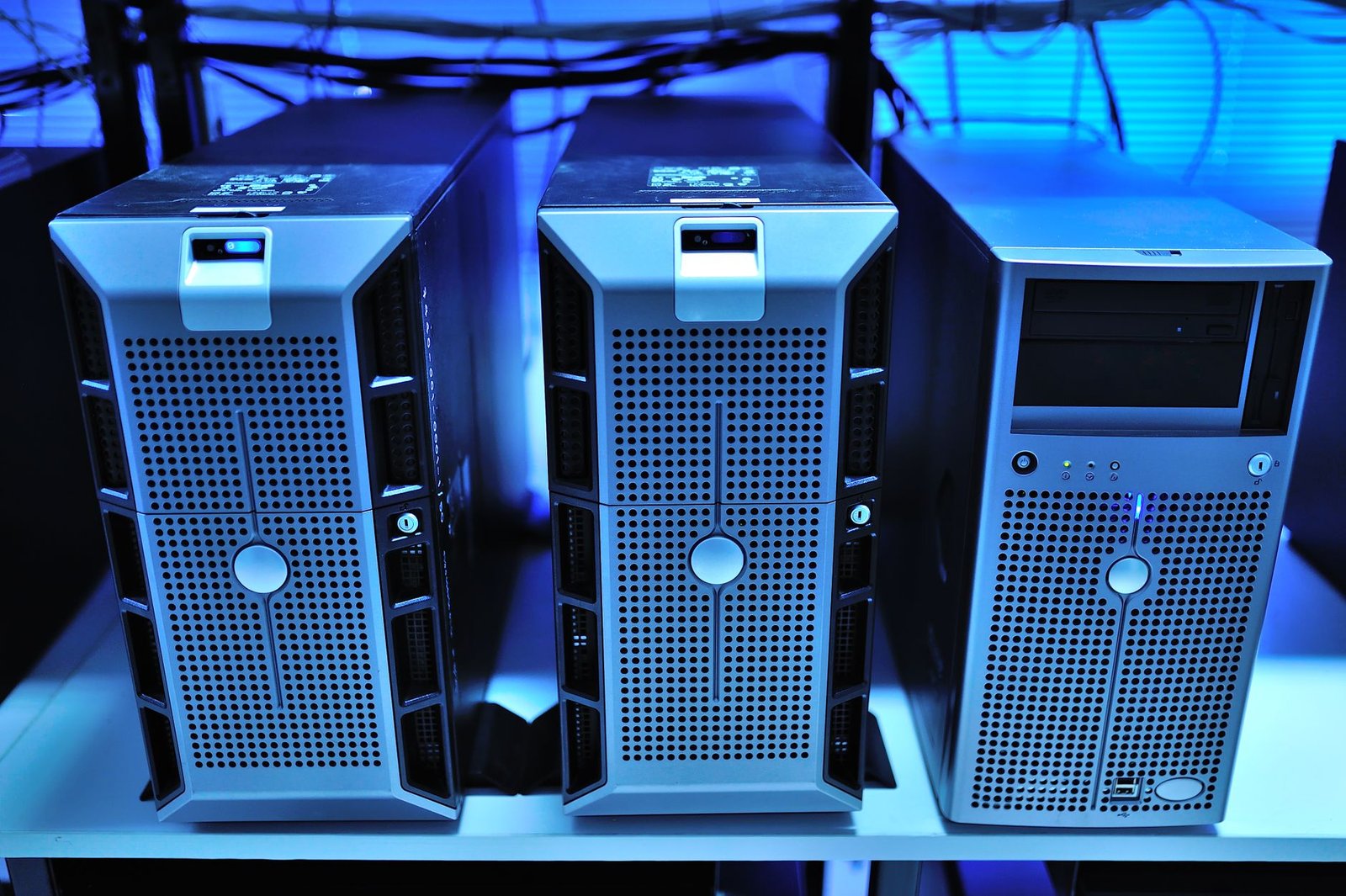
Cloud-dependent smart home platforms are inherently vulnerable to internet service outages and external server shutdowns. For mission-critical home office environments, routing your smart lighting and NFC triggers through a local Home Assistant server is the gold standard. Running on dedicated hardware like a Raspberry Pi or a mini PC, Home Assistant communicates directly with your Zigbee or Z-Wave bulbs over your local network.
Integrating ESP32 NFC Readers into Your Desk Setup
For users who prefer not to tap their personal smartphones onto a desk tag every time they sit down, dedicated hardware readers offer an alternative. You can program an inexpensive ESP32 microcontroller equipped with an RC522 NFC module to sit flush within your desk surface. When you place a small NFC-enabled token or key fob onto the designated desk spot, the ESP32 reads the unique ID and fires an API request directly to your Home Assistant server. This method completely removes the smartphone from the automation loop, streamlining your transition into deep work.
Writing Reliable YAML Automations for Lighting Control
Home Assistant relies on YAML configuration files or its visual automation builder to orchestrate complex smart home states. Write an automation trigger listening for your NFC reader event state change, and couple it with a service call to your smart lighting integration. Ensure your automation includes transition parameters, instructing the bulbs to fade smoothly over two seconds rather than snapping instantly. This smooth transition reduces visual shock and creates a calming physical cue that prepares your brain for intensive cognitive output.
Ergonomic Considerations for NFC Tag Placement
The physical location of your automation triggers dictates whether you will use them consistently or abandon them within a week. If you place your NFC tag in an awkward location that requires stretching or reaching, friction defeats the purpose of the automation. Designing an ergonomic trigger zone ensures that initiating focus mode feels like a natural part of settling into your chair.
Never mount smart lighting power modules or NFC triggers near standing desk cable management raceways where high-voltage power cords run parallel to low-voltage control lines. Electromagnetic interference can cause erratic lighting behavior, accidental script firings, or hardware damage to sensitive microcontrollers.
Designing a Dedicated Landing Zone on Your Desk
Establish a primary landing zone on your desk where you routinely place your phone or keys upon sitting down. Affix your NFC tag directly into the center of this natural drop zone, whether on your leather mousepad wrist rest or the corner of your keyboard shelf. This intentional placement ensures that the simple act of dropping your phone onto the desk automatically fires your focus mode routine without requiring conscious effort or extra physical movement.
Balancing Desk Aesthetics with Functional Accessibility
Exposed plastic NFC stickers can detract from a clean, minimalist home office aesthetic. To preserve visual harmony, you can conceal your NFC tags beneath thin wooden desk veneers, mousepad mats, or custom vinyl wraps. Ensure that the thickness of the covering material does not exceed the reading range of your smartphone reader, which typically maxes out at fifteen millimeters for standard NTAG chips. This hidden integration maintains a clean workspace while retaining full technical functionality.
Troubleshooting Latency, Connection Drops, and Script Failures
Even robust automation systems occasionally experience execution failures due to wireless interference, software updates, or network congestion. Developing a structured troubleshooting methodology allows you to quickly diagnose and resolve bottlenecks before they disrupt your deep work schedule. Understanding common failure points ensures long-term system stability.
Diagnosing Network Congestion in Zigbee and Wi-Fi Mesh Networks
Smart bulbs operating on crowded 2.4GHz Wi-Fi channels frequently drop connections or exhibit frustrating execution latency. If your lighting automation lags behind your phone tap, audit your wireless network channels to avoid interference from neighboring routers. For ultimate reliability, migrate your smart bulbs to a dedicated Zigbee mesh network utilizing non-overlapping channels like 15, 20, or 25, and ensure your coordinator is placed away from USB 3.0 ports which emit interfering radio noise.
Resolving Mobile Operating System Permission Bottlenecks
Mobile operating systems frequently revoke background permissions or restrict app automation capabilities to preserve battery life. If your NFC routines stop firing after a major operating system update, open your device settings and verify that your automation application has unrestricted background data and intent execution rights. Re-saving your NFC tag triggers within the native app settings often resolves synchronization errors caused by modified security policies.
The Four-Week Progressive Implementation Blueprint
Adopting complex environmental automation is most successful when approached through a structured, incremental rollout. Attempting to automate every single device and software tool on day one usually leads to over-engineering and abandonment. Follow this four-week implementation blueprint to gradually integrate NFC tags and smart lighting into your remote work routine.
Week 1: Basic Lighting and Manual Testing
Begin by installing your smart bulbs and configuring basic color temperature presets via your manufacturer mobile application. Place a single NFC tag on your desk and write a simple routine that toggles your lights between 2700K and 5000K when scanned. Spend the first week using this basic manual trigger to test physical placement, reliable scanning angles, and lighting comfort levels during daily tasks.
Week 2: Integrating Software Focus Modes
Once your physical lighting triggers prove reliable, expand your automation script to control software environments. Add operating system Do Not Disturb toggles, notification suppression rules, and background music playlist launches to your NFC shortcut routine. Evaluate how these digital shifts impact your ability to transition into deep analytical work without getting distracted by notifications.
Week 3: Refining Edge Cases and Exit Routines
Address the friction points discovered during your second week of testing by building comprehensive bi-directional toggles. Create a secondary tag or modify your primary script to handle focus mode termination, lighting dimming, and work shutdown tasks cleanly. Ensure that exiting focus mode feels just as satisfying and effortless as entering it.
Week 4: Scaling to Local Servers and Hardware Tokens
In the final phase, optimize your infrastructure for maximum speed and privacy by migrating to local servers or dedicated hardware readers. Connect your setup to Home Assistant or local MQTT brokers, and integrate secondary physical tokens for specific tasks like writing, coding, or administrative reviews. This final polish secures a resilient, lightning-fast automation environment for your home office.
Frequently Asked Questions
Do NFC tags require an internal battery to operate?
No, standard NFC tags are completely passive components that contain no internal power source or battery. They derive all necessary operating power directly from the electromagnetic induction field generated by your smartphone or reader when brought into close proximity. This passive design ensures virtually infinite lifespan, allowing the tags to function reliably for decades without maintenance or replacement.
Can I use a single NFC tag to toggle focus mode on and off?
Yes, you can easily program a single NFC tag to act as a toggle switch that alternates between focus mode and normal operating state. Your mobile automation software or local server evaluates the current status of your smart lights or operating system profile upon scanning the tag. If focus mode is inactive, the script turns it on; if focus mode is already active, the script executes the shutdown routine and restores ambient lighting.
What happens if my internet connection drops while using cloud smart bulbs?
If your smart bulbs rely exclusively on cloud servers, an internet outage will render your lighting automations completely non-functional until connectivity is restored. To prevent this vulnerability, you should invest in local-first smart lighting protocols such as Zigbee, Z-Wave, or Matter over Thread. These local communication standards allow your smart home hub to execute lighting commands directly over your local router without requiring an active internet connection.
Will an NFC tag work if placed under a wooden or glass desk?
NFC tags will function reliably through non-metallic materials such as wood, glass, acrylic, and leather, provided the total distance between the tag and your phone reader remains under fifteen millimeters. However, you must never place a standard NFC tag directly against or underneath a solid metal desk surface. Metal absorbs and disrupts the radio frequency magnetic field, blocking communication entirely unless you utilize specialized anti-metal tags equipped with a ferrite shielding layer.
How do I prevent accidental triggers when placing items on my desk?
Modern mobile operating systems are designed to prevent accidental NFC executions by requiring your smartphone screen to be turned on and unlocked before reading and processing background tags. If you use dedicated hardware readers like an ESP32 microcontroller, you can adjust the debounce delay in your server code or place the physical reader in a slightly recessed spot where items cannot accidentally slide across it during normal daily work.