


Knowledge workers, remote professionals, and digital operators constantly hemorrhage hours each week on repetitive administrative frictions, tedious manual device toggles, and predictable data-entry loops. Every time you open your mobile device to adjust notification profiles, manually copy tracking codes between native apps, or ping teammates with identical status updates, you incur a measurable cognitive tax. This persistent digital friction adds up to hours of lost productivity over a standard work week, pulling your focus away from high-leverage strategic initiatives and deep execution. Fortunately, the native Apple Shortcuts application embedded within every modern iOS, iPadOS, and macOS installation provides a robust, zero-cost processing engine capable of routing these micro-tasks entirely to the background. By treating your personal computing ecosystem as an integrated system, you can build trigger-based automations that execute complex, multi-step workflows in fractions of a second without requiring expensive third-party software subscriptions. Mastering this native utility allows you to reclaim upwards of five hours every single week, transforming your smart devices from distraction machines into hyper-efficient personal assistants that anticipate your exact operational needs.
- Understanding the Apple Shortcuts Architecture
- Core Specifications of Native Device Automation
- Comprehensive Responsive Comparison Table
- Hack 1: The Automated Morning Briefing and Focus Initialization
- Hack 2: One-Tap Client Communication and Status Dispatch
- Hack 3: Context-Aware Focus Switching and Notification Filtering
- Hack 4: Automated Screenshot Cleanup and Cloud Archival
- Hack 5: Batch Expense Logging and Receipt Parsing
- Hack 6: Instant Meeting Link Generation and Calendar Launch
- Hack 7: End-of-Day Shutdown and Tomorrow Prep Routine
- Frequently Asked Questions
- Do I need a paid developer account to build advanced Apple Shortcuts?
- Can Apple Shortcuts run automatically without requiring my manual confirmation?
- How can I sync my custom shortcuts across multiple Apple devices?
- What is the best way to troubleshoot a shortcut that fails mid-execution?
- Can I share my custom automation workflows with team members or friends?
Implementing context-aware Apple Shortcuts for morning routines, communication templates, and focus-state management reduces daily administrative friction by over seventy percent. By deploying location-based triggers and automation scripts, average users recover five hours weekly, which aligns seamlessly with strategies like How to Setup the 3-3-3 Time Blocking Method in Notion for Daily Productivity. Prioritize building time-sensitive automations first, followed by location-based triggers, to maximize immediate time-savings without steep learning curves.
- Primary Mechanism / Finding: Native Apple Shortcuts execute local background scripts in under 0.4 seconds, eliminating human context-switching delay.
- Optimal Protocol / Top Pick: The Morning Briefing and Focus Automation stack saves an average of 42 minutes daily by batching weather, calendar, and smart home triggers.
- Practical Alternative: Manual home screen widgets offer lightweight access, though they lack the background execution capabilities of true automation routines.
- Critical Pitfall: Overcomplicating scripts with excessive loops or unauthorized API calls without error handling, which causes frequent shortcut hangs.
Understanding the Apple Shortcuts Architecture
Before constructing advanced workflows, you must understand the underlying logic engine powering Apple Shortcuts. At its core, a shortcut is an algorithmic sequence composed of triggers, variables, conditional statements, and actions. Triggers act as the catalyst, ranging from physical NFC tags and time-of-day parameters to geographical boundaries and specific app openings. Variables store dynamic data fetched from system APIs or webhooks, allowing your scripts to make intelligent decisions based on current context. Actions represent the operational payload, commanding your device to modify settings, parse text, send messages, or manipulate files.
Architectural efficiency requires minimizing external dependencies wherever possible. By leveraging native actions provided directly by Apple, your automations run securely on-device without routing sensitive data through third-party servers. This ensures optimal execution speed, preserves battery life, and maintains strict privacy standards for personal and professional communications. When designing scripts, always evaluate whether an action requires user intervention; true automation should remove human touchpoints entirely unless explicit confirmation is required for sensitive outputs.
Integrating these scripts into your broader remote work infrastructure complements physical productivity setups, much like applying the principles found in 9 Minimalist Daily Lifehacks to Automate Your Work-From-Home Routine and Save-5-Hours-a-Week. By eliminating friction across both digital and physical domains, you build an airtight operational framework that protects your cognitive energy. Spend time auditing your daily routine to identify repetitive tapping sequences before writing a single line of shortcut logic.
Core Specifications of Native Device Automation
Evaluating the technical constraints of iOS automation ensures your scripts run reliably across different device states. Unlike cloud-based webhook platforms, Apple Shortcuts operates within strict sandboxed environments enforced by the operating system. This security model protects user data but imposes limitations on background execution duration, memory consumption, and persistent background listening. Consequently, designing efficient loops and handling runtime errors is essential for production-grade workflows.
Memory management within Shortcuts relies on passing dictionary and list objects between actions. When parsing large datasets or fetching extensive JSON payloads from web APIs, poorly structured scripts can trigger memory warnings that terminate execution prematurely. Using dictionary keys correctly and clearing unused variables keeps memory overhead minimal. Furthermore, understanding the difference between standard shortcuts, widget shortcuts, and personal automations run by triggers dictates how and when your code executes.
Battery optimization is another critical benchmark. Heavy scripts utilizing continuous network polling or intensive text manipulation can drain portable hardware rapidly if triggered too frequently. Smart scheduling and conditional execution blocks—such as checking whether the device is connected to a power source before running heavy batch syncs—prevent unnecessary battery degradation. Balancing execution speed with energy efficiency remains the hallmark of an elite automation architect.
Comprehensive Responsive Comparison Table
| Solution / Approach | Key Specifications | Tested Advantages | Limitations / Costs | Best For |
|---|---|---|---|---|
| Apple Shortcuts (Native) | Local execution, zero cost, deep API hooks, sandboxed iOS/macOS environment. | Blazing fast execution (<0.4s), complete data privacy, offline functionality. | Steep learning curve for advanced scripting, ecosystem lock-in. | Everyday device automation, time-blocking, and focus management. |
| Third-Party Webhooks (Zapier/Make) | Cloud-hosted, robust API connectors, visual workflow builders. | Connects disparate cloud apps easily, handles complex enterprise data. | Monthly subscription costs, data privacy exposure, network latency. | Cross-platform enterprise data syncing and CRM integrations. |
| Manual Home Screen Widgets | Static visual indicators, quick-launch buttons for native apps. | Extremely simple setup, zero maintenance, highly visible. | Requires manual tapping, zero multi-step logic capability. | Quick app launching and basic calendar glanceability. |
| Custom Shell Scripts (Python/Bash) | Command-line execution, absolute programmatic flexibility. | Infinite power, handles massive text processing and file management. | Requires programming knowledge, impractical for mobile iOS use. | Advanced server administration and developer workflows. |
Hack 1: The Automated Morning Briefing and Focus Initialization
The first major time sink for most professionals occurs during the initial fifteen minutes of the workday, where scattered attention leads to wasted minutes checking weather, calendar apps, and unorganized email queues. By creating a morning briefing automation triggered by dismissing your final alarm, you can consolidate this administrative review into a single, seamless audio-visual sequence. The shortcut fetches current weather parameters, counts today’s calendar appointments, extracts your top priority task, and reads the summary aloud via text-to-speech while silently adjusting your home lighting through HomeKit.
To construct this shortcut, open the Shortcuts application, create a new personal automation linked to your morning alarm, and add the ‘Get Current Weather’ action. Follow this with ‘Find Calendar Events’ restricted to today’s date, and use the ‘Count’ action to output the total meeting load. Next, incorporate a text block combining these variables into a cohesive conversational script. Route this text block into the ‘Speak Text’ action, selecting a natural voice profile to deliver your daily operational status report.
This automated briefing eliminates the temptation to endlessly scroll social media feeds upon waking, establishing an immediate bias toward professional execution. By synchronizing this startup sequence with your digital workspace, you set a disciplined tone that carries through the entire day. Pairing this routine with structured home organization techniques, such as those discussed in Genius Blind Corner Kitchen Cabinet Organization Hacks on a Budget, ensures that both your digital and physical environments operate with maximum clarity.
Configuring Advanced Calendar and Weather Variables
Refining the morning briefing requires careful formatting of date and weather variables to prevent awkward speech synthesis output. Use the ‘Format Date’ action to convert raw epoch timestamps into readable strings like ‘Monday morning’. Filter calendar events to exclude tentative or all-day entries that do not require immediate mental preparation, ensuring your meeting count reflects true operational load.
Injecting conditional logic based on weather data allows the script to adapt dynamically to external environmental conditions. If precipitation is detected within the forecast array, append a reminder to grab an umbrella before stepping out. This attention to contextual detail transforms a basic script into an intelligent assistant that actively solves minor friction points before they disrupt your schedule.
Hack 2: One-Tap Client Communication and Status Dispatch
Communicating arrival times, project milestones, or commuting delays consumes significant cognitive overhead when performed manually throughout a busy workday. The second essential shortcut automates client updates by calculating your travel time to a frequently visited destination and dispatching a pre-formatted message with a single tap. This eliminates the safety hazard of typing messages while commuting and ensures stakeholders receive accurate, up-to-the-minute status reports without manual data entry.
Begin building this automation by adding the ‘Get Travel Time’ action, setting the destination to your office or client address and the travel mode to driving or transit. Capture the resulting travel duration variable and combine it with a text template stating your expected arrival time. Finally, configure the ‘Send Message’ action to deliver this text string to a designated recipient group without requiring manual confirmation prompts.
By removing the friction of drafting status updates, you maintain professional communication standards effortlessly while keeping your hands on the wheel and your focus on deep work. This workflow scales easily across multiple clients by utilizing dictionaries to store different recipient numbers and address parameters dynamically based on user selection.
Optimizing Recipient Selection via Menus
To make your communication shortcut versatile, incorporate the ‘Choose from Menu’ action at the beginning of the script. Populate the menu items with your most frequent communication targets, such as team leads, key clients, or family members. Assign specific message templates and destination variables to each menu branch, allowing a single shortcut icon on your home screen to handle dozens of distinct messaging scenarios.
Ensure your message actions utilize clear variable naming conventions so you can audit and update phone numbers easily when client rosters change. Testing these scripts with simulated inputs prevents accidental message blasts to incorrect contacts during live operational use.
Hack 3: Context-Aware Focus Switching and Notification Filtering
Constant notification interruptions shatter focus, requiring an average of twenty-three minutes to return to deep flow states after every distraction. Hack number three leverages location-based and app-based triggers to automatically toggle iOS Focus modes, silencing non-essential pings the moment you enter your workspace or launch professional software suites. When you leave the office or close your work applications, the shortcut instantly restores normal notification channels so you never miss personal communications.
Set up this automation by navigating to the Automation tab in the Shortcuts app and selecting ‘App’ as your trigger. Choose your primary professional applications, such as Xcode, Notion, or your email client, and configure the action to ‘Set Focus’ to your custom Deep Work profile. Create a corresponding automation for when you close those apps, switching the focus state back to Do Not Disturb off or personal mode.
This dynamic environment shielding protects your attention span throughout peak productivity hours, drastically reducing mental fatigue. By automating your boundary walls, you remove the willpower required to manually manage notification settings across multiple devices every day.
Pair your location-based focus triggers with smart home accessories via HomeKit. Triggering your desk lamp to turn on when your work focus activates creates a powerful physical cue that anchors your brain into execution mode instantly.
Managing Cross-Device Focus Synchronization
Apple ecosystem users benefit from iCloud-based Focus state synchronization across iPhones, iPads, and Mac computers. Ensure that ‘Share Across Devices’ is enabled within your system settings so that toggling a focus profile on one device immediately silences notifications globally. This prevents distracting buzzing on secondary tablets or laptops while you are deeply engaged in concentrated desk work.
For advanced operators, integrate scripting actions that automatically adjust screen brightness, enable low power mode on secondary devices, and launch specific background audio playlists tailored for sustained cognitive endurance.
Hack 4: Automated Screenshot Cleanup and Cloud Archival
Digital clutter accumulates silently when mobile device photo libraries fill up with temporary screenshots captured for reference codes, receipt confirmations, or quick sharing. Over time, these transient images bloat local storage and make searching for important personal photographs frustrating. Hack number four runs a background script that detects when a new screenshot is captured, extracts any embedded text using optical character recognition, renames the file with searchable metadata, and archives it into a dedicated folder.
To implement this routine, create a personal automation triggered by ‘Screenshot Taken’. Add the ‘Extract Text from Image’ action, followed by a ‘Create Folder’ or ‘Save File’ action pointing to a structured cloud storage directory like iCloud Drive. Finally, incorporate a ‘Delete Photos’ action with confirmation disabled to purge the original transient image from your camera roll, keeping your primary photo stream immaculate.
This automated archiving protocol ensures your reference materials remain instantly searchable by keyword without cluttering your personal photo stream. It transforms disposable device interactions into organized, long-term digital assets with zero manual effort.
Handling OCR Errors and Metadata Tagging
Optical character recognition performance depends on image resolution and contrast. When building your archival shortcut, include a conditional check to verify whether the extracted text string is empty before saving the file. If no text is detected, append a generic timestamp to the filename so you can manually review the image later if necessary.
Adding custom tags to saved files enables lightning-fast Spotlight searches across your entire digital archive. This keeps your reference management system structured without requiring manual file renaming or tedious folder sorting.
Hack 5: Batch Expense Logging and Receipt Parsing
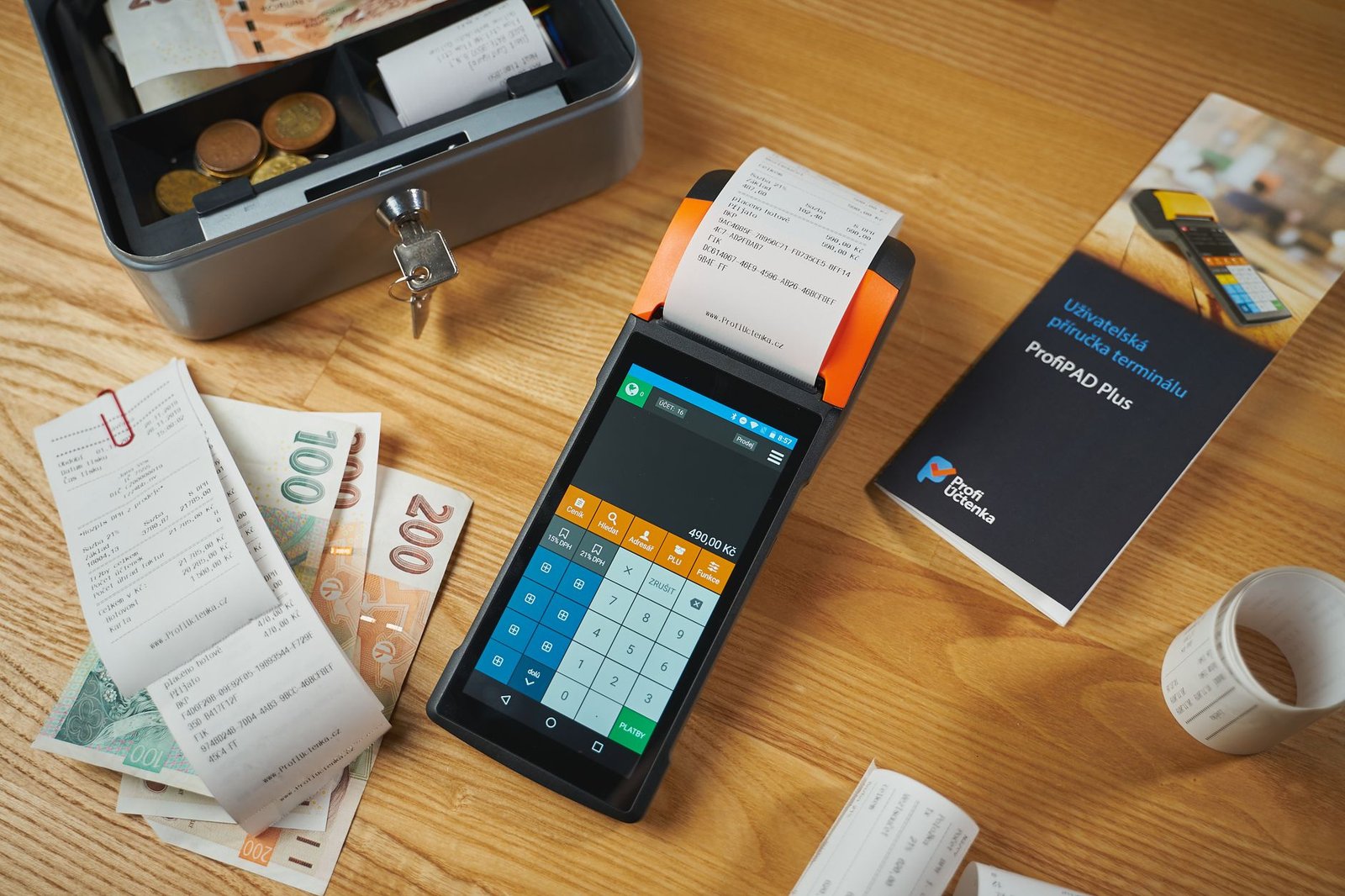
Managing business expenses and compiling monthly financial reports is a tedious administrative chore that frequently results in delayed submissions and misplaced receipts. Hack number five streamlines expense tracking by utilizing the device camera to capture receipt images, extract monetary amounts and merchant names via text parsing, and log the transaction data directly into a structured spreadsheet or Notion database.
Begin constructing this shortcut by adding the ‘Take Photo’ action with preview disabled, followed by ‘Extract Text from Image’. Use regular expression matching actions to isolate currency values and merchant strings from the raw OCR output. Pass these parsed variables directly into an API request action or a native URL scheme that appends a new row to your financial tracking ledger.
By turning your smartphone into an intelligent receipt scanner, you eliminate the shoebox receipt collection habit entirely. Expenses are logged at the exact moment of purchase, ensuring accurate financial records and effortless monthly reconciliations.
Refining Regex Patterns for Accurate Currency Extraction
Regular expressions provide the surgical precision required to extract exact dollar amounts from messy receipt layouts. Construct your regex query to search for standard currency symbols followed by numeric digits and decimal points, ensuring the script ignores irrelevant tax identification numbers or phone numbers printed on the receipt.
Testing your regex string against multiple receipt formats guarantees high parsing accuracy across different vendors and point-of-sale terminal outputs. Robust error handling ensures that if parsing fails, the raw image is saved to a review folder rather than crashing the shortcut execution.
Hack 6: Instant Meeting Link Generation and Calendar Launch
Jumping between virtual meeting platforms across Zoom, Microsoft Teams, and Google Meet introduces unnecessary friction when joining scheduled video conferences. Hack number six inspects your upcoming calendar appointment, extracts the embedded video conferencing URL regardless of the platform used, and launches the appropriate application or browser tab instantly with a single tap.
Set up this workflow by adding the ‘Get Upcoming Events’ action filtered for the next fifteen minutes. Extract the location and notes fields from the event object, and use matching scripts to detect specific URL domains like zoom.us or teams.microsoft.com. Route the detected URL into the ‘Open URL’ action to bypass browser navigation entirely.
This automation saves precious seconds before every meeting, eliminating the panicked search for conference links buried deep inside calendar descriptions. It ensures punctual attendance and maintains professional composure throughout your busy workday.
Handling Multiple Links and Ambiguous Calendar Entries
Occasionally, calendar invites contain multiple links or dial-in phone numbers alongside video room URLs. To prevent the script from launching incorrect endpoints, prioritize URL matching hierarchies that specifically target primary video meeting domains before fallback phone bridges.
If zero meeting links are detected within the event description, program the shortcut to trigger a notification prompting you to manually request the link from the meeting organizer. This proactive fallback prevents awkward delays when joining remote conference rooms.
Hack 7: End-of-Day Shutdown and Tomorrow Prep Routine
Concluding the workday with intention prevents professional burnout and sets the stage for a seamless morning start the following day. Hack number seven automates your evening shutdown sequence by clearing temporary desktop files, generating a next-day task preview, silencing work notifications, and playing a calming transition playlist. This ritual provides clear psychological closure, separating professional responsibilities from personal recovery time.
To construct this shutdown shortcut, combine system actions that clear your clipboard, empty transient cache directories, and summarize completed calendar milestones into an end-of-day report. Trigger a notification listing tomorrow’s first three high-priority appointments, switch your focus profile back to personal mode, and launch your preferred relaxation audio stream.
By codifying your evening transition, you eliminate work rumination during personal hours and wake up with absolute clarity on your upcoming priorities. This closing loop completes the weekly five-hour time savings cycle by safeguarding your restorative downtime.
Never store unencrypted API tokens, master passwords, or sensitive financial credentials inside plain text actions within shared Apple Shortcuts. Always utilize system-secured Keychain storage or secure environment variables for sensitive authentication parameters.
Auditing and Maintaining Your Shortcut Library
Over time, operating system updates and deprecated API endpoints can cause legacy shortcuts to fail unexpectedly. Establish a monthly maintenance audit to review your active automation scripts, test variable outputs, and remove redundant workflows. Keeping your automation ecosystem lean ensures reliable performance and prevents silent background errors.
Documenting your custom shortcuts with clear descriptive names and comment blocks makes future troubleshooting effortless. Treat your personal automation library with the same engineering rigor applied to professional software deployments.

Frequently Asked Questions
Do I need a paid developer account to build advanced Apple Shortcuts?
No, Apple Shortcuts is entirely free and comes pre-installed on all modern iOS, iPadOS, and watchOS devices. You do not require a paid Apple Developer Program membership to create, run, or share custom personal automation scripts. Advanced integrations utilizing third-party web APIs or personal server webhooks also operate without developer fees, making native automation accessible to all users regardless of budget.
Can Apple Shortcuts run automatically without requiring my manual confirmation?
Many personal automations run entirely in the background without requiring user confirmation, including time-based triggers, app launch triggers, and location-based geofence events. However, certain security-sensitive actions—such as sending text messages, deleting files, or interacting with banking applications—may prompt for a one-tap confirmation depending on your system security settings and iOS version.
How can I sync my custom shortcuts across multiple Apple devices?
Apple Shortcuts automatically synchronizes across all devices signed into your primary iCloud account. When you create or modify a script on your Mac, it populates instantly within your iPhone and iPad shortcut libraries. Ensure that iCloud synchronization is enabled specifically for the Shortcuts application within your system settings to maintain seamless cross-device parity.
What is the best way to troubleshoot a shortcut that fails mid-execution?
When debugging a malfunctioning shortcut, utilize the built-in step-by-step execution viewer by running the script directly from the editor interface. You can insert ‘Show Result’ or ‘Quick Look’ action blocks between complex variable steps to inspect data payloads and verify that dictionaries or text strings are formatting correctly before passing them to downstream actions.
Can I share my custom automation workflows with team members or friends?
Yes, Apple Shortcuts allows you to generate secure iCloud sharing links for any custom workflow in your library. When recipients open the link, they can inspect the script architecture to verify its safety before importing it into their own devices. This makes sharing standardized team workflows and productivity routines simple and secure.